
Device wall & groups
The device wall is VMOS Cast's main screen: the live view of every connected device lives here.
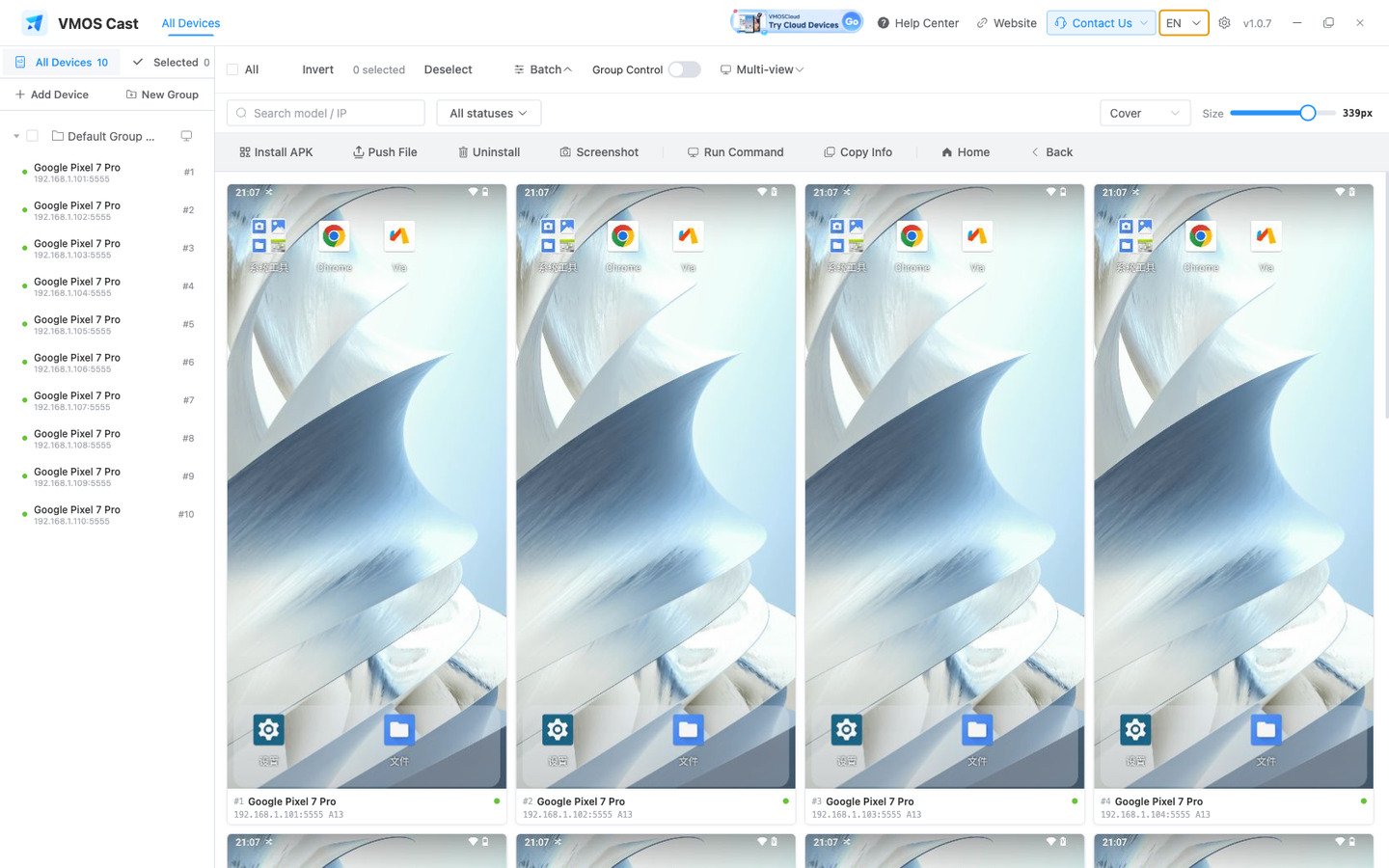
Basic operations
| What you want to do | How |
|---|---|
| Control one device alone | Click the card's screen area to open a standalone control window |
| Select/deselect a device | Click the area outside the screen on the card (title, edges) |
| Select all visible devices | "Select all" in the toolbar |
| Invert visible devices | "Invert" in the toolbar |
| Resize cards | The Size slider on the right of the top status row |
| Search devices | The search box at the top, filter by model or IP |
| Filter by status | The Status dropdown at the top: Online, Connecting, Screen off, Not castable, Failed, Offline — each with a live count |
| Change how screens fit | The Scale dropdown at the top: Cover, Contain, or Fit Width |
| Rename, view details, restart / power off | Right-click a card |
| Remove selected devices | Expand "Batch" and click "Remove selected" |
Selected devices get a blue highlighted border, and the top status row shows "N selected."
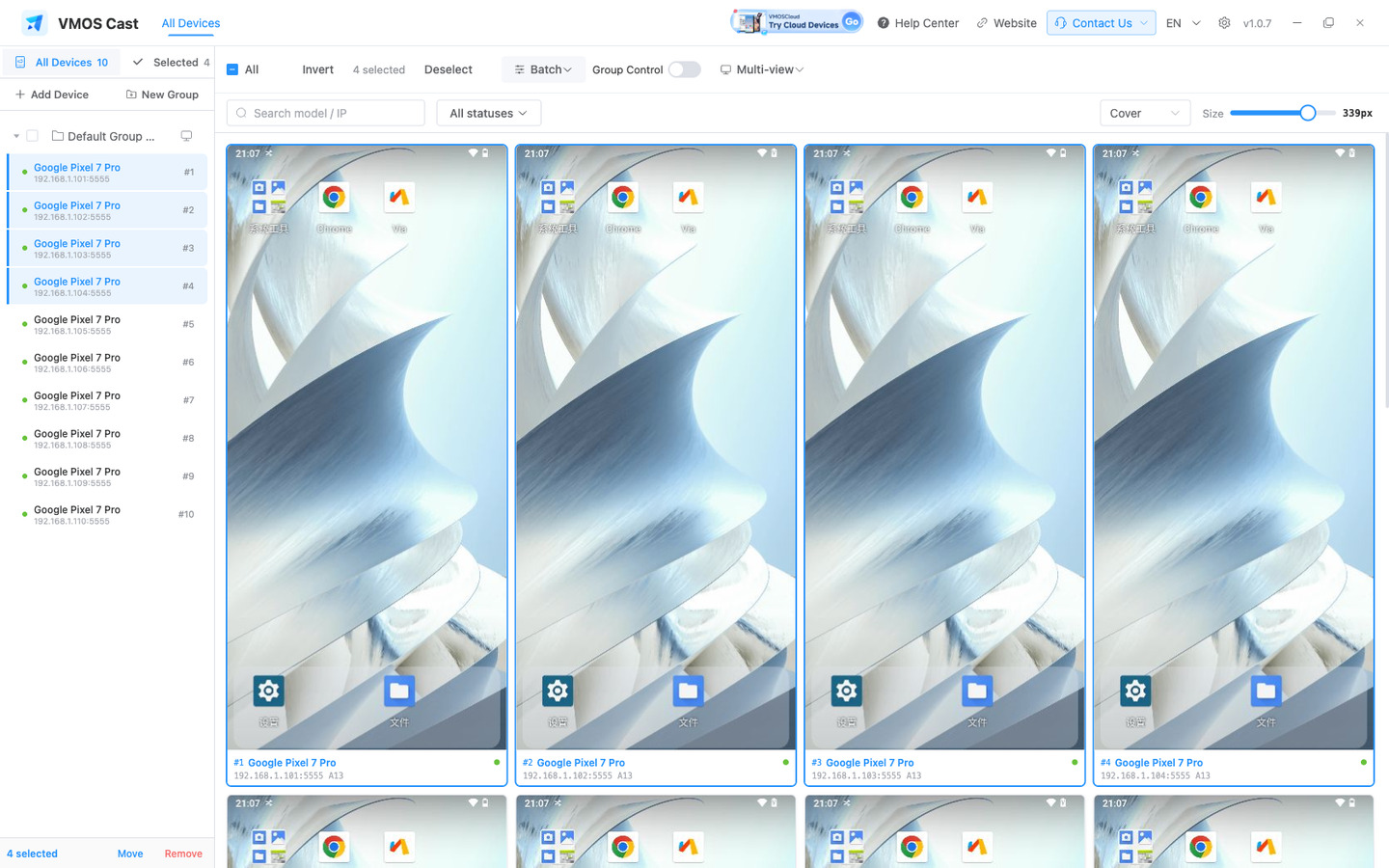
The top toolbar follows the selected state. Batch operations live on the left, while the slider on the right controls card size and column count:
Group management
Once you have a lot of devices, manage them with groups — for example "Test units," "Streaming accounts," or "Zone A":
- First select several devices on the wall;
- Click "New group" in the sidebar and enter a name — the currently selected devices go into that group;
- Click a group name in the sidebar to view only that group's devices; "All" returns to the full view;
- Expand "Batch" and use "Move to Group" to move selected devices into an existing group;
- The count next to a group shows its device count in real time; delete a group when you no longer need it (this doesn't affect the devices themselves).
TIP
Switching groups only "filters the display" — it doesn't disconnect the other devices, so their screens are visible again the moment you switch back.
Dark mode
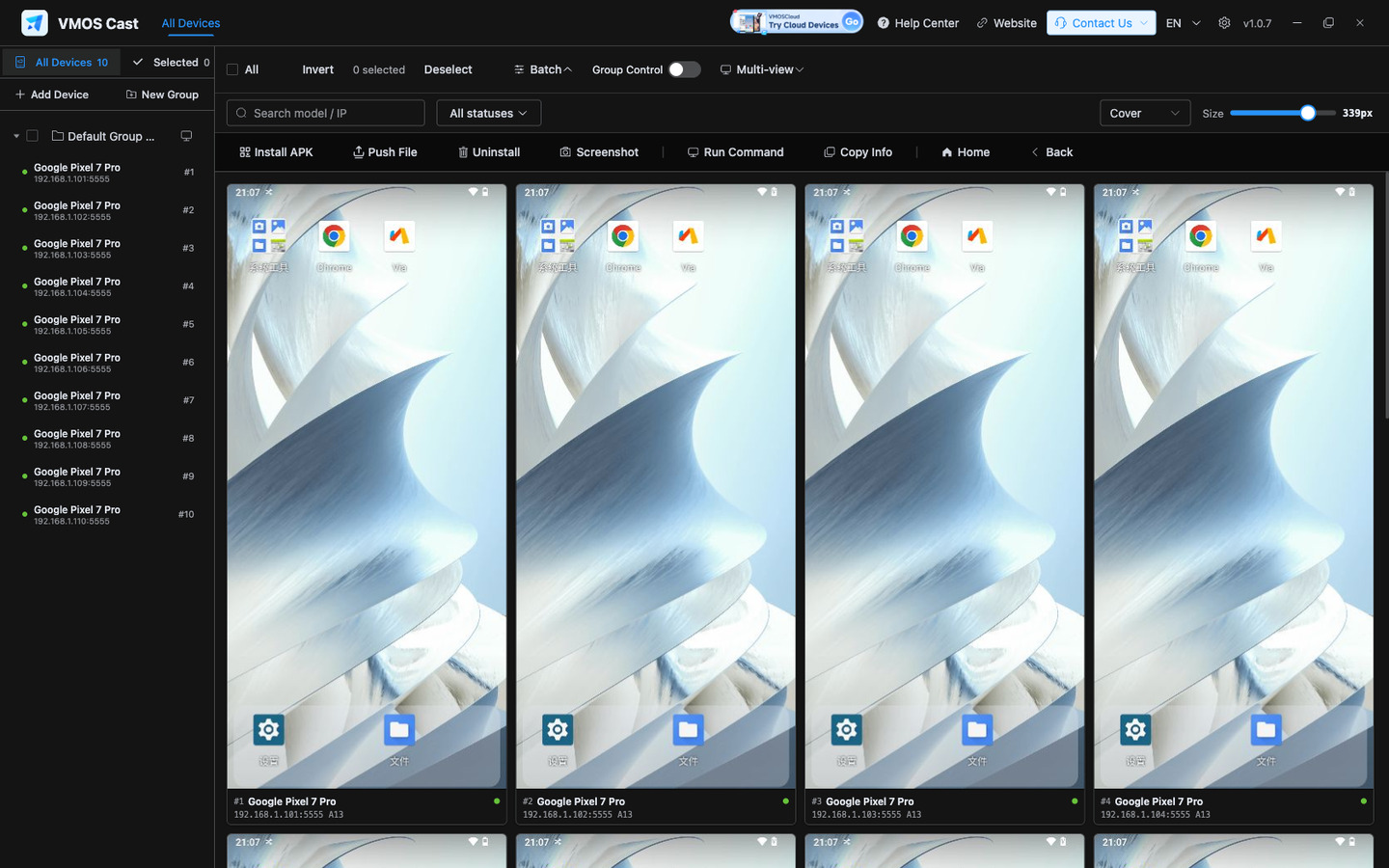
Pick light, dark, or follow system under Settings → Theme mode. Dark mode is easier on the eyes during long viewing sessions:
Status indicators
- The dot at the bottom of the sidebar: green = the casting service is fine; red = the service has a problem (it recovers automatically; if it stays red for a long time, restart the client);
- The platform icon in front of a device name tells Android devices apart from iPhones;
- Card states: Connecting (the screen channel is being established), Failed, Connection timed out (no picture after repeated retries — reopen the device), Screen is off, Restricted by system security, and Device offline.
Large-screen tips
- When there are many devices, narrow the view with groups before selecting all and running batch operations;
- When one device needs attention, open its control window instead of enlarging the wall cards;
- For long monitoring sessions, dark mode is easier on the eyes; switch back to light mode when capturing screenshots for support;
- To watch and drive a whole group inside one window, use Multi-view in the top toolbar.