
Step 2: Connect Your First Device
Quality and device compatibility
The display’s right-side Quality panel includes size alignment. Keep Auto normally; try 8 or 16 px for device-specific picture issues. Only this display is changed. Actual dimensions follow encoder constraints and may be slightly below the selected limit. Failed changes attempt to restore the previous configuration. Lower quality reduces transmission and decoding load but cannot guarantee removal of all latency.
iOS USB connection
After selecting Install / repair Apple device support on Windows, the page shows component checking, actual download percentage, file and signature verification, and the waiting-for-installer stage. The pre-install Apple service check does not depend on capture-driver checks. Complete the Windows administrator prompt and Apple licence wizard; use the taskbar if the wizard is hidden. Retry a failed download, or select Download the official Apple component manually to download the same official MSI, run it, then return and select Detect again. A completed download does not mean installation succeeded.
If Apple device support is missing or its service is stopped, complete that installation or repair first; the page does not wait for a full device and capture-driver scan beforehand. Once the Apple service is ready, the client checks the connected device's capture driver. If prompted, select Install capture driver for this device and approve the administrator request.
USB and wireless mirroring are independent. After selecting USB in this panel, switching to Android and back to iPhone / iPad does not start the wireless receiver; selecting Wireless enables that channel. Switching guide pages does not automatically stop a wireless receiver that is already enabled.
macOS uses built-in Apple USB support and does not require the Windows Apple device support package or capture driver. The client must bundle its USB capture and control helpers; users do not need to install Python. If a helper is missing, reinstall the complete client rather than following the Windows driver steps.
Windows prerequisite checks cover the capture driver service, file integrity and signature, Apple parent driver and device filter. Ready does not replace actual video validation. Unplugging during connection reports a disconnected device; stopping intentionally does not report connection failure. Re-enabling control waits for the previous control process to release its resources before opening a new channel.
The USB page is under Add device → iPhone / iPad → USB. Connect a data cable, trust the computer on the phone, then select the device to start mirroring. Open its device card after video arrives. USB control is separate from wireless Bluetooth control and uses the existing focus-window toolbar.
The Windows USB connection steps include a separate reminder: After installing or reinstalling the components, if you have tapped Trust but no device appears below, unplug and reconnect the USB cable, then select “Detect again”. First follow the standard instructions to unlock the phone and trust the computer. If the device already appears in the list below, there is no need to reconnect the cable.
macOS USB taps, drags, and computer keyboard input have been verified on the connected phone, not across all devices. English keys, Shift, Backspace, and Enter are supported; use the phone input method for Chinese. An OS upgrade is not a prerequisite for this verification.
The Windows USB page provides installation actions for Apple device support and the connected device's capture driver. Administrator approval and user acceptance of Apple's license are required; there is no need to disable system security. Enabling control checks Developer Mode and developer support components and attempts to prepare missing components. Mirroring and control use USB without automatic Wi-Fi or Bluetooth fallback. Control availability depends on the phone's operating system and device checks; viewing remains available when control is unsupported.
If the Windows capture driver is installed but USB video is missing after reopening, use Repair USB connection on the USB page. Stop USB mirroring first and accept the administrator prompt. This reconnects only the selected iPhone, without restarting the shared Apple service or replacing drivers. If recovery still fails, reconnect the cable and unlock the phone.
Clicking an idle USB card immediately shows Connecting. Repeated clicks during connection do not start additional requests; identical errors are grouped, and you can retry after the connection attempt finishes. When the device is detected as disconnected or mirroring is stopped, the current connection wait ends without waiting for the first-frame timeout; reconnect the device to retry.
Connection and control essentials
- Android supports USB and LAN connections from multiple clients. Avoid simultaneous dragging. Confirm the wireless picture is live before unplugging USB. Performance depends on the network and devices.
- Multi-view and group control include available Android devices only. iPhone / iPad retain independent mirroring and device management, without multi-view or group control.
- Windows and macOS support direct iPhone control over compatible Bluetooth hardware. Follow the illustrated guide to enable Accessibility › Zoom, restore normal picture size, then verify a tap. Linux does not support iOS control. This is not USB control.
Plugin page and custom packages
Plugins beside All devices opens a full page, not a catalog dialog. Search plugins, manage built-in WeChat enhancement, or drop a local .zip / .vmosplugin package. New packages start disabled; review permissions before enabling. Enable, disable and uninstall synchronize to open displays without interrupting mirroring.
The plugin center separates Browse plugins, User plugins and Developer docs. Details show permissions and compatibility; WeChat settings and phrases remain built-in. Searchable offline documentation covers the integration model, manifest, device/app hooks, toolbar, panels, permissions/actions, lifecycle, errors and acceptance. Three installable examples demonstrate app notes, app-specific tools and text filling. Current hooks are declarative, not executable scripts; foreground app detection and text filling are Android-only and never send automatically. Online distribution, auto-updates and persistent plugin storage are unavailable. See Custom plugin development. Plugin cards offer details and enable/disable controls; only user-installed plugins can be uninstalled. Plugins currently support Android devices only. The client interface and built-in plugins follow the language setting; user-installed plugin content is displayed as supplied by its author, without automatic translation.
WeChat quick replies
Enable WeChat enhancement and manage phrases under Plugins; no separate installation is needed. Quick replies appear on the right of a controllable Android display while WeChat is foreground. The panel expands beside the picture rather than covering it.
- Create, edit, delete, copy, import and export phrases, or search by title. Phrases contain a title and text, without groups or favorites.
- In an independent display window, Fill replaces all input with the selected phrase without sending; Send replaces all input and then sends that phrase. Any existing draft is replaced, not combined with the phrase. Multi-view still inserts at the current cursor and does not support quick sending.
- Select Enter or Ctrl/Cmd+Enter to send the current input without replacing it or inserting a phrase. The default retains normal key behavior. Shift+Enter inserts a newline and IME confirmation does not send.
- Do not switch chats during an operation. Recognition uses the chat title and input controls, supporting light and dark portrait chats. An unconfirmed chat or Send button prevents sending, with no automatic resend. Landscape, split-screen, repackaged or cloned apps and non-Chinese WeChat interfaces are not fully verified; compatibility with every third-party theme is not guaranteed.
- First opening shows preparation progress. Empty Enter, missing Send and page changes end silently. A completed replacement without a Send click does not show an unknown-outcome warning; check the WeChat input. Normal sending has no result toast; check WeChat for the outcome. Unknown text-write or send-control results and connection errors still show a notification; check before clicking again. Phrases stay on this computer; exports contain message text and should be kept private.
The three device types take three different connection paths. Identify your device type first, then read only that section.
An Android phone connected over USB and LAN has two cards. Both can open a controllable focus window, with shared screen power state. Batch actions run once when both connections are identified as the same physical device.
- A cable that carries data
- USB debugging enabled
- One tap on "Allow"
- The device IP address
- Same network as the computer
- Port is usually 5555
- Windows / macOS / Linux
- Same Wi-Fi as the computer
- Control on Windows / macOS
All three paths start from "Add Device" in the sidebar: Android and iPhone / iPad are separate tabs, and under Android you pick a connection method — the matching phone-side steps appear below it.
A. Android phone — USB connection
An Android phone can only join this way the first time.
- Unlock developer options: on the phone, Settings → About phone → tap Build number seven times.
- Turn on USB debugging: back in Settings, open Developer options and enable "USB debugging".
Each vendor adds its own switches — one missing and it will not connect
Xiaomi / Redmi: USB debugging (Security settings), Allow ADB debugging in charging-only mode · Huawei / Honor: the same charging-only switch · vivo: USB simulated click. Full table: Enabling USB debugging (by brand).
- Plug in: use a data cable · charge-only cables carry no data. If nothing happens, change the cable first. After plugging in, pull down the notification shade · set USB mode to File transfer. On "Charging only" the computer cannot see the phone.
- Authorize on the phone: "Allow USB debugging?" → check "Always allow from this computer" → tap Allow.
- Wait: the device appears on the wall by itself. Nothing to add manually.
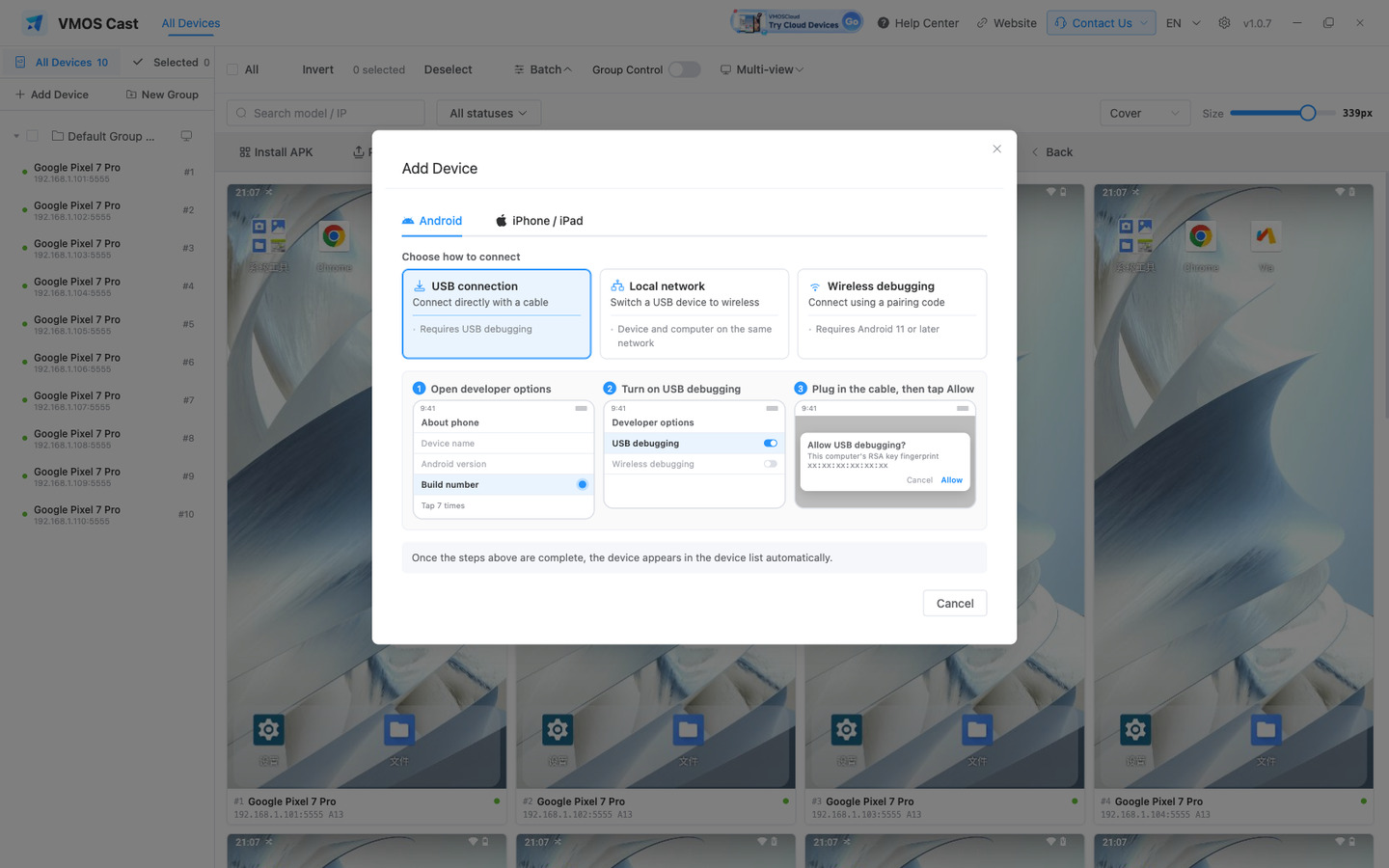
Switch to a wireless connection
Once the device is connected over USB, right-click its card → "Add LAN connection". You can then unplug the cable and keep using the device on the same network.
B. Android cloud phone — local network
- Make sure the device and the computer are on the same local network.
- Sidebar → "Add Device" → Android → "Local network".
- Type addresses in the box, one per line, and click Add beside it to queue them. A bare IP is treated as port 5555:
192.168.1.112:5555
192.168.1.113:5555- Click Add at the bottom right. The screens appear on the wall — pick the target group at the bottom left first if you want them grouped.
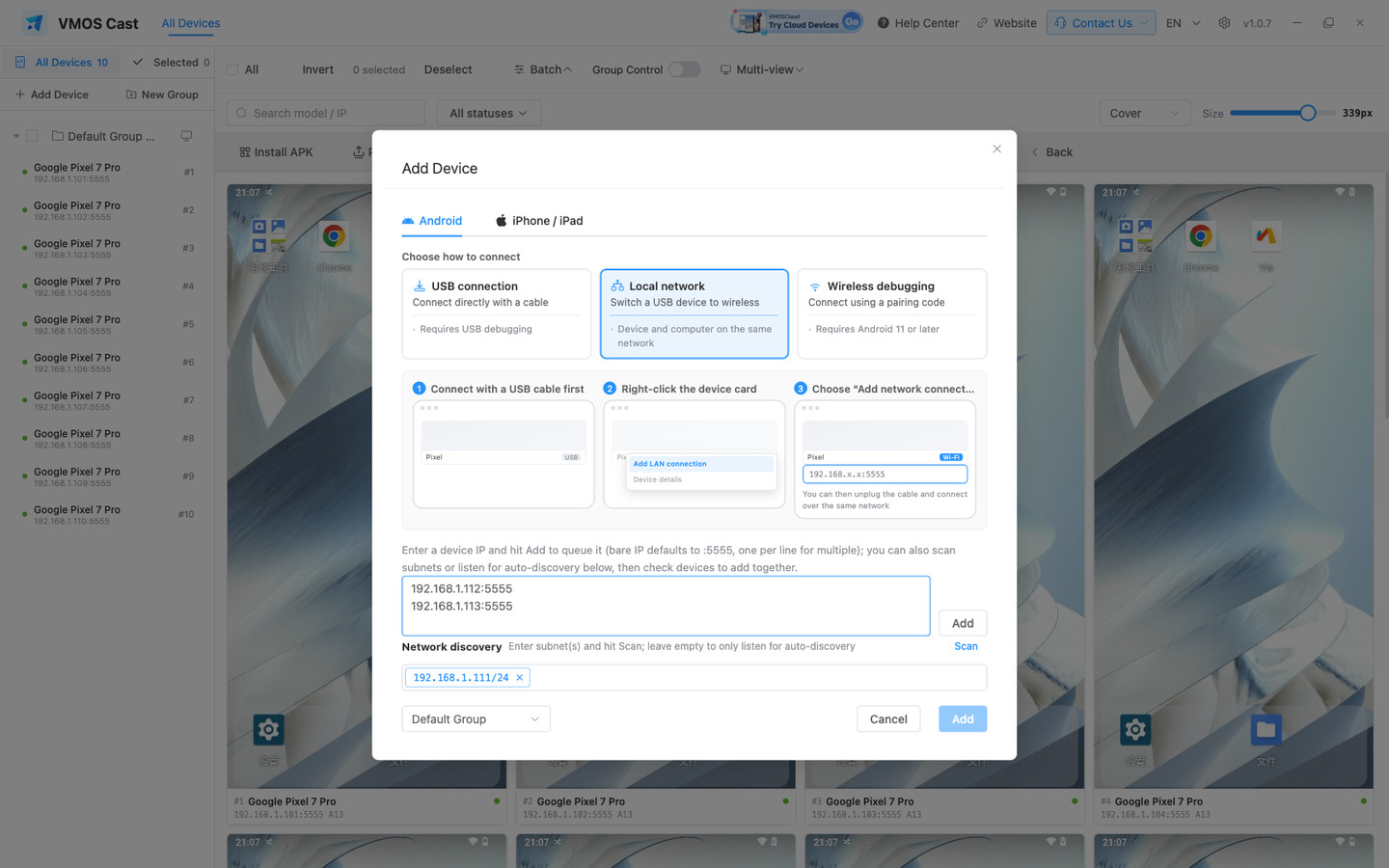
If you do not know the address, use Network discovery below: enter a subnet and click Scan (leave it empty to only listen for auto-discovery), then tick the devices found:
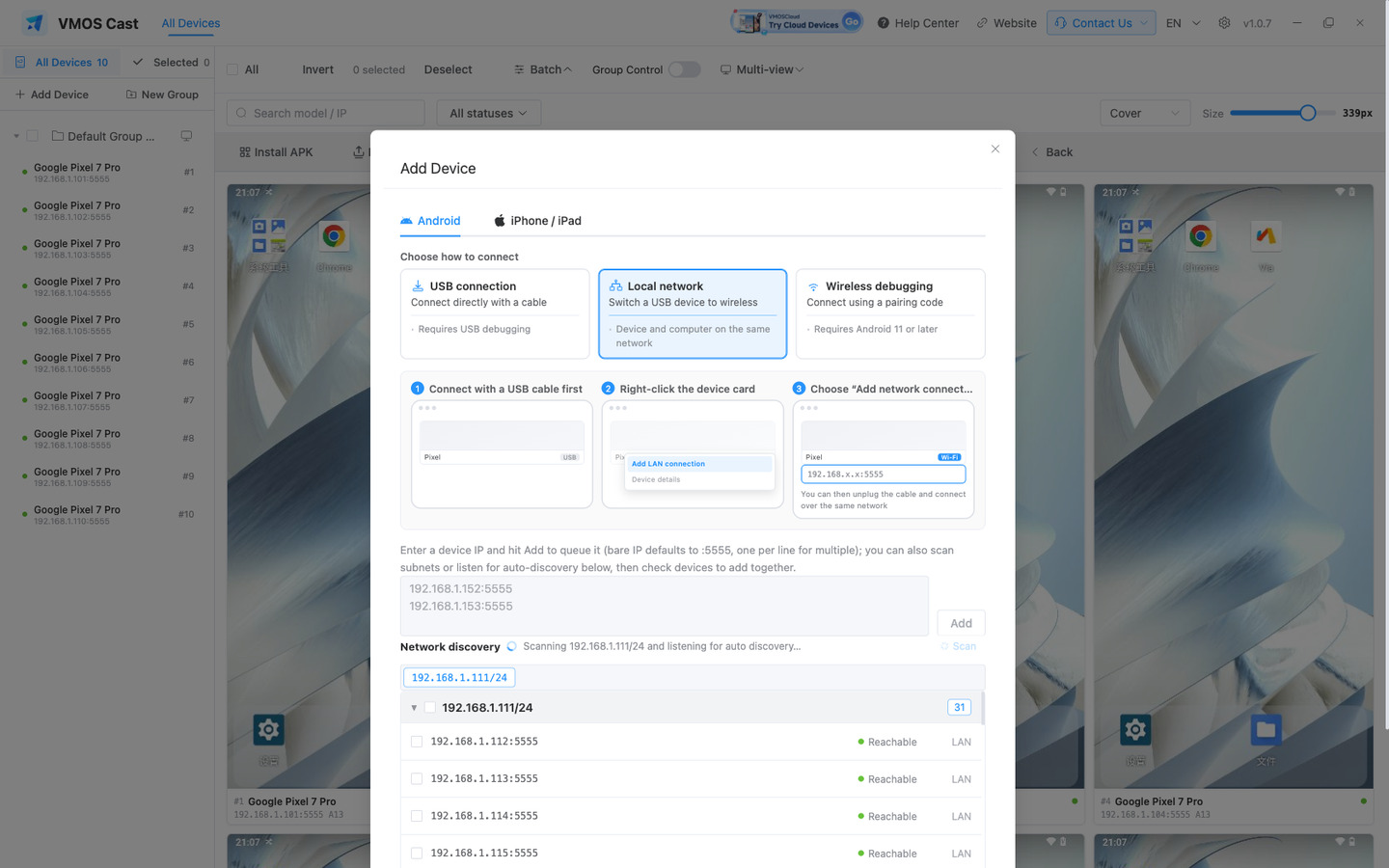
An Android phone will not connect by IP
Android phones do not accept network connections by default. Connect once over a data cable as in path A, then right-click the device card → "Add LAN connection" to switch it to wireless.
Addresses you connect to are saved and reconnected automatically on the next launch — no need to add them again.
C. iPhone / iPad — Screen Mirroring
If the phone is smooth but the mirrored picture lags, see iPhone troubleshooting. Changing pointer speed does not fix delayed video.
Where iOS control is supported, focus windows and multi-view tiles share the iOS pointer-speed setting. Compare actual pointer movement on the phone before deciding whether speed or delayed video is the problem.
iPhone / iPad support independent mirroring and management, without multi-view, Android group control or batch commands. Viewing does not require Bluetooth. On Windows and macOS, choose Enable control in the independent display and follow the illustrated pairing guide; Linux is view-only. Losing Bluetooth leaves mirroring running. Closing the display preserves wall thumbnails. Inactive records can still be selected, renamed, moved or removed. Configure Auto-Lock on the phone.
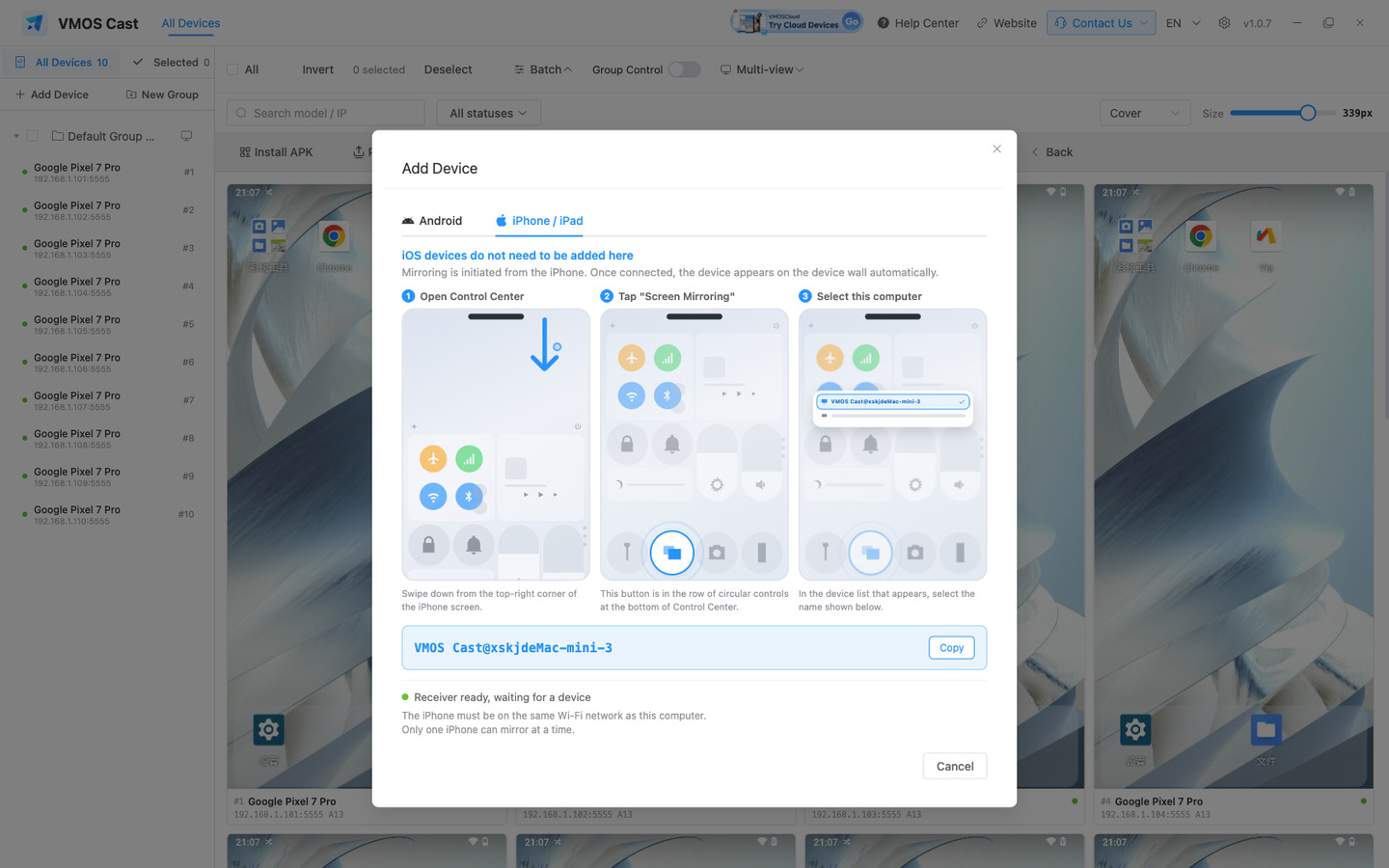
Mirroring is started from the iPhone, not added on the computer. No app is installed on the phone.
- On the computer, open "Add Device" → the "iPhone / iPad" tab and note the computer name in the box (there is a Copy button).
- On the iPhone, swipe down from the top-right corner to open Control Center.
- Tap "Screen Mirroring" — in the row of circular controls at the bottom.
- Pick the name from step 1 in the device list.
- The screen appears on the device wall.
| Fact | Detail |
|---|---|
| Platforms | Windows, macOS and Linux |
| Count | One iPhone can mirror at a time |
| Control | Windows / macOS · pair over Bluetooth first · click "Control" beside the screen · pairing steps |
| Network | The iPhone must be on the same Wi-Fi as this computer |
The iPhone does not list your computer
Check that both are on the same Wi-Fi, then look at the receiver status on this page. If it is not "Receiver ready", click Retry.
Cable-free setup: wireless debugging (Android 11 and later)
Android phones on version 11 or later can join with a pairing code instead of a cable:
- On the phone, Settings → About phone → tap Build number seven times to unlock developer options.
- Developer options → Wireless debugging → turn it on.
- Tap "Pair device with pairing code" on the phone. It shows a six-digit code plus an IP address and port.
- On the computer, "Add Device" → Android → "Wireless debugging", fill in that address and code, then click Pair.
- It connects right after pairing, and reconnects on its own after a phone reboot.
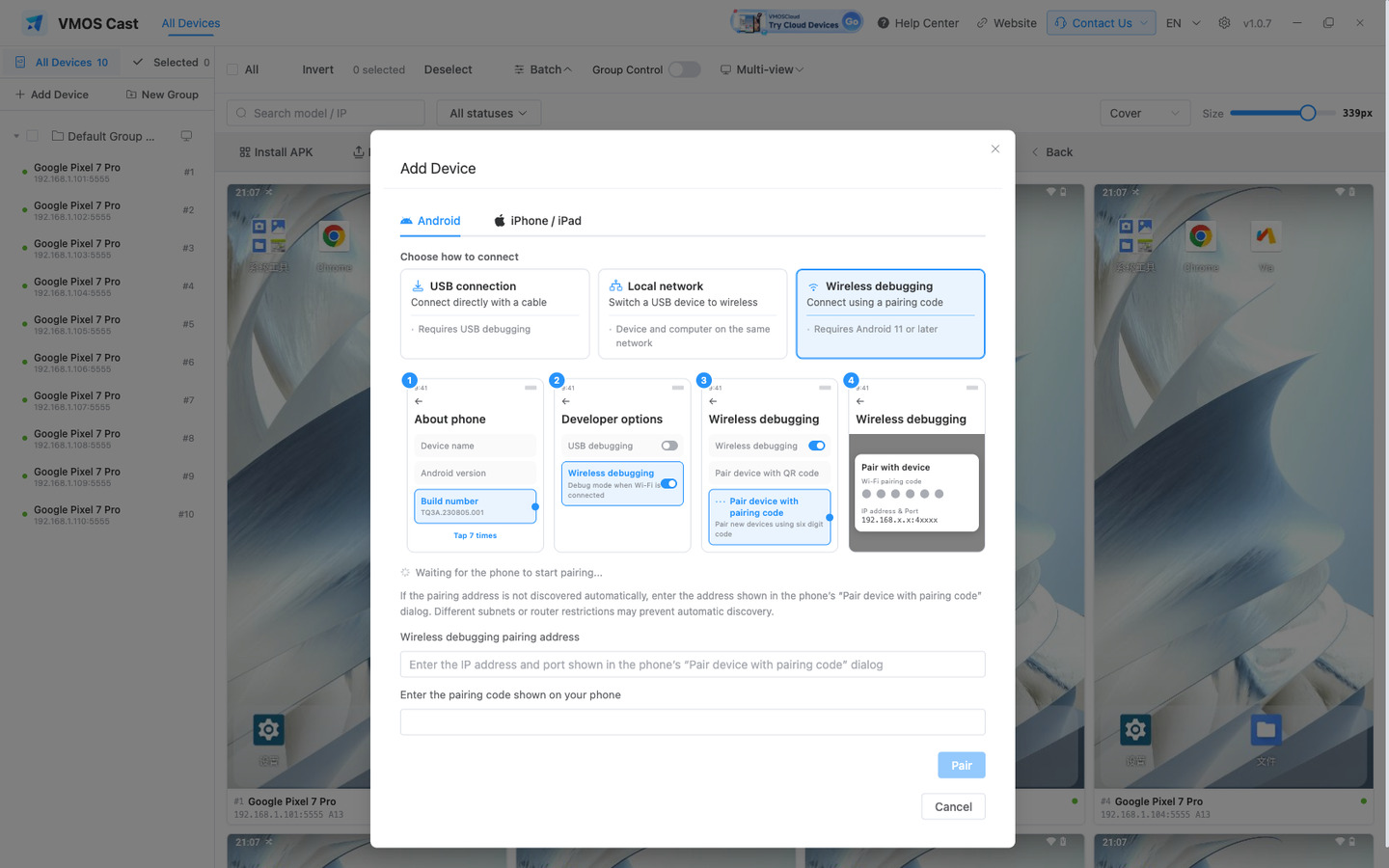
The pairing address is usually filled in for you
The app discovers it automatically. Discovery can fail across subnets or on restricted routers — in that case enter the address shown on the phone in step 3.
Next: Your first three moves