
Troubleshooting a connection
Follow this page when the cable is plugged in but no device appears on the device wall. The latest version marks on the device wall exactly where it stops, so most cases are identified by step 3.
For a first-time setup, see USB cable connection. For the switches each brand adds, see Enabling USB debugging (by brand).
Step 1: update to the latest version
Do not skip
On older versions the device wall is blank here, which does not distinguish where it stops.
Download from Release history and pick the build for your system (Windows / macOS / Linux). You can also update in the app: gear icon (Settings) → Check for updates in the top-right corner.
The version number sits to the left of the gear icon; it is up to date when it matches the newest entry in Release history.
 1
11 The current version, left of the gear icon
Step 2: phone-side settings
Path: Settings → System & updates → Developer options. The screenshots show Huawei / HONOR; other brands place it elsewhere but use the same switches — see Switches by brand.
- Turn on USB debugging;
- Turn on Always prompt when connecting USB;
- After plugging in, the phone shows USB connection mode — choose File transfer.
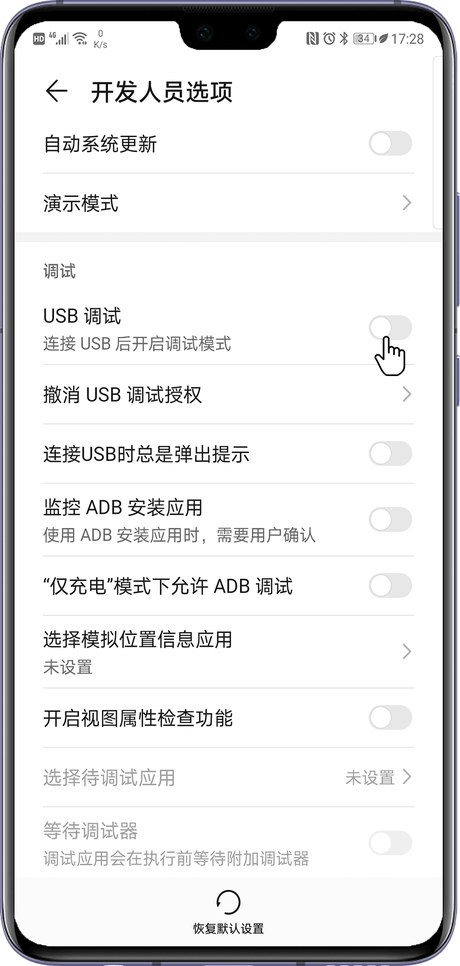 12
12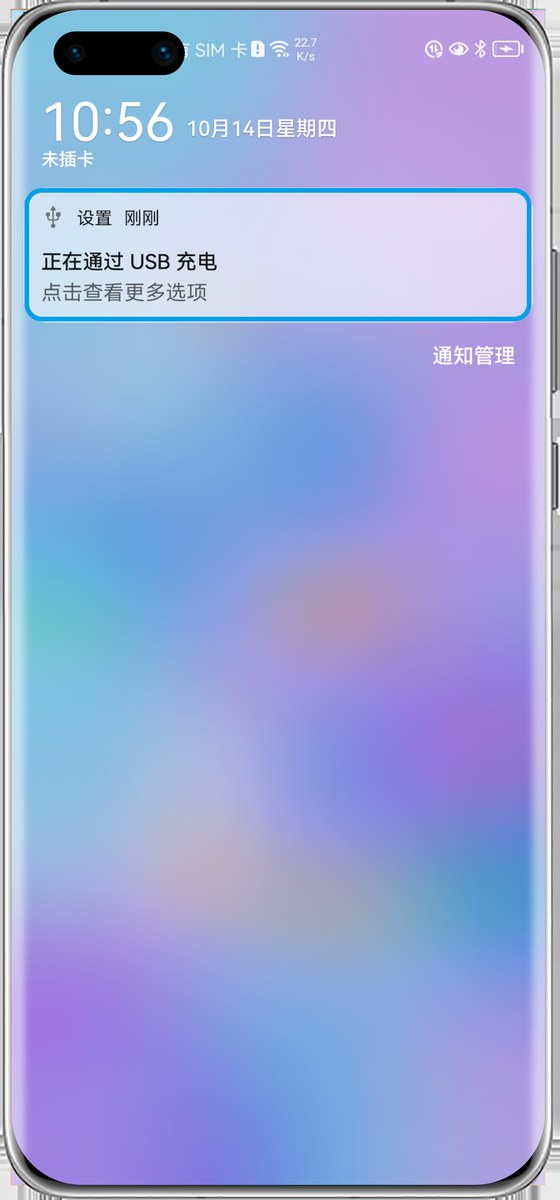
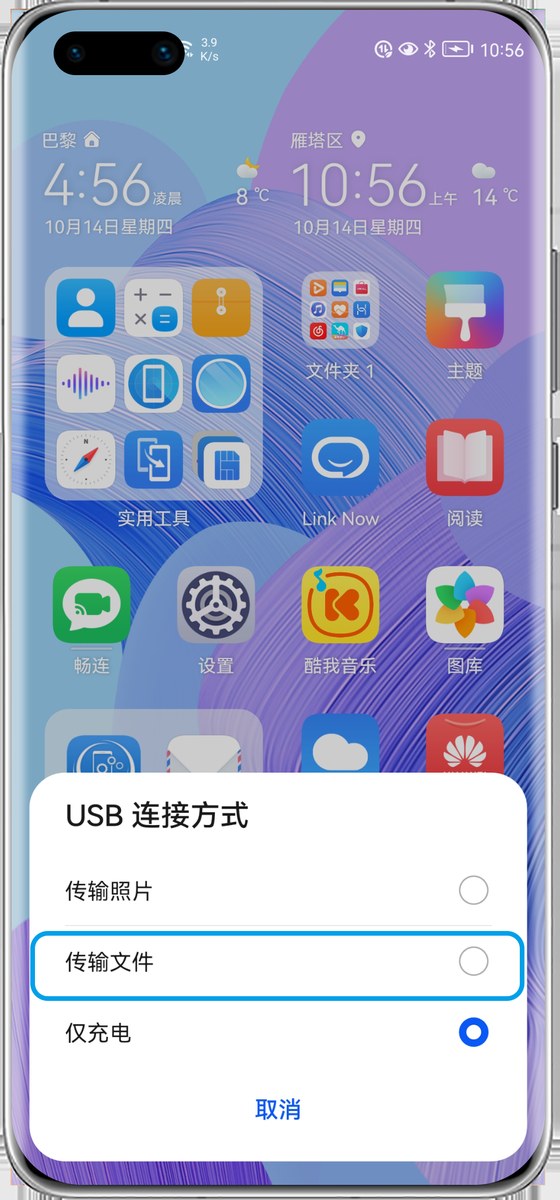
On "Charging only" the computer cannot see the phone
"Deny" was tapped before
Tap Revoke USB debugging authorizations once in Developer options, then unplug and replug — that is the only way the prompt reappears.
Developer options not visible
Settings → About phone → tap Build number seven times. For each brand's path, see Enabling USB debugging (by brand).
Step 3: check the device wall
What the device wall shows determines the next step:
| Device wall | Meaning | Next |
|---|---|---|
| Orange "Device not authorized" | The computer detected the device; it is waiting for authorization on the phone | Device not authorized |
| The device screen | Connected | Ready to cast — see Device wall & groups |
| No device | The computer did not detect the device | Step 4 |
For the other states (offline, connection failed, system security restriction and so on), see the device state reference.
Device not authorized
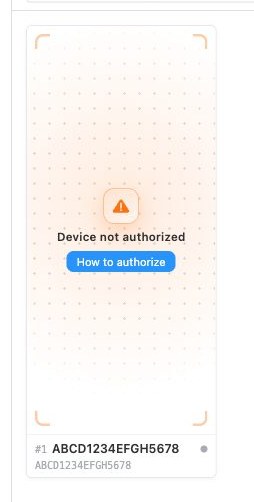 1
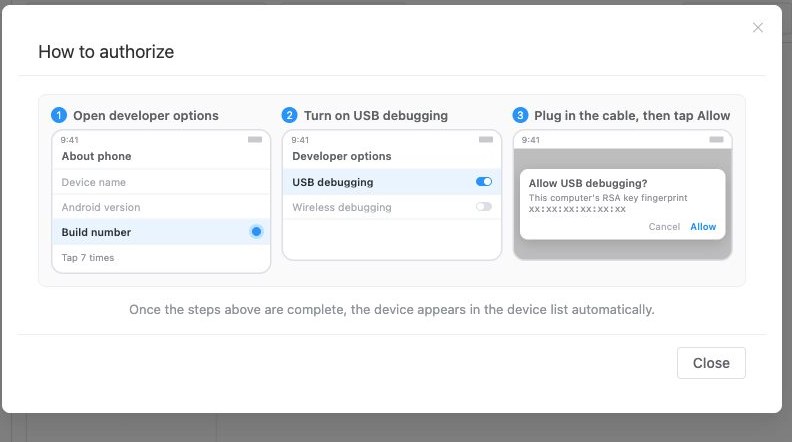
1Click 1How to authorize on the card
The dialog gives three steps; step 3 is the prompt that follows on the phone:
 1
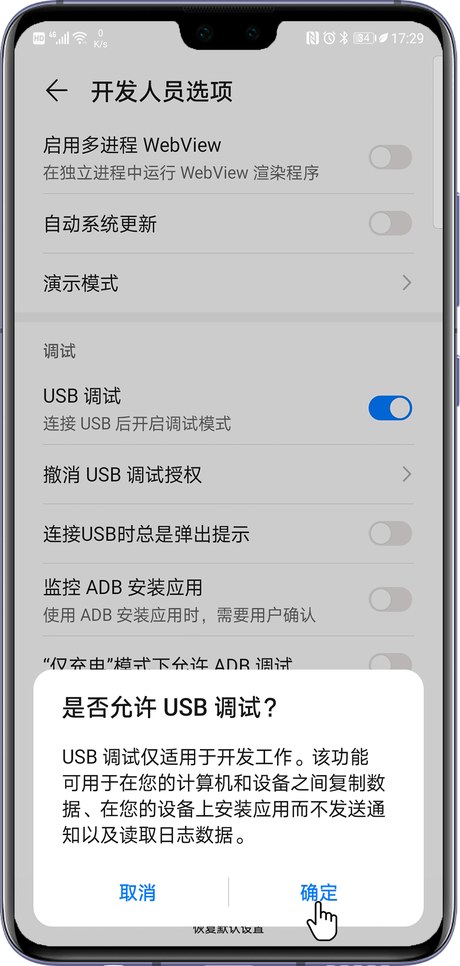
1The phone shows "Allow USB debugging?" — tap OK / Allow, and tick "Always allow" when the option is present.
 1
1The card turns into the device screen by itself; no need to unplug and replug.
No prompt on the phone
Go back to step 2, tap "Revoke USB debugging authorizations" once, then unplug and replug. The prompt only appears while the screen is on, so unlock the phone first.
Step 4: no device on the wall
Unplug and replug the cable
Leave the app running:
- Unplug the cable and wait two or three seconds;
- Use a different USB port (on a desktop, prefer the ports on the back — front-panel ports may supply too little power);
- Check the phone screen after plugging in; tap OK / Allow if "Allow USB debugging?" appears.
Before replugging, tap Revoke USB debugging authorizations once in Developer options so the prompt reappears.
Install the brand's desktop assistant
Detecting the device requires the driver for that phone model. Device Manager tells you whether it is missing: Win + X → Device Manager.
| Device Manager | Meaning |
|---|---|
| An entry with a yellow exclamation mark under "Other devices" (named ADB, Android, or an unknown device) | The driver for this model is missing |
| Only the phone under "Portable Devices", no exclamation mark | Not a driver issue — return to step 2 and verify the switches |
Installing the brand's official desktop assistant installs the driver automatically:
- Huawei — HiSuite: https://consumer.huawei.com/cn/support/hisuite/
- HONOR — HonorSuite: https://www.honor.com/cn/tech/honor-suite/
- Other brands — search the brand's own site for "phone assistant" or "USB driver"
After installing, unplug and replug the cable and check the device wall again.
Still not connecting: three items to provide
When all of the above have been done and no device appears, provide these three. For how to submit them, see How to report a problem.
Keep the cable plugged in and the app running while capturing
All three need to reflect the current plugged-in state.
1. A screen recording of the app — start recording as you plug the cable in and keep going until the device wall is still empty; do not cut anything out.
2. A screenshot of the phone — the screen from step 2 (Developer options), showing the state of USB debugging and Always prompt when connecting USB.
3. Exported logs — gear icon (Settings) → About in the top-right corner:
 1
1Settings → About → 1Export logs
Logs from the latest version record whether the computer detected the device at all. In older versions "no device plugged in" and "plugged in but not detected" produced the same entry and could not be told apart.