
How to report a problem
Provide the information using the template below so the problem can be pinpointed in one pass.
Report template (copy and fill in)
[Device type] Android physical phone / Android cloud phone / iPhone or iPad (required)
[If physical] USB debugging enabled? (yes/no)  Already connected successfully over USB? (yes/no)
[If iPhone] Computer OS?  On the same Wi-Fi as the computer? (yes/no)
[Computer OS] e.g. Windows 11 / macOS 15
[Problem description] What you did → what you expected → what actually happened
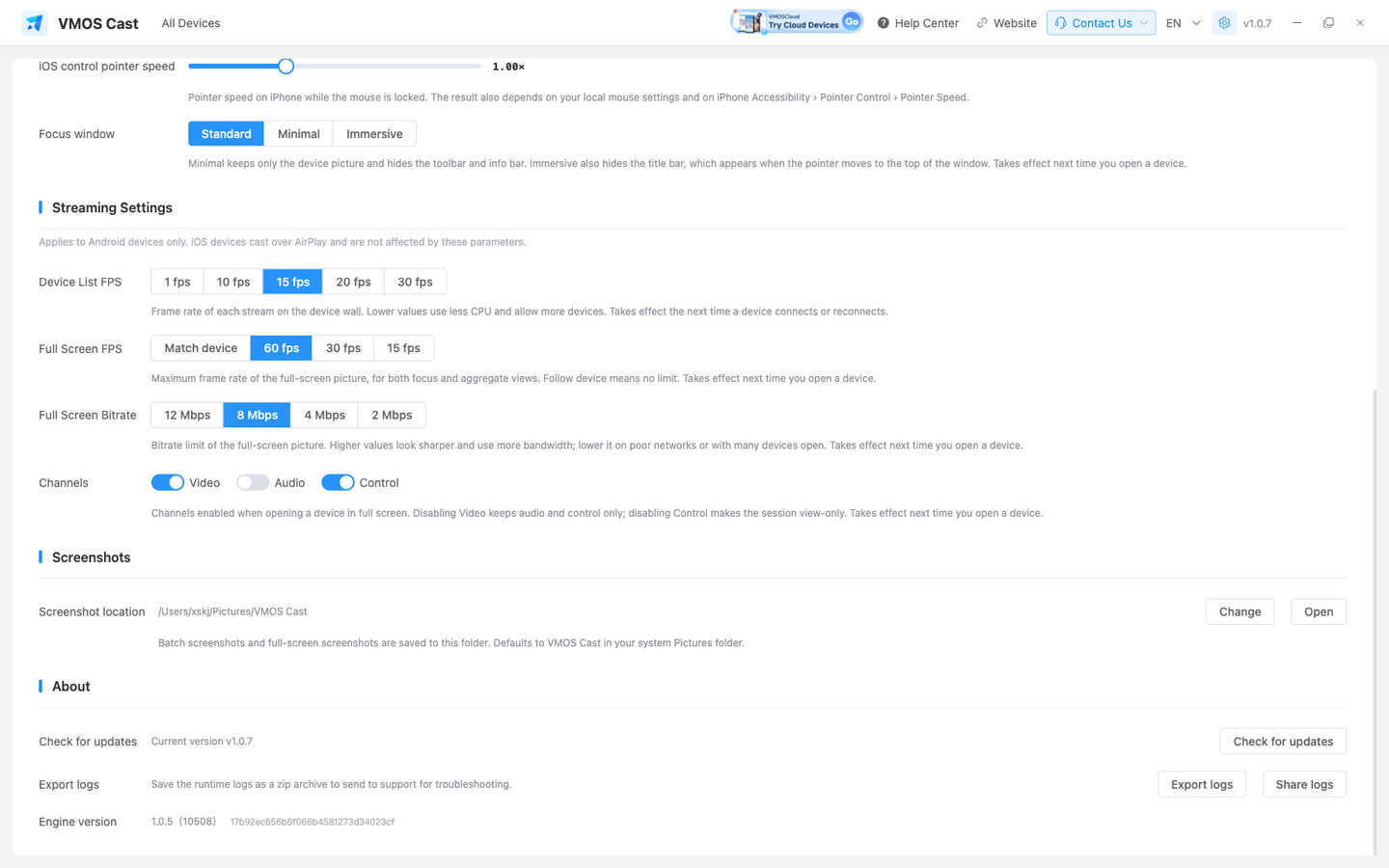
[Log file | Required] Settings → Export logs, attach the exported zip file
[Screenshot or recording] A screenshot of the problem screen; a recording is even better
Always export logs
The log file is the most important evidence for troubleshooting. Open Settings in the top-right corner, scroll to Diagnostics, click Log files, and send the exported zip file with your report.
Why does the device type matter?
The three device types connect differently, so troubleshooting goes in different directions:
- Android physical phone — common causes: USB debugging not enabled, "Allow" not tapped, wireless connection never enabled over USB, or a cable that does not support data transfer;
- Android cloud phone — common causes: wrong IP, unreachable network, or port 5555 not open on the platform;
- iPhone / iPad — common causes: not on the same Wi-Fi as the computer, the receiver is not ready, or control was expected without completing the Bluetooth pairing (control is macOS only).
State the type up front and we can go straight to targeted steps.
What should I screenshot?
- Device cannot connect: capture the sidebar, connection entry, and error message;
- Screen issue: capture that device card on the device wall;
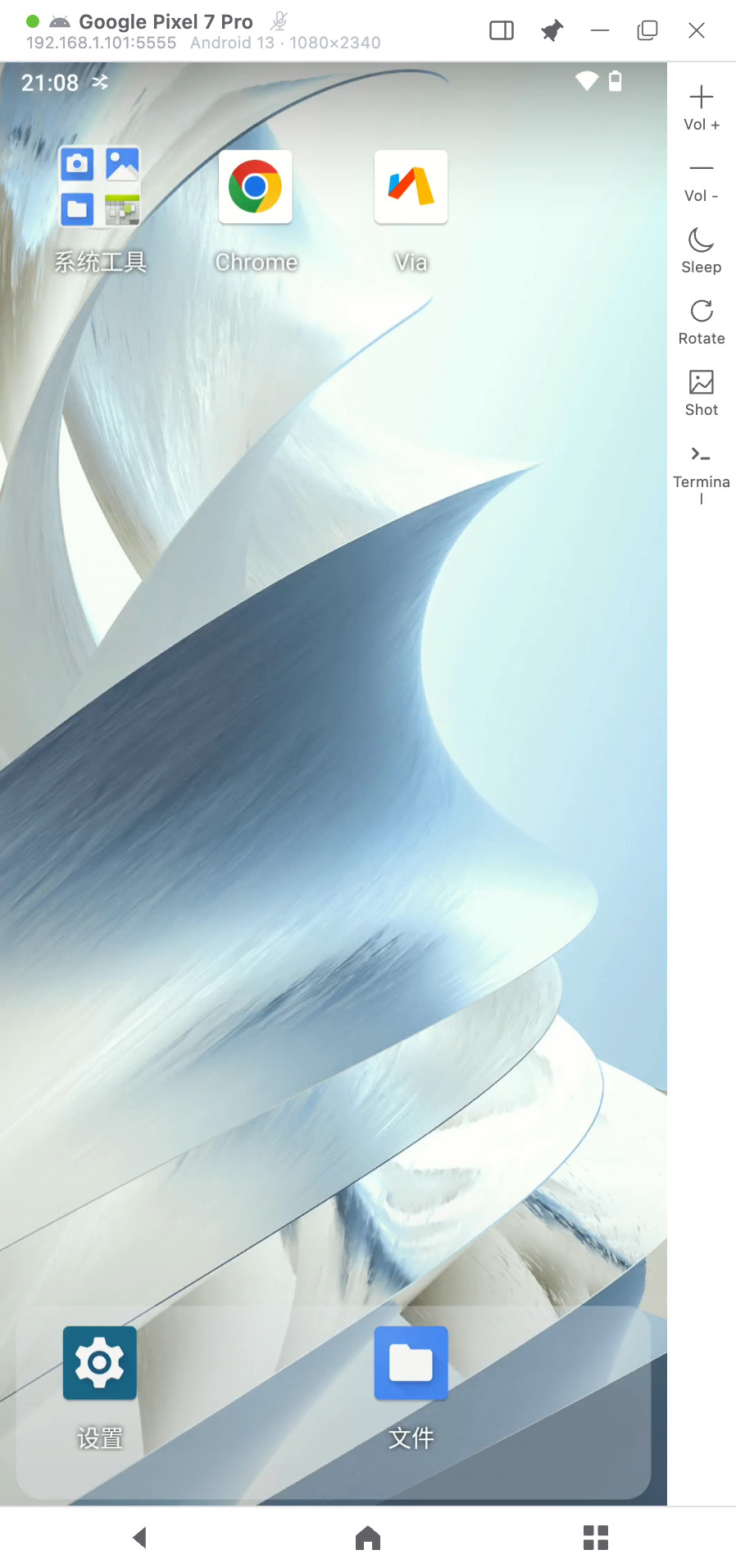
- Control issue: capture the single-device control window, especially the status and right control panel;
- Batch operation issue: capture the top toolbar and selected device count.
Check these before reporting
- Android physical phone: try a cable that supports data transfer; confirm USB debugging is enabled and that you tapped "Allow" on the authorization dialog;
- Android cloud phone: confirm the IP and port are correct and that the computer can reach the cloud phone's network;
- iPhone / iPad: confirm it is on the same Wi-Fi as the computer;
- All devices: export logs from Settings → Export logs and attach them to your report.
Where to reach us
- Contact support in the app: the top bar has live chat, a Telegram group, and email;
- Or reach the support contact who gave you the software, filling in the template above.