
Enabling USB debugging (by brand)
Required before a physical phone can join. "USB debugging" alone is usually not enough — each vendor adds its own switches.
One switch missing looks the same as a fault
Cable in, phone charging, computer still does not see the device.
Step by step (Huawei shown)
Other brands put these in different places — see the table below. What you do at each step is the same.
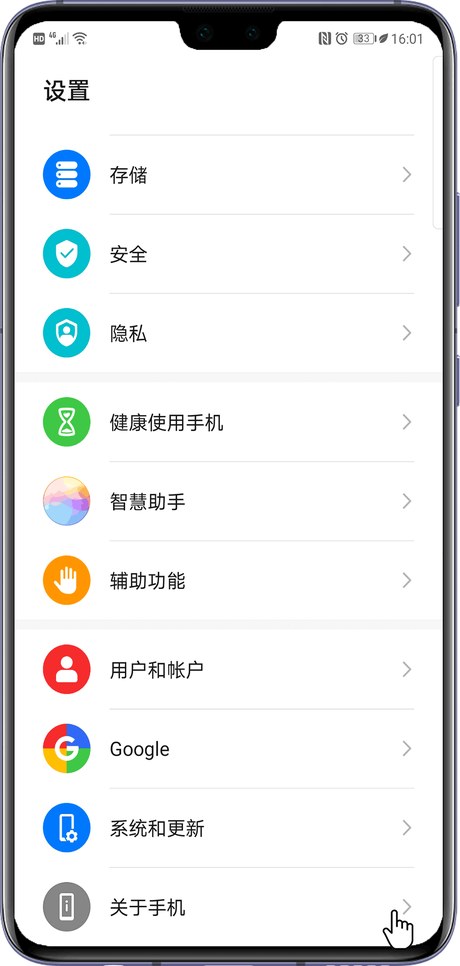
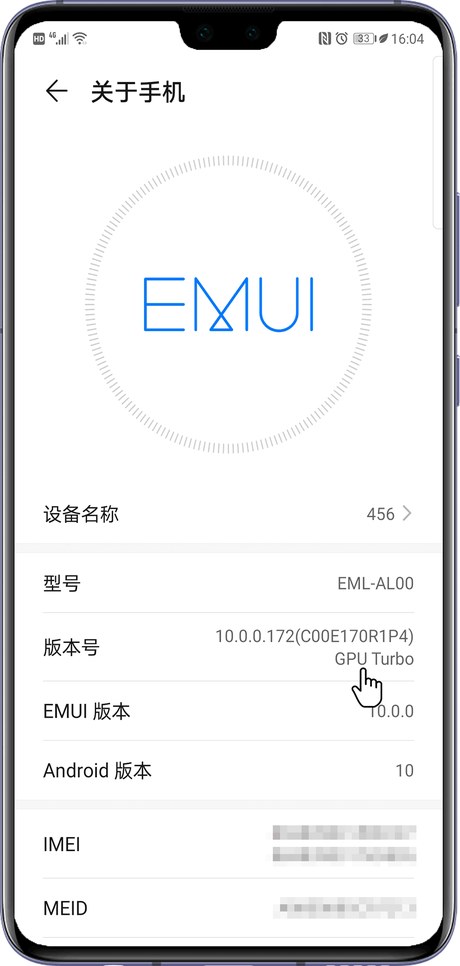
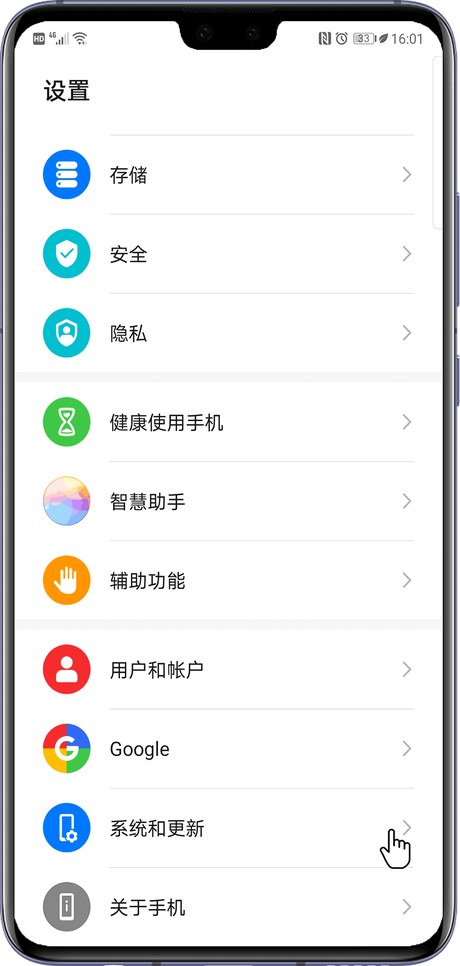
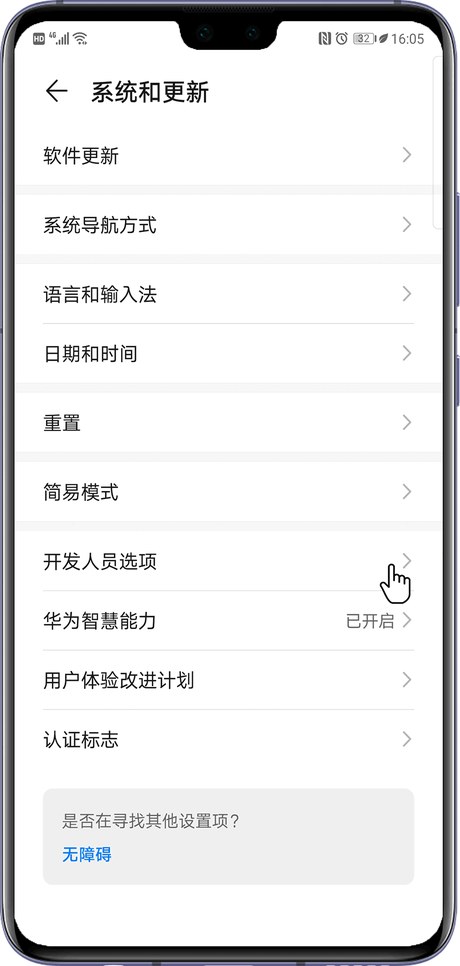
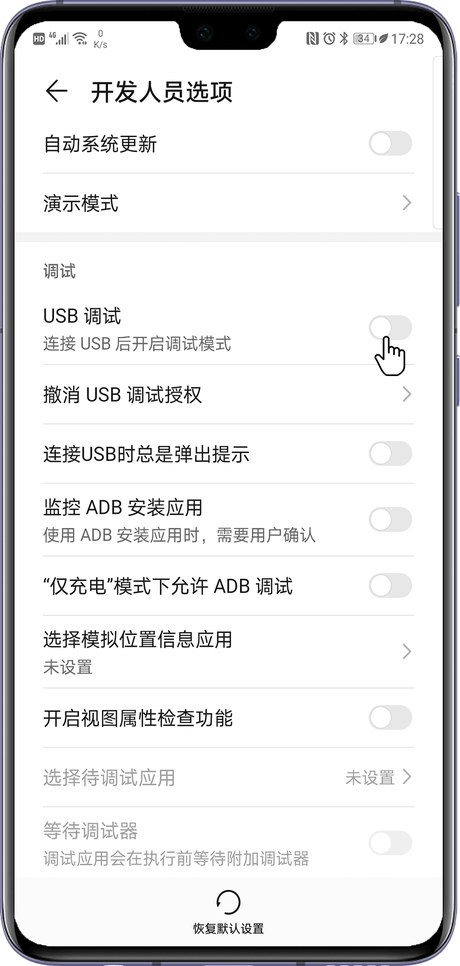
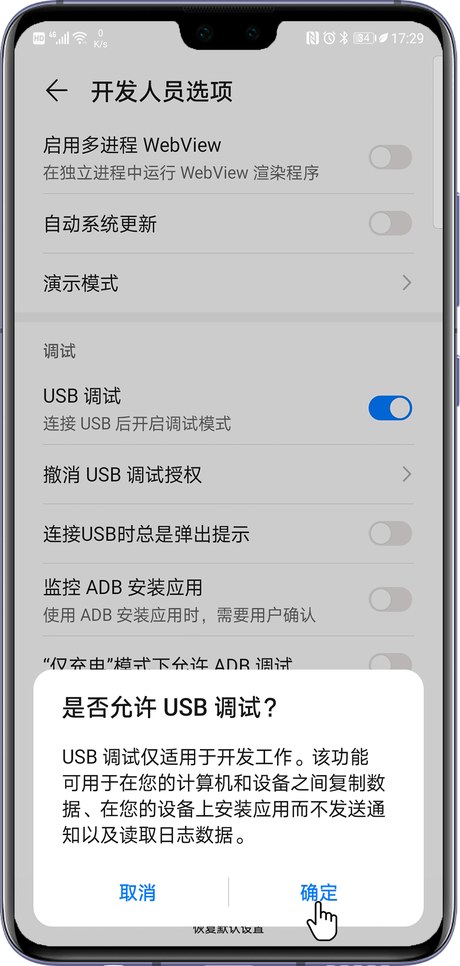
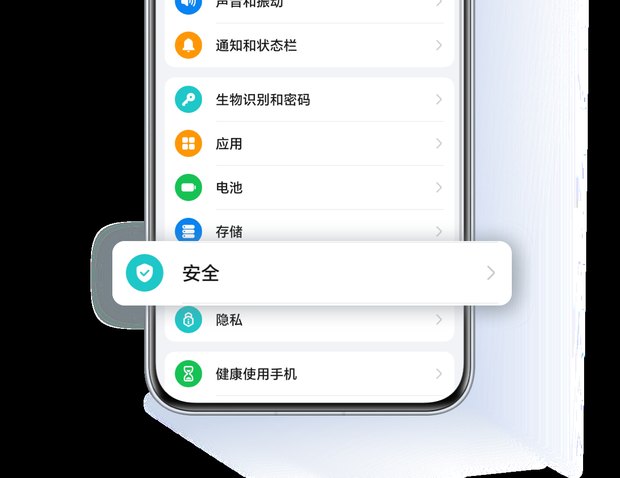
After step 2 the phone confirms you are now a developer. The entry in step 4 differs by brand — often under "System" or "Additional settings"; you can also search "developer" in the settings search box.
Switches by brand
| Brand / system | Developer options entry | Besides "USB debugging" |
|---|---|---|
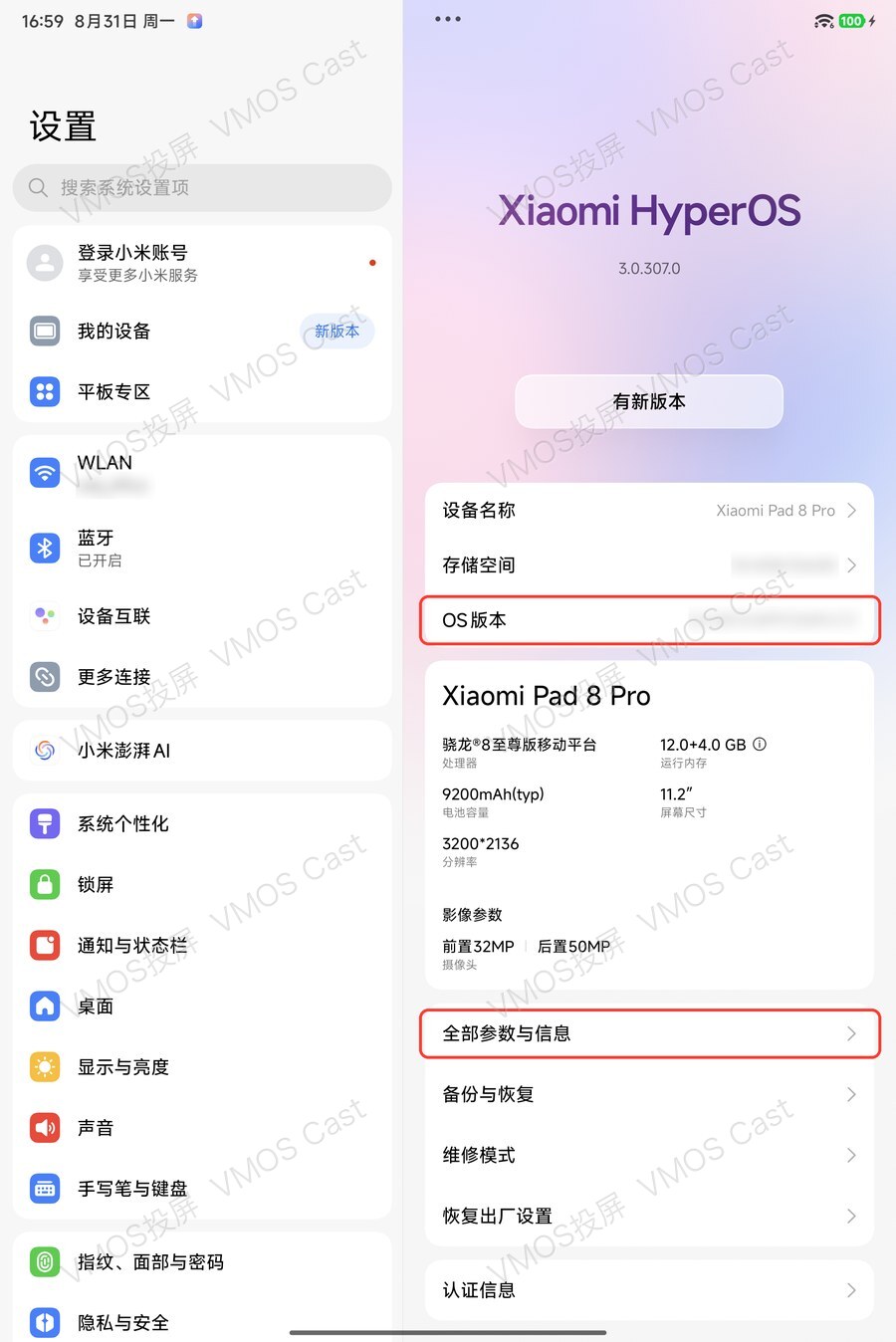
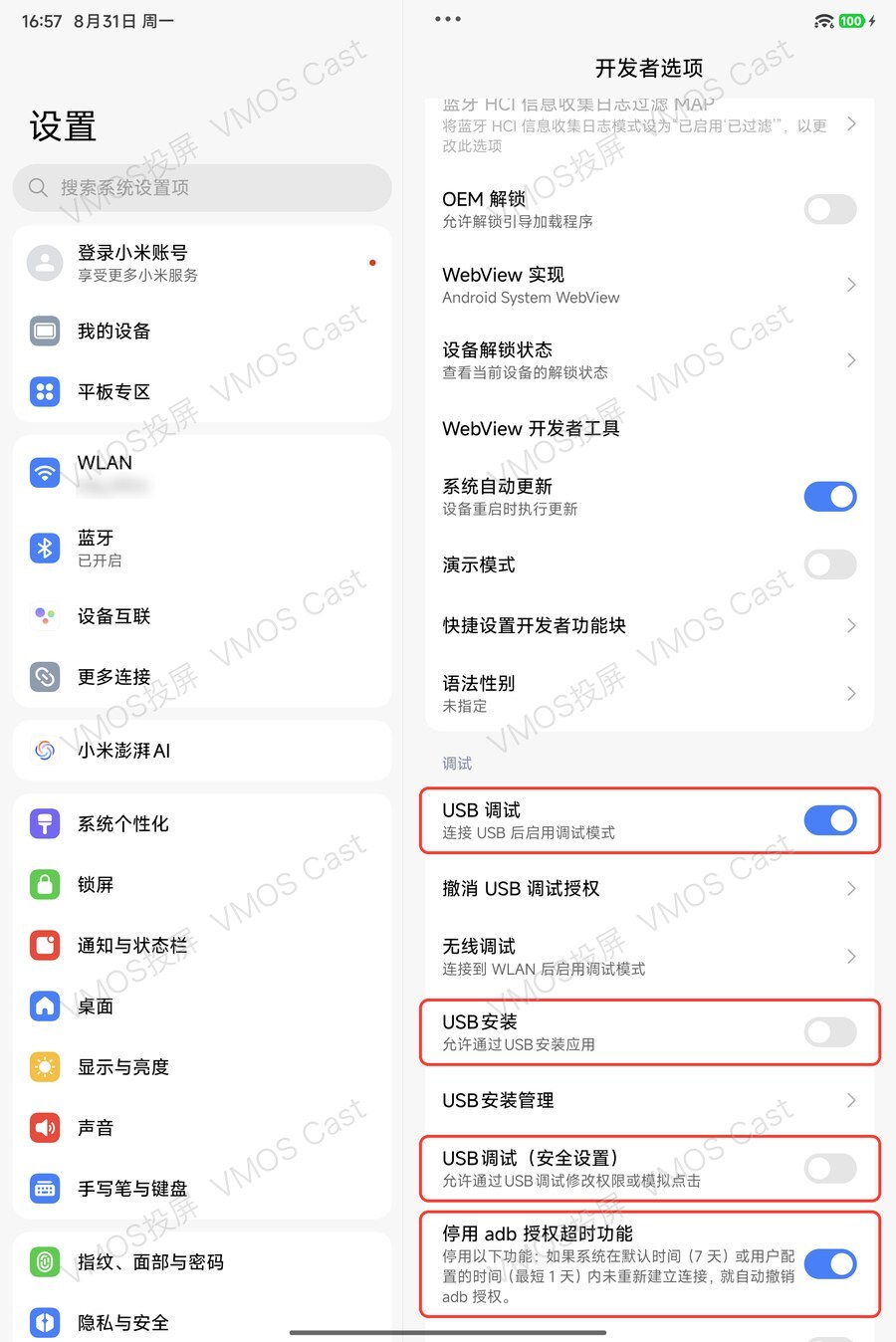
| Xiaomi / Redmi MIUI, HyperOS | Settings → About phone → All specs → tap "OS version" | USB debugging (Security settings) Allow ADB debugging in charging-only mode Install via USB |
| Huawei / Honor HarmonyOS, EMUI, MagicOS | Settings → About phone → tap "Build number" | Allow ADB debugging in charging-only mode · HarmonyOS 4.X and earlier only |
| vivo / iQOO OriginOS, Funtouch | Settings → System management → Developer options If absent: About phone → Version info → tap "Software version" | USB simulated click |
| OPPO / realme / OnePlus ColorOS, realme UI | Settings → About device → Version info → tap "Build number" | Keep the screen unlocked afterwards |
| Samsung One UI | Settings → About phone → Software information → tap "Build number" | Samsung USB Driver on Windows |
| Stock Android / Pixel / Motorola | Settings → About phone → tap "Build number" | None |
Turn on "Disable adb authorization timeout" too · without it the authorization is revoked after 7 days and the device stops connecting.
Vendor screenshots
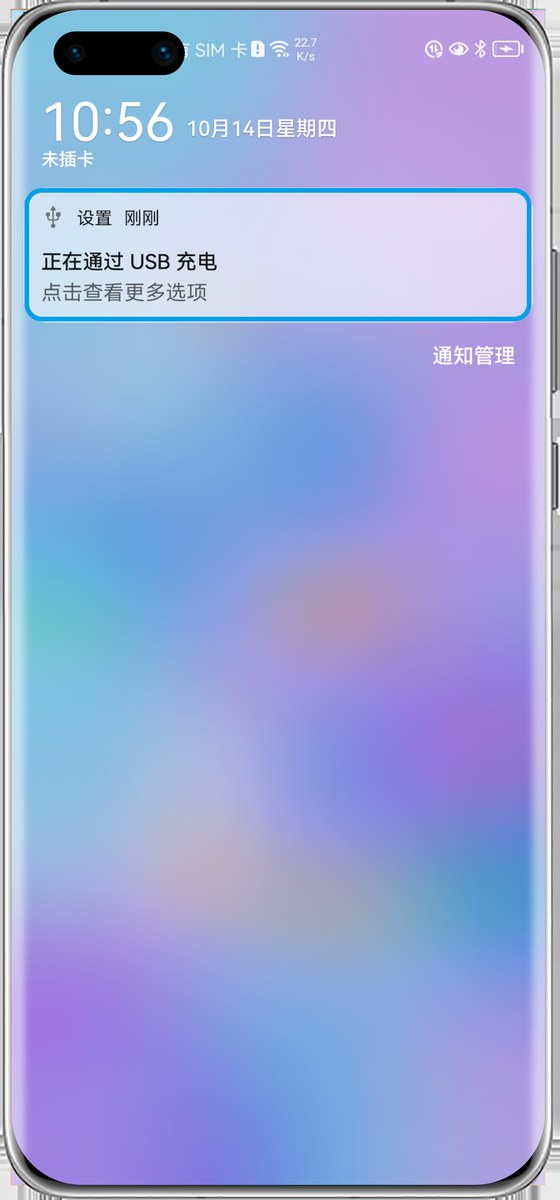
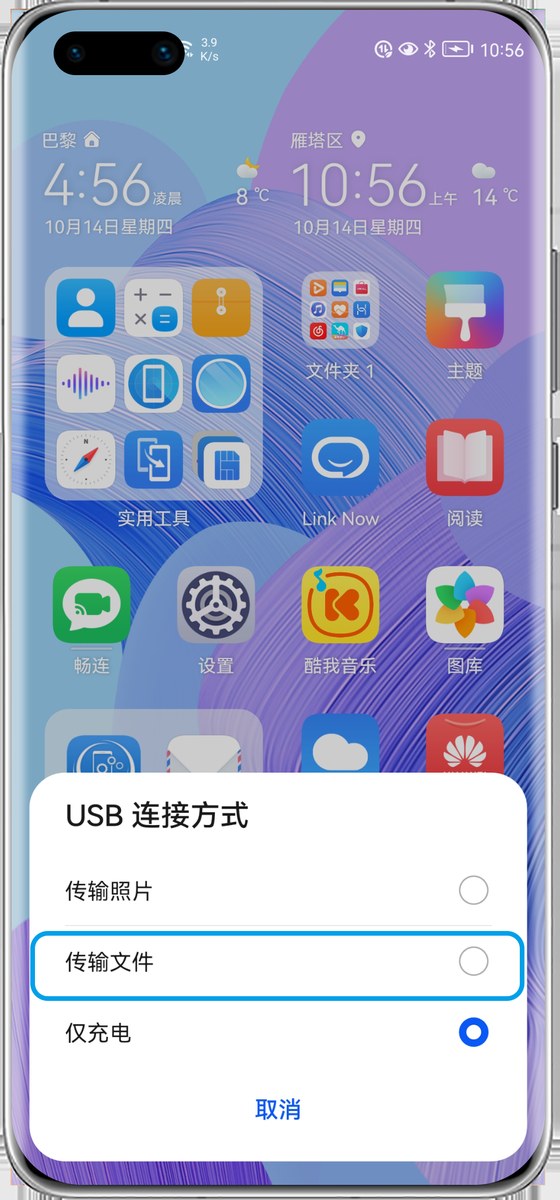
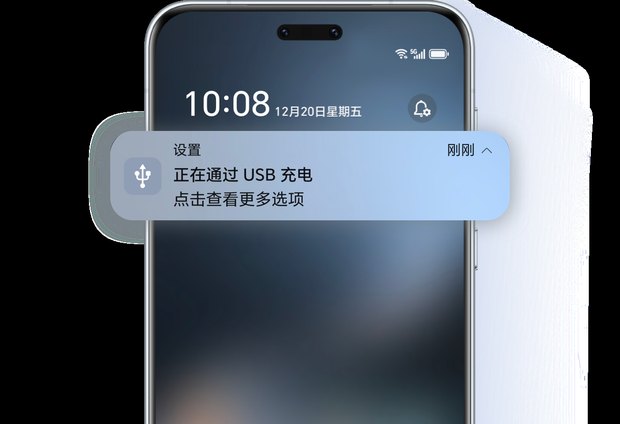
Huawei
After plugging in, pull down the notification shade → tap "Charging this device via USB" → pick File transfer
Honor
Same path as Huawei, different skin
Xiaomi / Redmi
Settings → About phone → All specs → tap "OS version" 7× → Additional settings → Developer options
Samsung
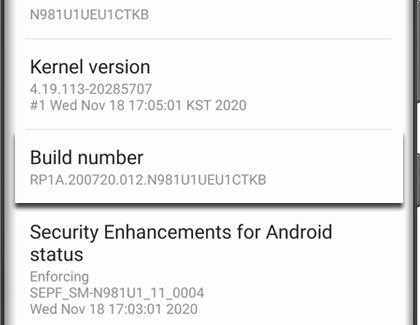
After plugging in
- Pull down the notification shade · set USB mode to File transfer / MTP
- Phone shows "Allow USB debugging?" → tick Always allow → Allow
Cable, or switch?
Developer options → Revoke USB debugging authorizations → unplug and replug.
| Phone response | Verdict | Next |
|---|---|---|
| Dialog appears again | Cable and port are fine | Re-check the switches above |
| Nothing at all | Cable or port carries no data | Swap cable or port |
Still not connecting
- Use a cable that carries data
- Try another USB port, or another computer
- Install the brand's USB driver on Windows · required for Samsung
- Settings → About → Export logs, contact support · say which step it stops at
Once enabled, go back to USB cable connection.