Physical phones vs. cloud phones
VMOS Cast supports three kinds of device: Android physical phones, Android cloud phones, and iPhone / iPad. Each connects differently and is troubleshot differently. State the device type when you report a problem.
IP:5555, or scan a subnetWhat is a physical phone
A real Android handset (Xiaomi, OPPO, vivo, Huawei, Honor, Samsung, and so on). Android 8 is the oldest supported version.
Traits of physical phones:
- The first connection needs a USB cable. Network connections are disabled by default and have to be enabled once over USB; after that you can switch to Wi-Fi.
- Android 11 and later can skip the cable: pair once with the six-digit code from Developer options → Wireless debugging.
- Developer options and USB debugging must be enabled manually on the phone.
- On the first connection, an authorization dialog appears on the phone — tap "Allow."
- After a phone reboot: a connection enabled through "Add LAN connection" is lost and has to be enabled over USB again; a device paired through wireless debugging reconnects on its own.
For detailed steps, see USB cable connection.
What is a cloud phone
A virtual Android phone running on a server (for example a VMOS Edge cloud phone, or an instance on any cloud-phone platform). It has no physical body; you reach it by IP address.
Traits of cloud phones:
- Port 5555 is usually open by default. Enter the cloud phone's
IP:5555in VMOS Cast to connect — no USB cable needed. - No setup is required on the device side, and none is needed again after a reboot.
- Addresses can be pasted in bulk, one per line; use Network discovery to scan a subnet when you do not know them.
- If it will not connect, the usual causes are a wrong IP, an unreachable network, or a platform that has not opened port 5555 — check the platform's documentation.
For detailed steps, see Local network (Wi-Fi) connection.
What is an iPhone / iPad
Apple devices take a third route: they connect over Screen Mirroring, and mirroring starts from the iPhone — there is no address to enter in Add Device.
Traits of iPhone / iPad:
- No app on the device; it only has to be on the same Wi-Fi as the computer.
- How to connect: swipe down from the top-right corner of the iPhone to open Control Center, tap Screen Mirroring, then pick this computer.
- Mirroring works on Windows, macOS and Linux. Control is macOS only and needs a one-time Bluetooth pairing.
- Only one iPhone can mirror at a time.
- Once mirroring starts, the picture joins the wall and the focus window opens automatically. Stop mirroring on the phone and the window closes; the card stays as "Not mirroring" — this is not a disconnection.
At a glance
| Android physical phone | Android cloud phone | iPhone / iPad | |
|---|---|---|---|
| Form | Real handset | Virtual phone on a server | Real iPhone / iPad |
| System requirement | Android 8 or later | Android 8 or later | An iPhone / iPad that supports Screen Mirroring |
| First connection | USB cable, or a pairing code on Android 11 and later | Enter the IP directly | Start Screen Mirroring from Control Center |
| Device-side setup | Enable USB debugging | Usually none | None, and no app |
| Authorization dialog | Tap "Allow" on the phone | Usually none | None · control needs a one-time Bluetooth pairing (macOS) |
| After a device reboot | LAN connections need enabling over USB again · wireless-debugging pairs reconnect on their own | Reconnects on its own | Start mirroring again on the phone |
| Devices at once | Many at the same time | Many at the same time | One at a time |
| Control from the computer | All three desktop systems | All three desktop systems | macOS only |
| Batch operations and group control | Supported | Supported | Not yet supported |
| Common connection failures | USB debugging off / wireless connection never enabled over USB / "Allow" not tapped | Wrong IP / unreachable network / port not open | Not on the same Wi-Fi / receiver not ready |
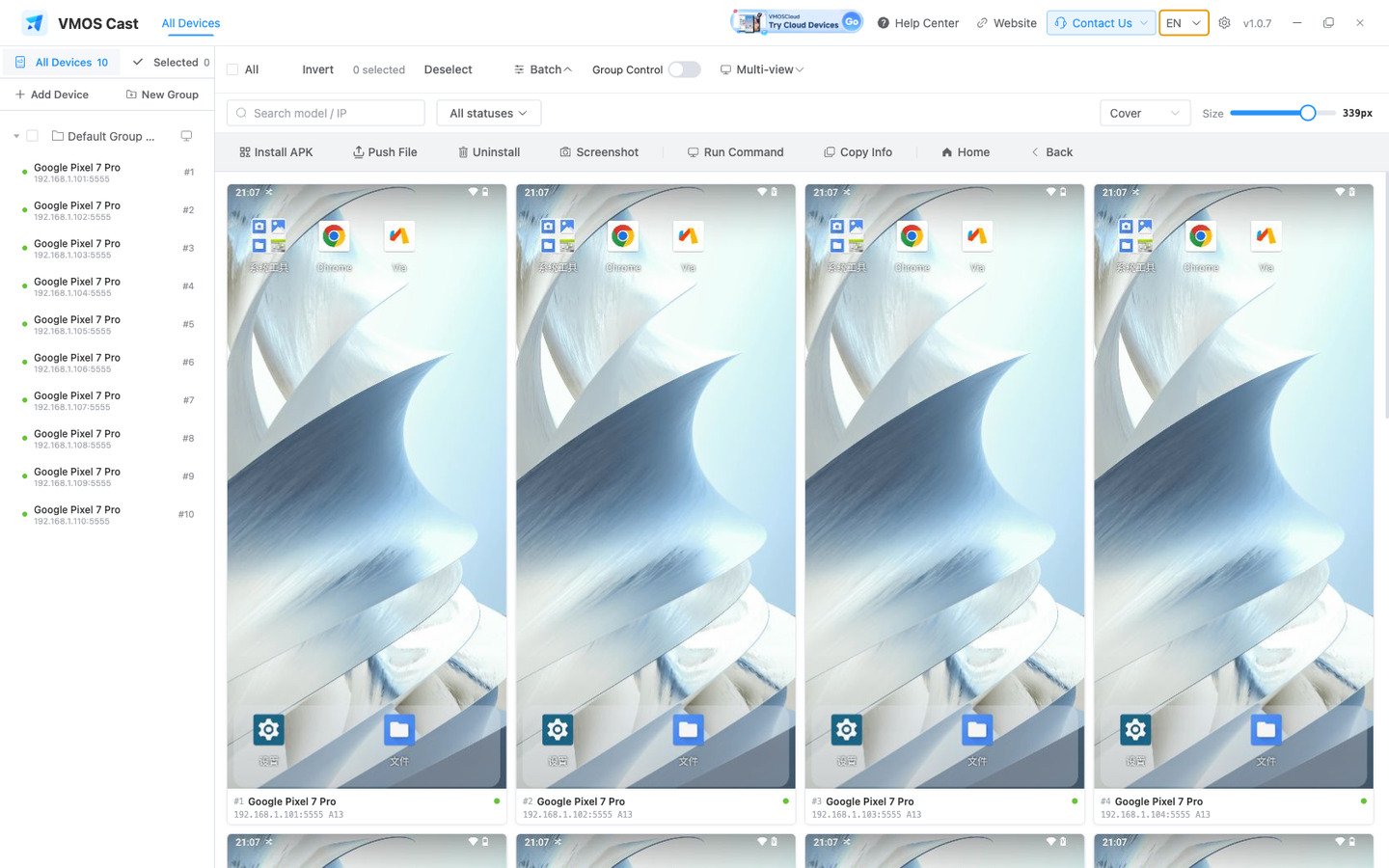
All three appear on the same VMOS Cast device wall, and selection, groups and Multi-view work the same for each.
Read before reporting a problem
When reporting a connection problem, name the device type first: Android physical phone, Android cloud phone, or iPhone / iPad. For an Android physical phone, also confirm two things: (1) Is USB debugging enabled? (2) Has it connected successfully over a cable at least once? See How to report a problem.