
Single-device control window
Click any card's screen on the device wall to open that device's standalone control window: a high-definition view plus full control.
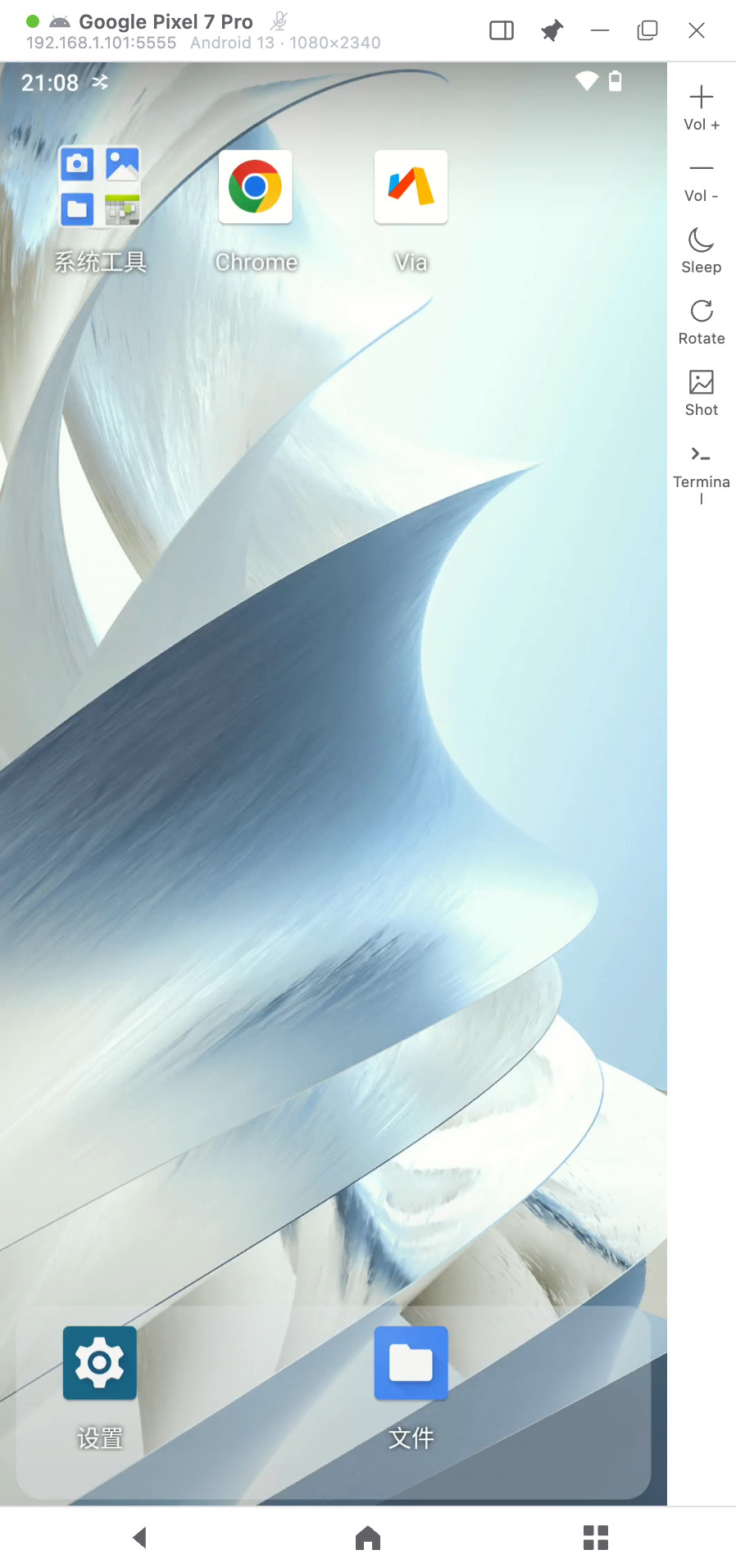
Operate the screen directly
Drive the phone straight from your mouse on the screen:
| Computer action | Effect on the phone |
|---|---|
| Click | Tap |
| Press and drag | Swipe (scroll lists, turn pages, drag elements) |
| Mouse wheel | Scroll lists |
| Right click | Back while awake; wake while the screen is off |
| Middle click | Home while awake; wake while the screen is off |
Right-side toolbar
Terminal, Quality and Quick replies share one right-side panel. Selecting a tool replaces the current panel instead of stacking panels or covering the phone picture. Click the selected tool again, or the panel's close button, to collapse it.
Android display quality
The panel extends to the right without covering the phone. Custom settings use fixed choices: long edge 720/1280/1920, FPS 15/30/60, and bitrate 1/2/4/8 Mbps. Smooth reduces streaming load, but cannot eliminate phone-side stalls or every source of network latency.
Open Quality to select Smooth, Balanced, Clear or custom long-edge resolution, frame-rate and bitrate limits. Applying changes rebuilds only this display's video session, without affecting other clients or changing global defaults. Failed changes attempt to restore the previous configuration. Actual video dimensions and applied encoding limits appear after new video arrives; FPS and bitrate are limits, not live measurements. Presets still require USB and LAN performance acceptance.
| Button | Function |
|---|---|
| Volume + / Volume - | Adjust the device volume |
| Screen off / Screen on | Switches meaning with the device's current screen state |
| Rotate | Rotate the screen orientation |
| Screenshot | Capture the current screen and save it to the computer |
| Terminal | Open a command-line panel and run commands on the device |
| Quality | Set this display's video encoding limits and view actual video dimensions |
| Quick replies | Open phrases and send settings when WeChat is foreground and its plugin is enabled |
Bottom three keys
Back / Home / Recents — the three Android system keys. Shown for Android devices only.
Window styles
The style button in the title bar cycles through three layouts: Standard (full toolbars), Minimal (screen and title bar only), and Immersive (screen only; the title bar slides in when the mouse reaches the top edge). The default is set in Settings.
Keyboard input
Tap the target input field on the phone first so it has the cursor, then type directly on the computer keyboard — IME input works. Cmd / Ctrl + V pastes the computer's clipboard onto the device.
WeChat send shortcuts
After selecting Enter or Ctrl/Cmd+Enter in Quick replies, the shortcut sends the current input without replacing it or inserting a phrase; it does not need to match a saved phrase. Shift+Enter keeps its newline behavior, and IME confirmation does not send. Clicking Fill replaces all input with the selected phrase without sending. Clicking Send replaces all input and then sends that phrase, without combining it with the old draft.
While a send-shortcut request is pending, further typing or clicking in this client, or taking focus away from the display window, cancels the send before it executes. Do not edit the draft or switch chats on the phone or another client while waiting; those actions are outside this window's cancellation detection. Empty Enter, missing Send and page changes end silently. A completed replacement without a Send click does not show an unknown-outcome warning. Unknown text-write or send-control results and connection errors still show a notification; check WeChat before trying again to avoid duplicates.
The control window for an iPhone
An iPhone's picture arrives over Screen Mirroring, so its toolbar has one item: Control. Volume, rotate and Back are Android system keys and do not apply to iPhone. Windows and macOS support direct Bluetooth touch without locking the computer mouse; Linux supports viewing only. Click Enable control and follow the illustrated Bluetooth pairing and phone setup guide to click, drag and scroll on the picture.
Closing the display releases held input without disconnecting an enabled Bluetooth connection. Reopening can reuse that connection while it remains connected. Stop control or quit the client to shut down the control service.
Where do screenshots go?
Screenshots are saved to the folder set in Settings → Streaming Settings → Screenshot location (by default VMOS Cast inside your computer's Pictures folder), and the full path is shown after saving. For batch screenshots, see Group control & batch operations.
Close the window
Press Esc or click the close button in the title bar. Closing the window doesn't affect the connection on the device wall.
TIP
The control window and the device wall don't interfere with each other: while the window is open, that device's screen on the wall keeps refreshing, and batch operations still work.