
Step 3: Your First Three Moves
Contact support and diagnostic logs
After a successful upload, the diagnostic ID appears under Settings → About → Export logs. Click it to copy it, then send it to support when reporting the problem in chat. Support can use the ID to locate the matching diagnostic attachment on the same event.
Selecting Online chat, Telegram or Email under Contact support uploads the same diagnostic ZIP as Export logs in the background, as explained under Settings → About → Export logs. Logs are not additionally redacted and may contain device identifiers, paths and diagnostics; select a channel only if you agree to provide this information. No login is required: a persistent installation ID associates the report. Support can locate the associated logs in the backend after upload. Device information is context, not a diagnosis that a particular phone is faulty.
Contact remains available during upload or failure. Concurrent requests merge; successful reports are reused for two minutes. Archives above 20 MB, network failures or missing desktop logs prompt manual export in Settings instead of silent truncation. Nothing is automatically posted to the Telegram group. This only uploads logs when contacting support, without automatic error capture or source upload.
Connection and control essentials
- Android supports USB and LAN connections from multiple clients. Avoid simultaneous dragging. Confirm the wireless picture is live before unplugging USB. Performance depends on the network and devices.
- Multi-view and group control include available Android devices only. iPhone / iPad retain independent mirroring and device management, without multi-view or group control.
- The independent iPhone display prioritizes the incoming source resolution; Android display quality and bitrate settings do not affect iPhone.
- Android focus windows and multi-view panes use the device's original picture by default, subject to local hardware decoding limits; making a window or pane smaller does not lower the source resolution. The focus window's Quality panel can lower it explicitly, and Original restores Full Screen FPS and Bitrate from Settings.
- Windows and macOS support direct iPhone control over compatible Bluetooth hardware. Follow the illustrated guide to enable Accessibility › Zoom, restore normal picture size, then verify a tap. Linux does not support iOS control. This is not USB control.
WeChat quick replies
Enable WeChat enhancement and manage phrases under Plugins; no separate installation is needed. Quick replies appear on the right of a controllable Android display while WeChat is foreground. The panel expands beside the picture rather than covering it.
The entry does not depend on the region of the phone number used to sign in to WeChat. If it is missing, check the plugin switch and display control, then check for a device-side service update in device details.
- Create, edit, delete, copy, import and export phrases, or search by title. Phrases contain a title and text, without groups or favorites.
- In an independent display window, Fill replaces all input with the selected phrase without sending; Send replaces all input and then sends that phrase. Any existing draft is replaced, not combined with the phrase. Multi-view still inserts at the current cursor and does not support quick sending.
- Select Enter or Ctrl/Cmd+Enter to send the current input without replacing it or inserting a phrase. The default retains normal key behavior. Shift+Enter inserts a newline and IME confirmation does not send.
- Do not switch chats during an operation. Recognition uses the chat title and controls flanking the input, supporting light and dark portrait layouts with different status-bar heights. Chat wallpapers and keyboard skins are not used to identify the input. Sending does not transcribe the draft or wait for an empty-field caret to blink. Offline OCR regression covers varied backgrounds, keyboard skins, font sizes, multiline drafts and compressed low-resolution images. An obscuring overlay or an unconfirmed chat or Send button prevents the click; messages are never resent automatically. Landscape, split-screen, repackaged or cloned apps and non-Chinese WeChat interfaces are not fully verified; compatibility with every third-party theme is not guaranteed.
- First opening shows preparation progress. Empty Enter, missing Send and page changes end silently. A completed replacement without a Send click does not show an unknown-outcome warning; check the WeChat input. Normal sending has no result toast; check WeChat for the outcome. Unknown text-write or send-control results and connection errors still show a notification; check before clicking again. Phrases stay on this computer; exports contain message text and should be kept private.
Your devices are on the wall. These three moves cover everyday use of the app.
1. Watch the screens
Apple cards show a live preview while casting and return to the "Not casting" placeholder when casting stops. Both the sidebar and card show the reported model on the first line (iOS if unavailable) and the device name on the second. A custom client alias replaces the second line without changing the name on the phone. The Screen Mirroring device identifier remains in device details; it is not a hardware serial number. Previews reuse the video stream already received on the computer, without starting another cast on the phone, and continue while casting even after the focus window closes.
Connected iPhones and iPads also appear in the sidebar groups, consistently with the wall and total device count. Click the name below a card to select it; right-click to rename, view details, move groups or remove the record. After casting stops, the card shows "Not casting" and clicking its screen opens reconnection guidance. Apple device selection is for management, not Android group control or batch operations.
Every device gets a live card. Below the picture are its number, name, address and Android version; the dot on the right is its state.
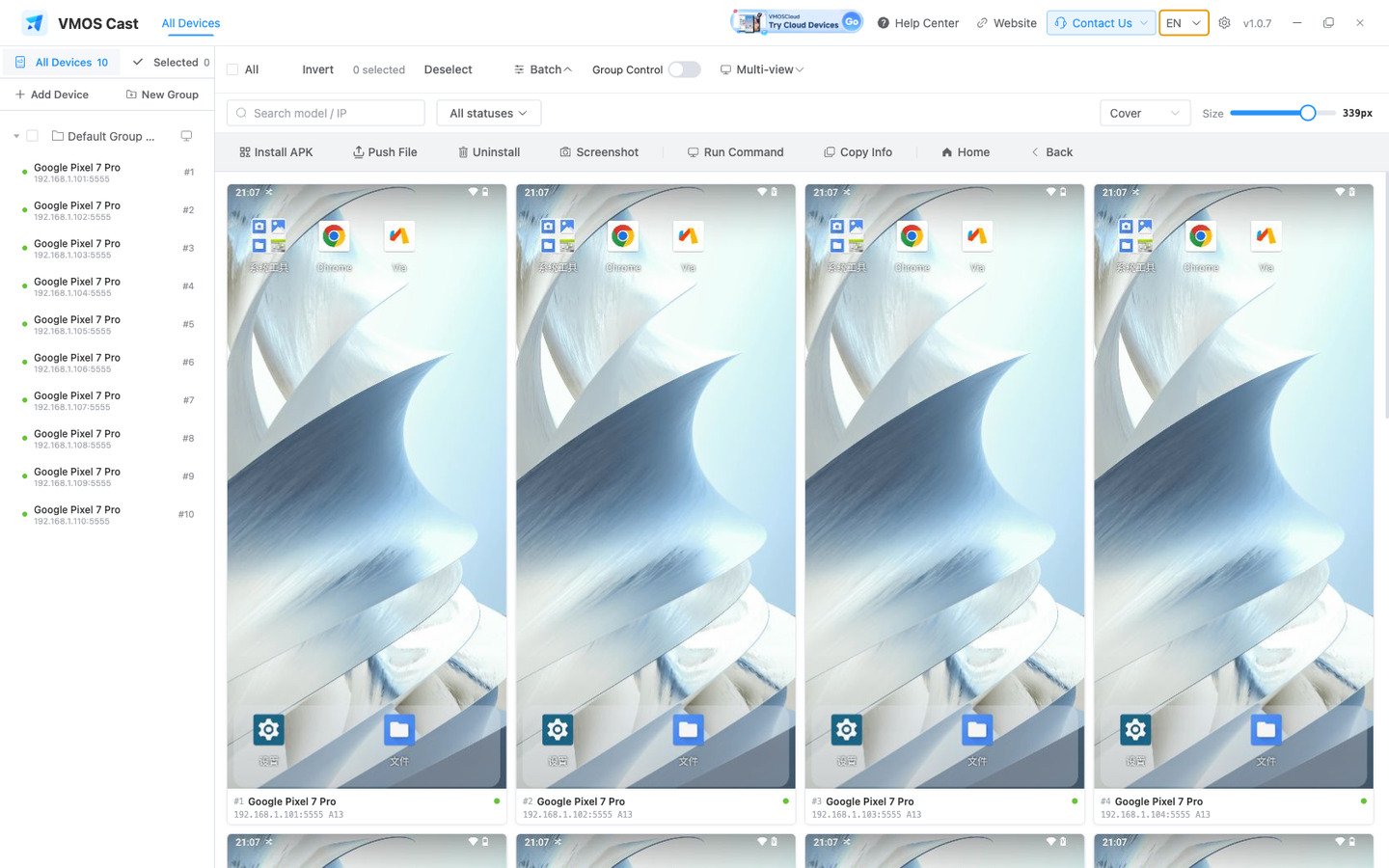
Card states at a glance:
Adjusting the view:
| To do this | Go here |
|---|---|
| Card size | "Size" slider in the top-right |
| How the picture fits | The scale dropdown · Cover / Contain / Fit Width |
| Show one kind of state | "All statuses" dropdown · online, screen off, restricted, failed, offline |
| Find one device | Search box, by model or IP |
| Thumbnail frame rate | Settings → "Device List FPS" · a lower rate uses fewer resources and supports more devices · applies on next connect |
Click a card's picture area to open the control window for that device. By default, the focus window and wall thumbnail refresh together. On a constrained network, Settings → Streaming Settings can pause the list picture while full screen is open; the thumbnail resumes when you close it. For longer monitoring, light the bulb button in the focus window title bar to keep the Android device awake. Closing the window stops it immediately; it does not change the device's screen-timeout setting or remember the choice.
2. Control one device
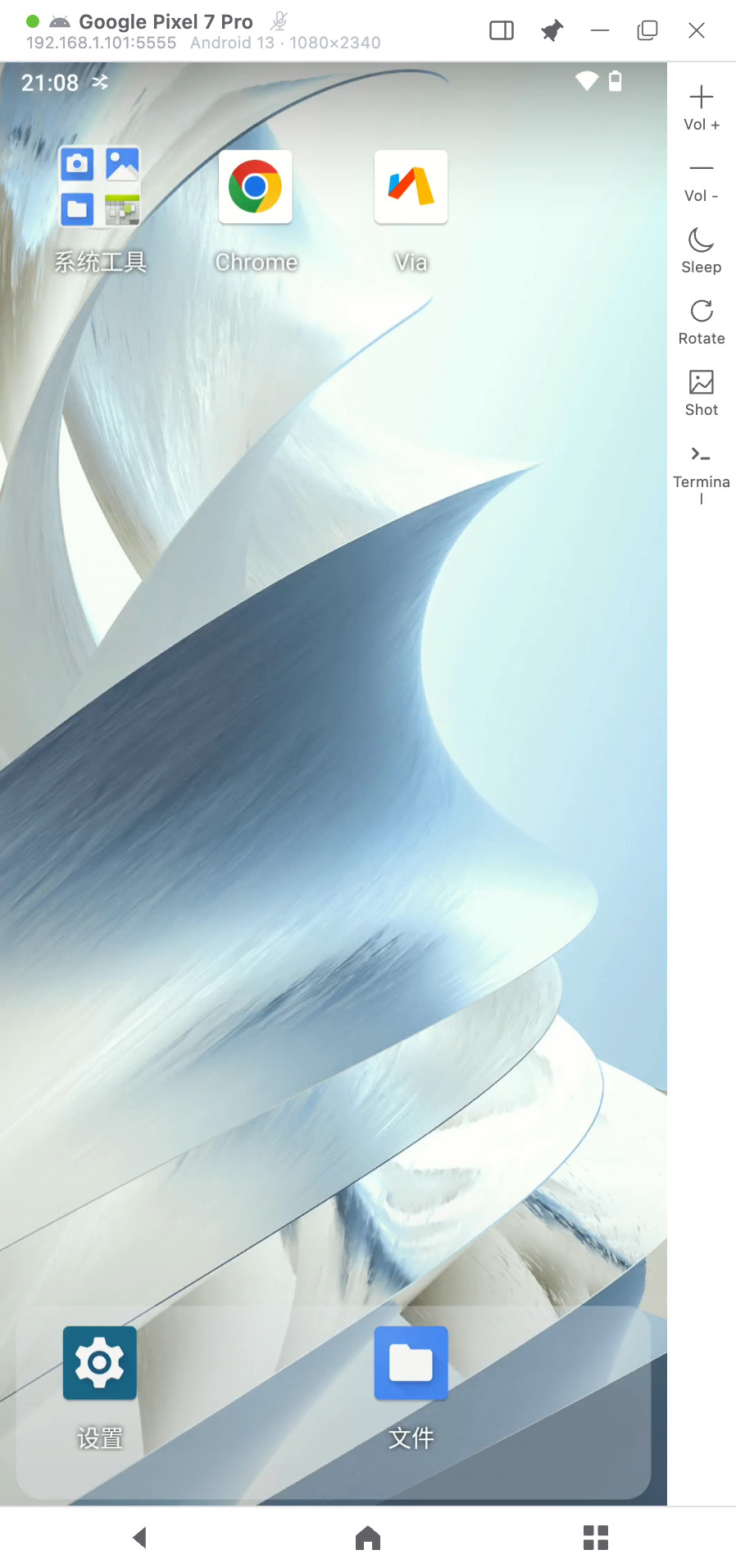
Drive the device directly with your mouse in the big window.
| On the computer | On the phone |
|---|---|
| Click | Tap |
| Click and drag | Swipe · scroll · drag |
| Wheel | Scroll a list |
| Right-click | Back while awake; wake while the screen is off |
| Middle-click | Home while awake; wake while the screen is off |
- Typing: click an input field on the screen first to place the caret, then type · IME input works normally; active Pinyin composition appears at the bottom of the mirrored screen.
- Three keys below the picture: Back · Home · Recents.
- Toolbar on the right: Vol + · Vol − · Sleep · Rotate · Shot · Terminal.
- Title bar: device name, address, system version and resolution; you can pin the window from here.
- Where screenshots go: Settings → Casting → screenshot folder. The full path is shown after each capture.
- Closing: press Esc or close the window · the device stays connected on the wall.
How iPhone differs
An iPhone mirrors but does not accept input by default. On macOS, pair over Bluetooth first — click "Control" beside the screen and follow the steps, then drive it with the mouse; while controlling, the mouse is locked to the picture — press Esc to release it. Control is not available on Windows or Linux yet.
3. Act on many at once
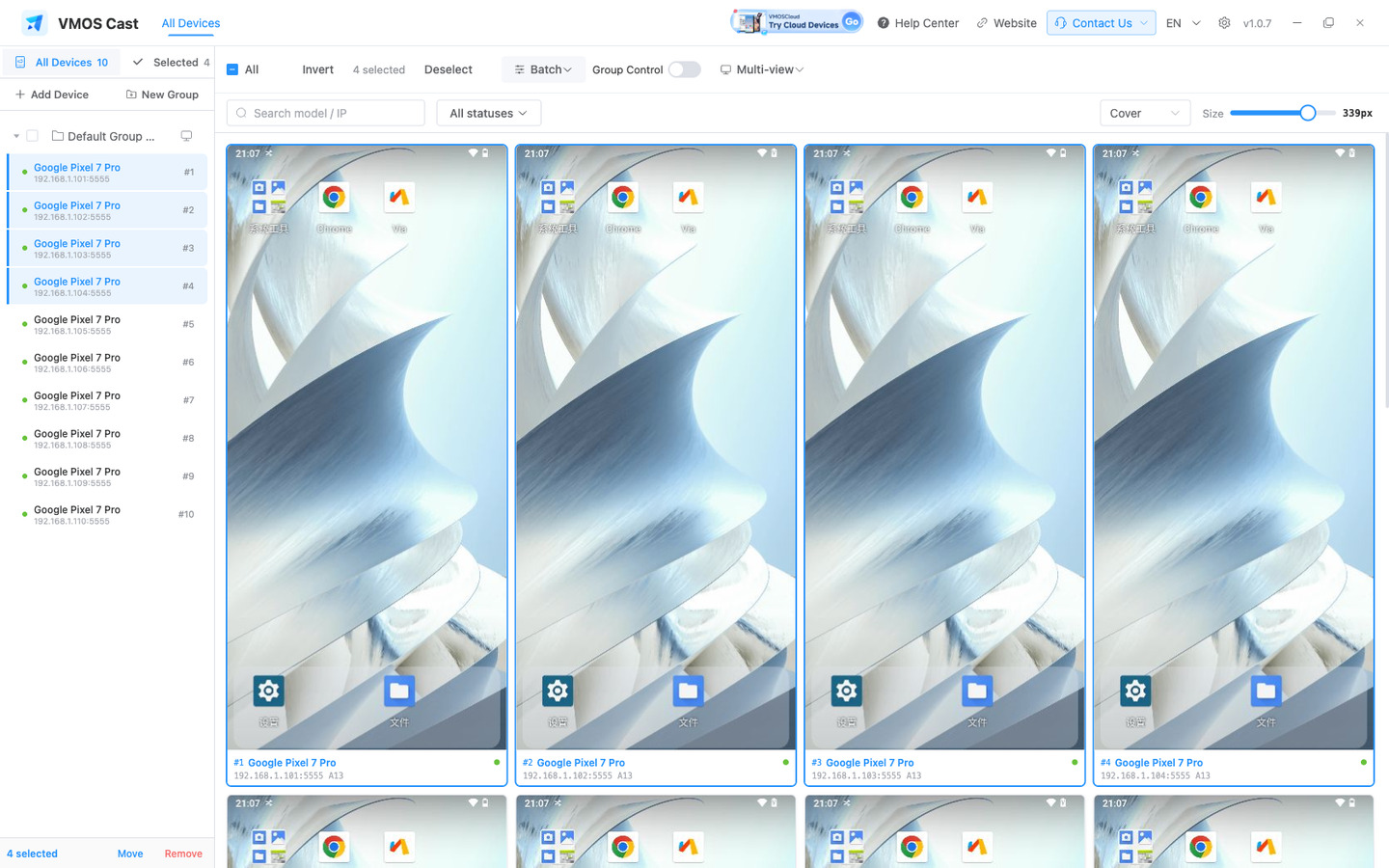
- Select: click a card outside the picture (title row, edges). Selected cards get a blue border and the top row shows the count.
- "All", "Invert" and "Deselect" are in the top row too.
- Expand "Batch" — every action applies to all selected devices.
| Batch action | What it does |
|---|---|
| Install APK | Install an APK from your computer on every selected device · replaces an older version |
| Push File | Send a file to every selected device · lands in Download by default |
| Uninstall | Remove an app by package name · not reversible |
| Screenshot | Capture every selected device into the screenshot folder |
| Run Command | Run in parallel on every selected device · key, app and system-info templates included |
| Copy Info | Copy ID, IP, name, resolution and version of the selection to the clipboard |
| Home / Back | Send the system key to every selected online device |
"Move to Group" and "Remove selected" sit at the bottom of the sidebar once devices are selected.
Verify on one or two devices first
Installs and uninstalls change the devices directly. Run the action on one or two, then roll it out. Results are reported per device; a failure on one does not affect the rest.
With many devices, narrow the wall with groups: select some devices → sidebar "New group" → click the group → All → batch action.
Two advanced features
"Group Control" in the top row syncs gestures — taps, swipes and drags — across the selection; "Multi-view" puts a whole group into one window. Multi-view Auto arrange prioritises showing every device in full. Slight contact does not swap panes. A target swaps into the drag-start position only when more than half covered and there is enough room without overlap. Drag the window title or the empty area of the top title bar to move the whole window; click empty workspace to deselect a pane. Quick replies are available only in the Android single-device window toolbar, not in Multi-view.