
USB cable connection
For physical phones. USB is a physical phone's first step: you can use it to cast and control directly over USB, and it's also the prerequisite for enabling wireless Wi-Fi connection later.
Before you start
- A cable that supports data transfer · charge-only cables cannot connect. If a connection gets no response, swap the cable first.
- The phone runs Android 8 or later (nearly every phone in use qualifies).
Step 1: Enable Developer options
Android's "Developer options" is hidden by default, so unlock it first:
- Open the phone's "Settings" → "About phone";
- Find "Build number" (on some phones it's under "Software information");
- Tap it 7 times until you see "You are now a developer."
For where it lives on each brand, see Enabling USB debugging (by brand).
Step 2: Enable USB debugging
Open Developer options and turn on "USB debugging". Each vendor adds its own switches — one missing and it will not connect — see Enabling USB debugging (by brand).
Step 3: Plug in and authorize
- Connect the phone to the computer with a data cable;
- The phone may prompt you to choose a "USB use" — pick "Transfer files" (don't pick "Charge only");
- The phone's screen shows an "Allow USB debugging?" authorization dialog: check "Always allow from this computer," then tap "Allow."
Didn't see the authorization dialog?
Unplug and plug back in; or, in Developer options, tap "Revoke USB debugging authorizations" and reconnect. The dialog only appears when the screen is on, so unlock the phone first.
Done
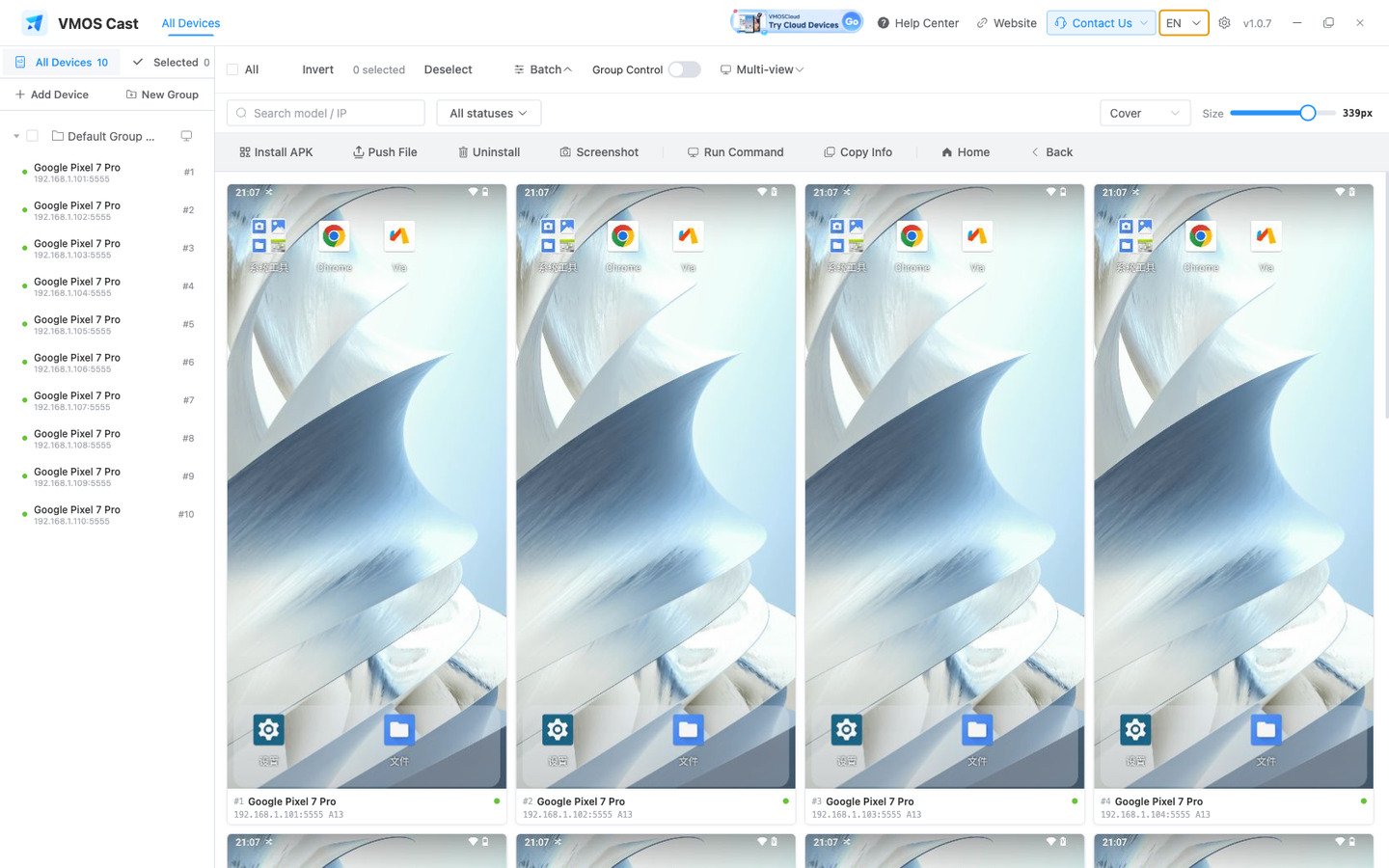
Once authorization succeeds, the phone's screen appears on the VMOS Cast device wall within a few seconds. Click the screen to open the control window and drive the phone with your mouse.
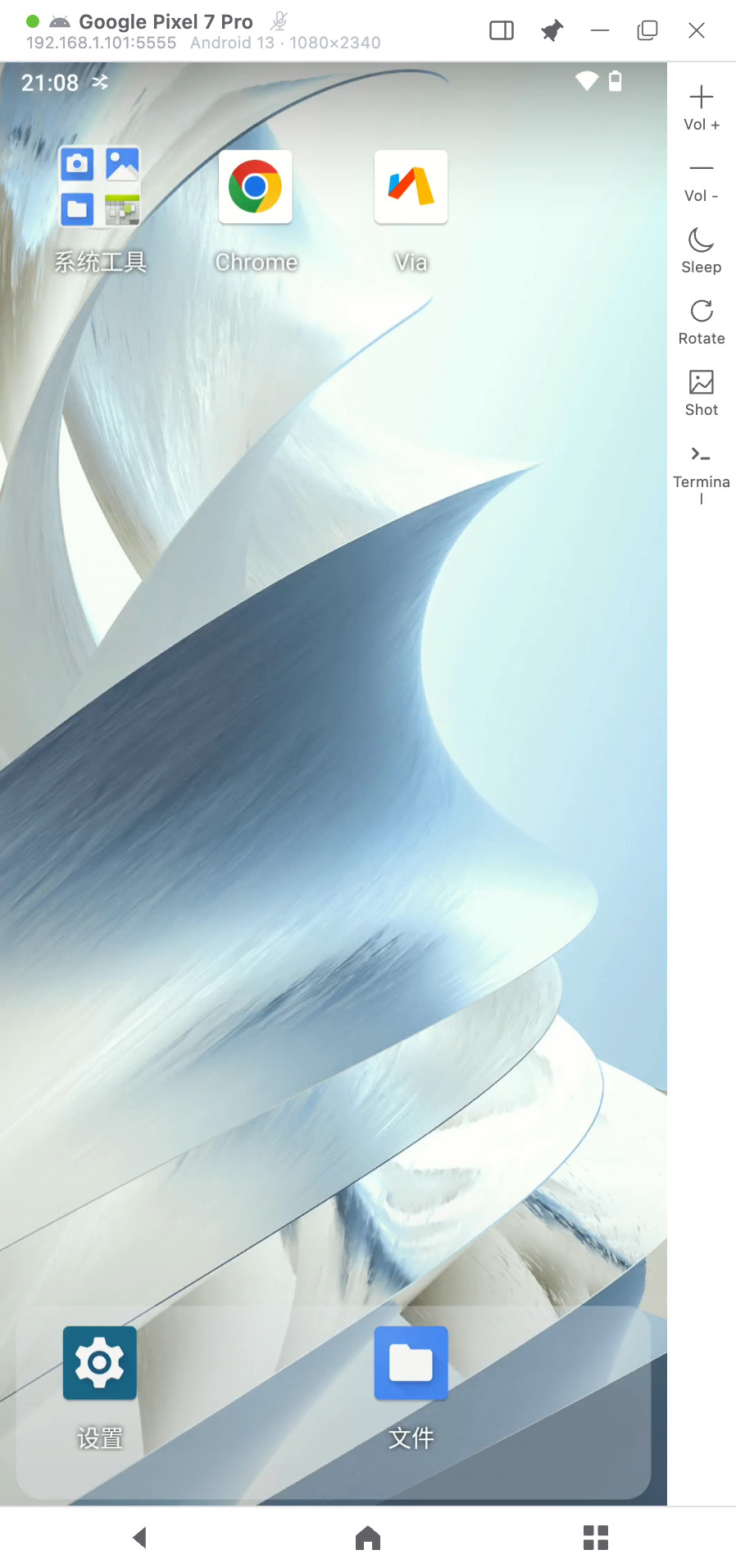
To confirm you are in the control window, check the layout: the right-side toolbar holds volume, screen off/on, rotate, screenshot, and terminal, and the bottom three keys are Back / Home / Recents.
When it will not connect
Once the cable is in, look at the device wall first — the screen has already narrowed it down by half:
- An orange "Device not authorized" card → the computer already sees the phone; one tap on it is all that is left.
- The wall stays empty → the computer has not detected the phone. Usually a switch is still off, or it is the cable, the port or a missing driver.
What to do in each case, and which screenshots to capture: Troubleshooting a connection — branches on what the device wall shows, with annotated screenshots.
For the extra switches each brand adds, see Enabling USB debugging (by brand).
Next: Enable wireless Wi-Fi connection (optional)
Once USB works, right-click the device card and choose Add LAN connection to move the phone onto the network, then unplug the cable and keep using it. See Local network connection: First-time Wi-Fi setup for physical phones.