
Local network (Wi-Fi) connection
Bring Android devices into VMOS Cast by IP address, no cable required. For cloud phones and physical phones that already have Wi-Fi connection enabled.
iPhone and iPad do not use this path — mirroring starts from the iPhone's Control Center. See Physical phones vs. cloud phones.
Prerequisites
- The device and the computer are on the same local network (same router/switch; on a corporate network, watch out for VLAN boundaries);
- The device allows network connections (cloud phones usually do by default; a physical phone has to be enabled once over a USB cable — see First-time Wi-Fi setup for physical phones).
Cloud phones: connect directly
Cloud phones (VMOS Edge and other cloud phone instances) generally have port 5555 open by default:
- Find the instance's IP address in your cloud phone management console;
- Click "Add Device" in the VMOS Cast sidebar and pick Local network under the Android tab (the dialog opens on USB connection);
- Enter
IP:5555(e.g.,192.168.1.100:5555) and click Add, then select it and confirm. If you enter only the IP, VMOS Cast uses port 5555.
If it will not connect: confirm the IP is correct, that the computer can ping that IP, and that the cloud platform has opened port 5555.
The connection entry is in the sidebar shortcut area:
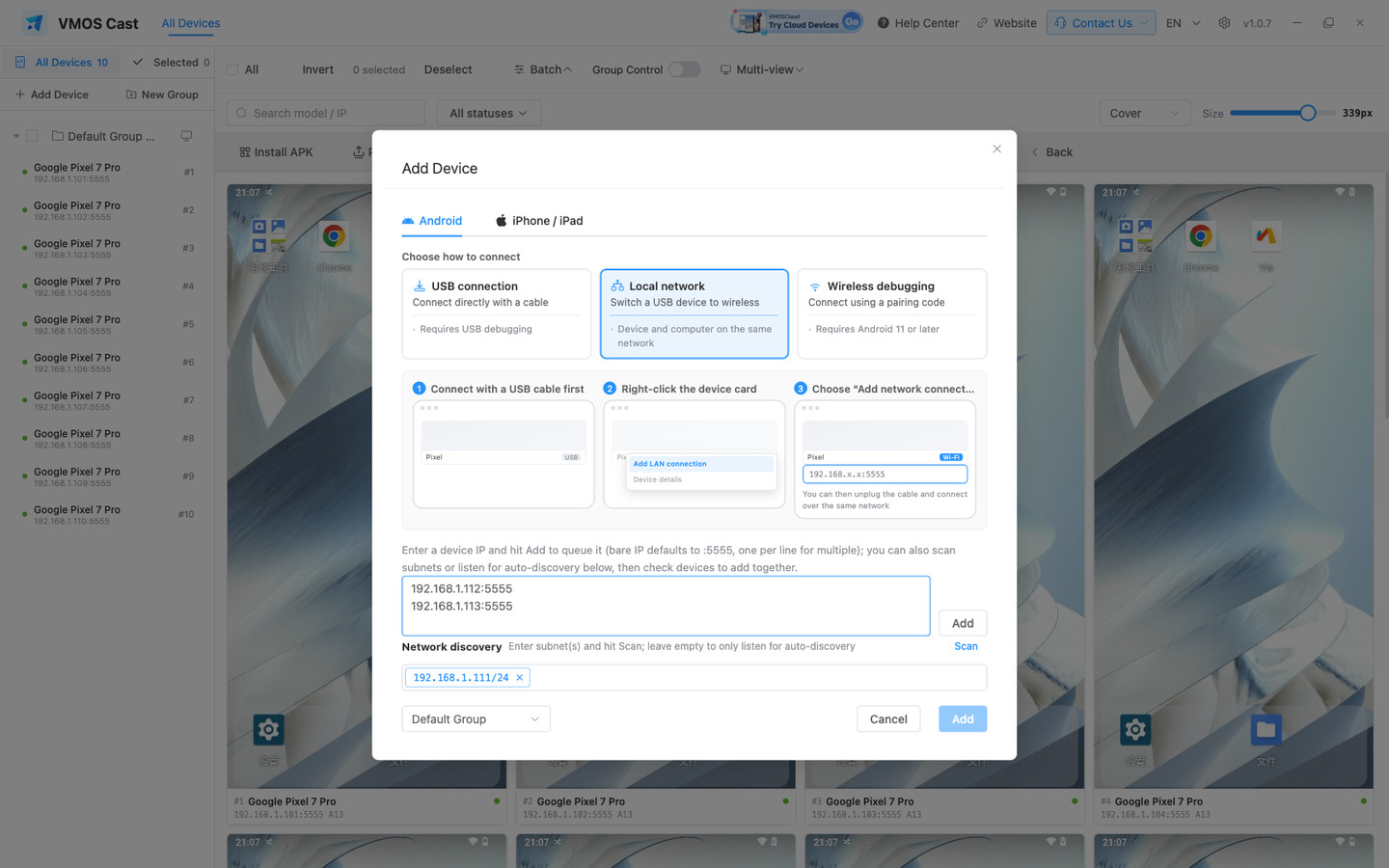
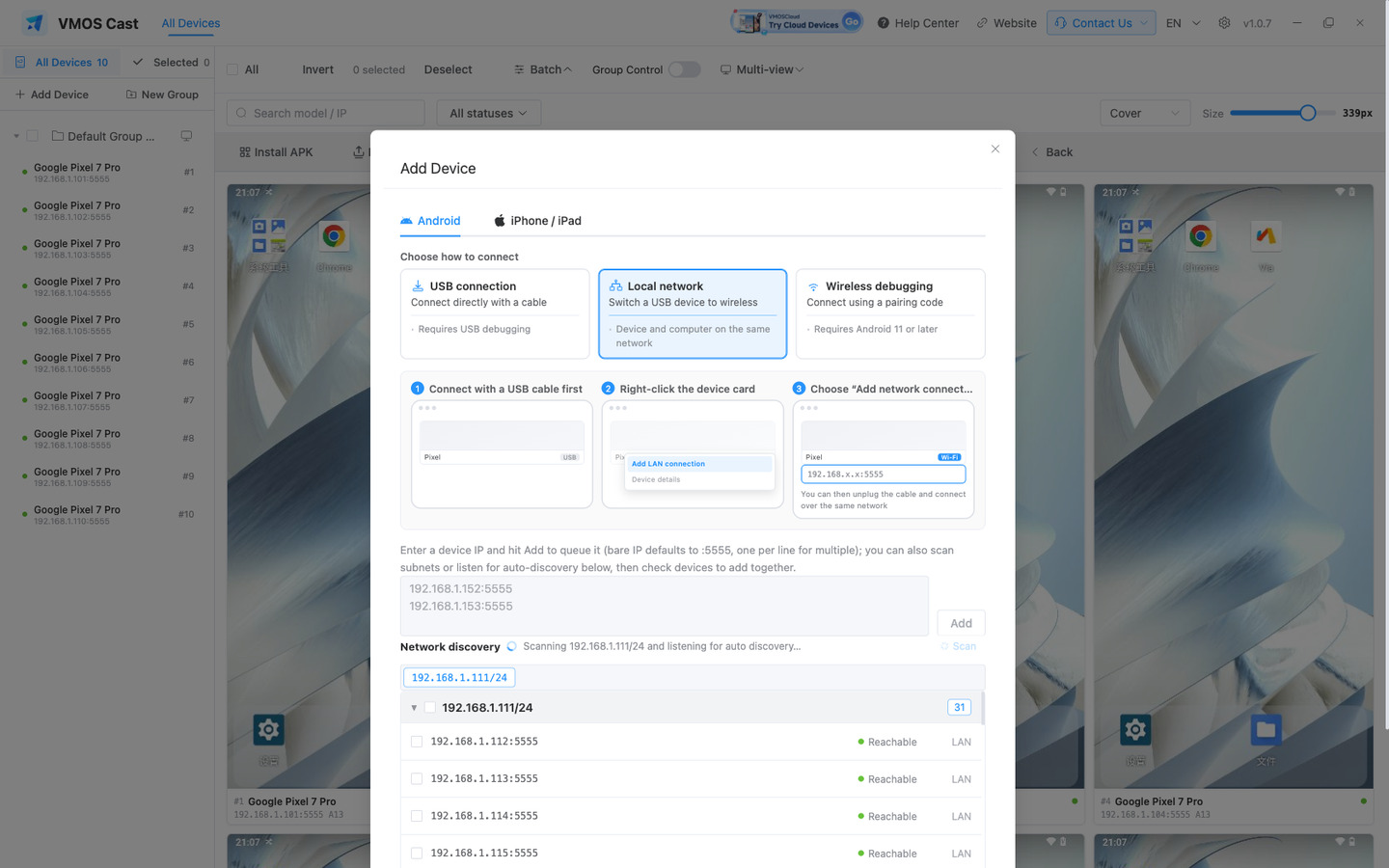
If you do not know the address, use Network discovery at the bottom of the Add Device dialog: click Scan, then select the devices you want to add:
First-time Wi-Fi setup for physical phones
Physical phones do not allow network connections by default. This has to be enabled once over a USB cable.
- First connect the phone over USB following USB cable connection (until you can see its screen on the device wall);
- Right-click that device's card and choose Add LAN connection;
- Once the LAN connection appears on the wall, you can unplug the cable.
The phone's IP is shown under the phone's "Settings → WLAN → current network" (e.g. 192.168.1.88). Next time you can enter 192.168.1.88:5555 directly under Add Device → Local network.
Reset after a reboot
After the phone reboots, this LAN connection turns off automatically and has to be enabled again over the cable · a security mechanism of the Android system. A device paired through wireless debugging is unaffected.
"Wireless debugging" on Android 11+
Android 11 and above offer a third route: click Add Device, choose Wireless debugging, then on the phone open Settings → Developer options → Wireless debugging → Pair device with pairing code and enter that code in the dialog. Pair once and the phone reconnects automatically after a reboot — no cable at any point.
Batch Add and Scan
The Add Device dialog lets you paste multiple addresses at once (one per line, or comma-separated) and connect them all in one click:
192.168.1.100:5555
192.168.1.101:5555
192.168.1.102:5555
You can also enter multiple subnets in Network discovery (type a subnet such as 192.168.1.0/24 and press Enter to add it). Scan results are not added automatically — the list marks each device as connectable, unresponsive, pairing required, or already added, and only connectable ones can be selected.
Automatic reconnection
Every address you have connected to is saved automatically. The next time you open VMOS Cast it reconnects to all saved devices · a device that is temporarily powered off returns to the wall automatically once it is back on the network.
In the saved list inside the Add Device dialog, you can remove addresses you no longer need.
Troubleshooting order
| Symptom | Check first |
|---|---|
| It fails immediately after entering an IP | Make sure the format is IP:5555, not just the IP |
| Stuck on connecting | Confirm the computer and device are on the same subnet; corporate VLANs and guest networks may isolate devices |
ping fails | Fix the network first; this is outside VMOS Cast |
ping works but connection fails | Port 5555 is not open on the device, it is blocked by a firewall, or a physical phone's wireless connection was turned off by a reboot |
| Many devices drop often | Use wired network on the computer, disable AP isolation on the router, and avoid Wi-Fi power saving on devices |