What is VMOS Cast
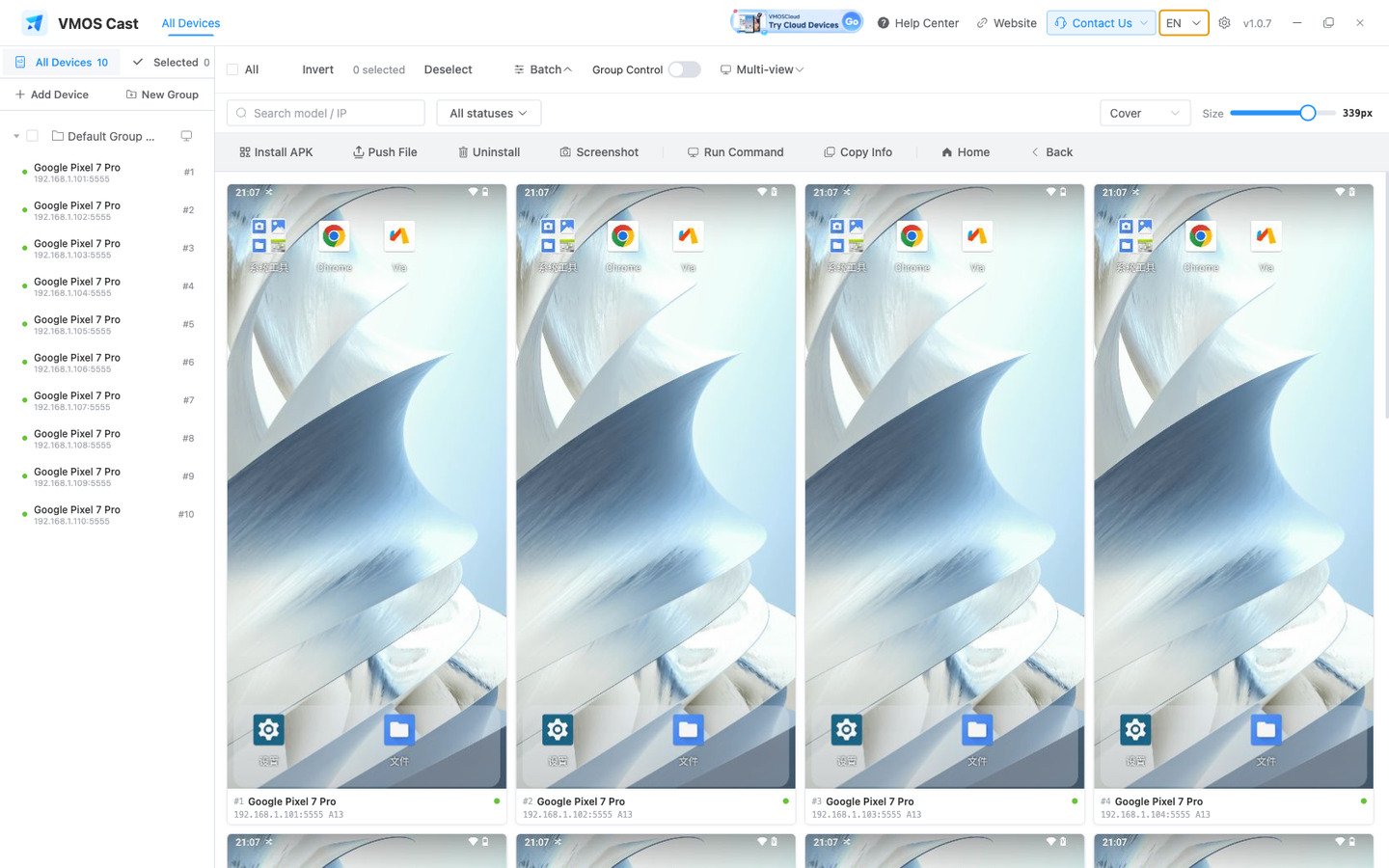
VMOS Cast is a desktop client for controlling phones in bulk. It gathers the live screens of Android devices and iPhones or iPads on your local network into a single device wall, and lets you operate them from the computer with your mouse and keyboard — one device in detail, or many at once.
Nothing is installed on the phone, and no account is required. Pictures and commands stay on the local network; no cloud server is involved.
How it works
IP:5555, iPhones from Control Center via Screen MirroringWhat it can do
- One live picture per device, dozens on one screen
- Card size, scaling mode and refresh rate are adjustable
- Search by model or IP, filter by six statuses
- Click, drag and scroll the device directly
- Type from the computer keyboard, IME included
- Volume, screen on/off, rotate, screenshot, terminal
- One device leads, the rest follow
- Taps, swipes and drags mirror in real time
- Select two or more devices that are already streaming
- A whole group inside a single window
- Every pane is directly clickable
- Drag panes to reorder, or expand one on its own
- Install, push files, uninstall, screenshot
- Run commands, copy info, Home / Back
- Per-device results, with a reason for each failure
- Create groups and move selected devices into them
- Group, search and status filters stack
- Multi-view follows the group's membership
The card's right-click menu also covers renaming, device details, converting a USB connection to a network one, and rebooting or shutting the device down.
One device: the focus window
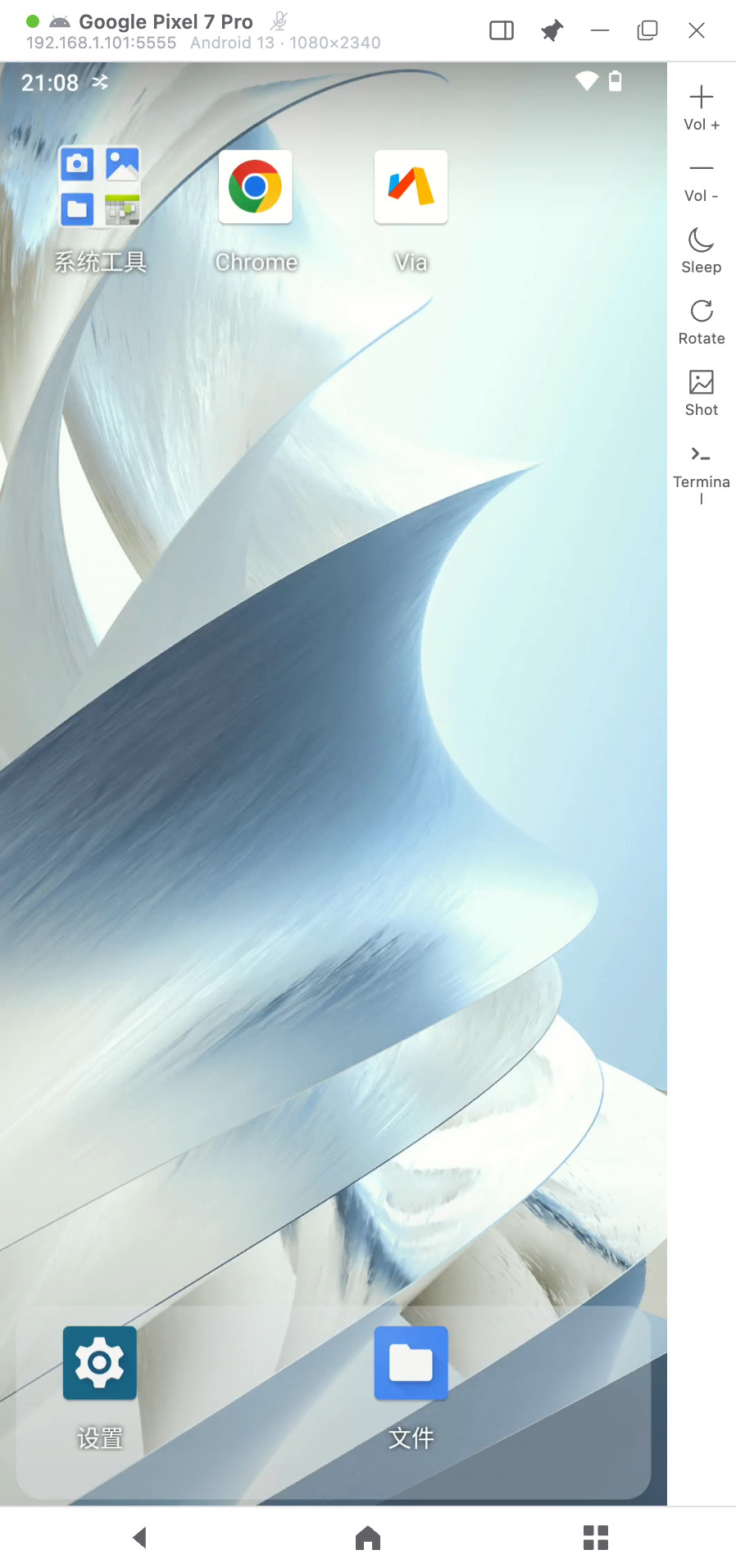
Click the picture on any card to open that device in its own window. The wall stays visible behind it.
| On the computer | On the device |
|---|---|
| Click | Tap |
| Click and drag | Swipe, drag |
| Scroll wheel | Scroll a list |
| Keyboard | Text and keys go to the focused input field, IME included |
Esc | Close the window without dropping the connection on the wall |
The side toolbar holds volume up/down, screen on/off, rotate, screenshot and a terminal; Back, Home and Recents sit along the bottom. The window keeps the picture's aspect ratio as you resize it, so nothing is stretched. Three window styles are available: standard, minimal and immersive.
An iPhone's toolbar has a single Control button and no bottom keys — those are Android system keys.
One group: Multi-view
Put every device in a group into one window.
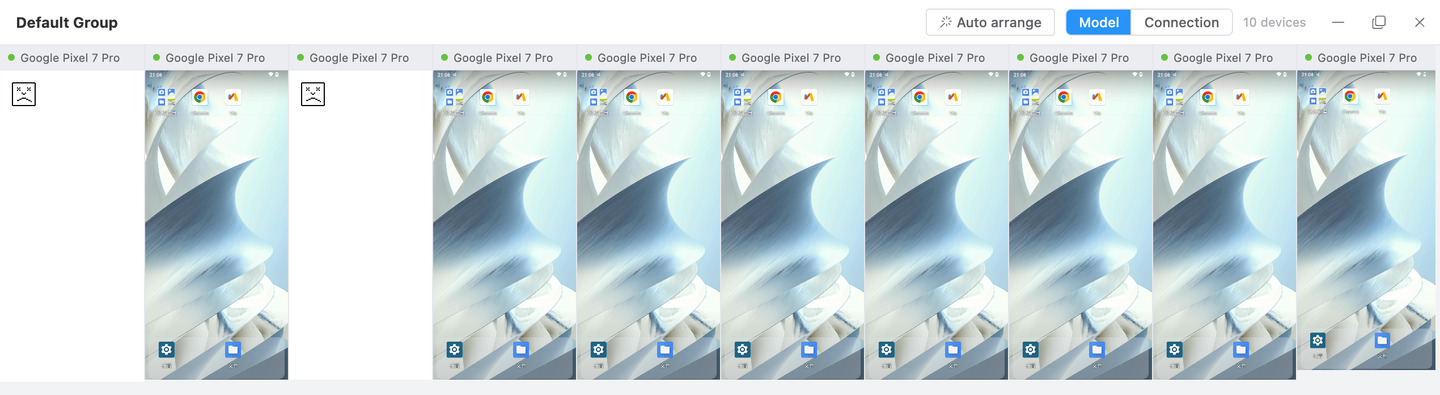
- Every pane is directly clickable, and the layout fills the window automatically
- Drag a pane by its title bar to reorder; the others move aside
- Expand a single pane into its own focus window, or remove it for this session
- Change the group's membership and the window follows
Many devices: batch operations and group control
Select several devices, then open the batch panel in the toolbar.
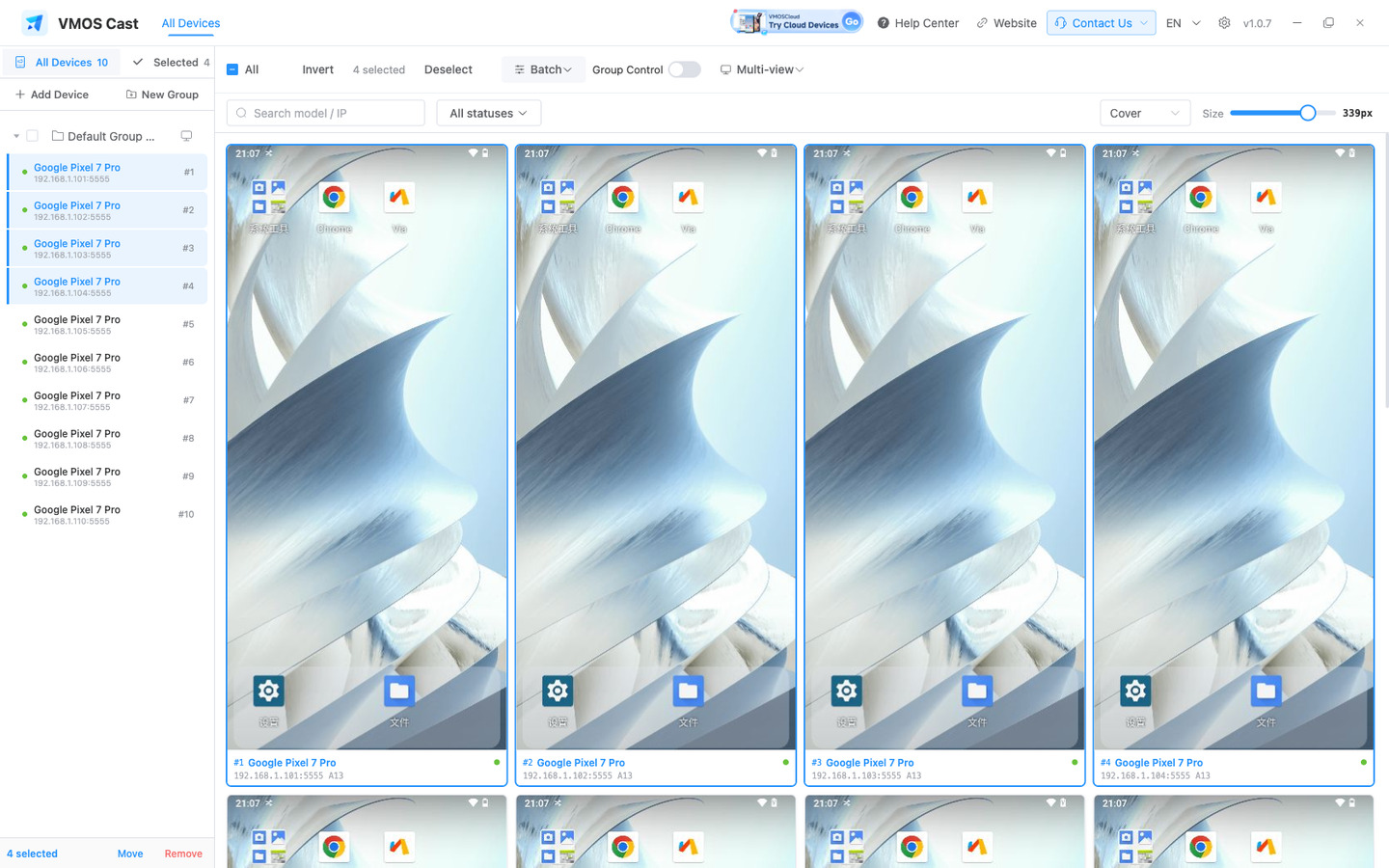
| Batch operation | What it does |
|---|---|
| Batch install | Accepts apk / apks / apkm / xapk and queues several files; an installed older version is updated in place, keeping app data when the signature matches |
| Push files | Lands in the device's Download folder, and reports the real path per device |
| Batch uninstall | By package name; cannot be undone |
| Batch screenshot | Written straight to the folder set in Settings, with no save dialog |
| Run command | Executed in parallel on the selected devices, with built-in templates |
| Copy info | Copies the ID, address, model, resolution and system version of the selection as text |
| Home / Back | Sends a system key to the selected online devices |
Every selected device is attempted — none are silently skipped — and any device that cannot be reached is reported on its own line with the reason.
Group control synchronises gestures instead of actions: the first selected device becomes the master, and every tap, swipe and drag in its window is mirrored to the followers. Keyboard input goes to the master only.
Devices you can cast
- Developer options and USB debugging must be on
- Cable on first connection, then switch to the network
- Android 11 and later can join with a pairing code instead
- Connect by entering
IP:5555 - Nothing to set up on the device side
- Paste addresses in bulk, or scan a subnet
- On the same Wi-Fi as the computer
- No app installed on the device
- One iPhone can mirror at a time
All three appear on the same device wall, and selection, groups and Multi-view work the same for each. Batch operations and group control apply to Android devices only.
Controlling an iPhone from the computer depends on the platform:
Computers it runs on
| Platform | Installer | Notes |
|---|---|---|
| Windows | .exe | Windows 10 / 11, 64-bit |
| macOS | .dmg | Separate installers for Apple Silicon and Intel |
| Linux | .AppImage | x86_64 |
Download, install, and you are ready — no extra components are needed on the computer. Installers are listed in the Release History. Android 8 is the oldest supported device version.
Typical use cases
Interface languages and themes
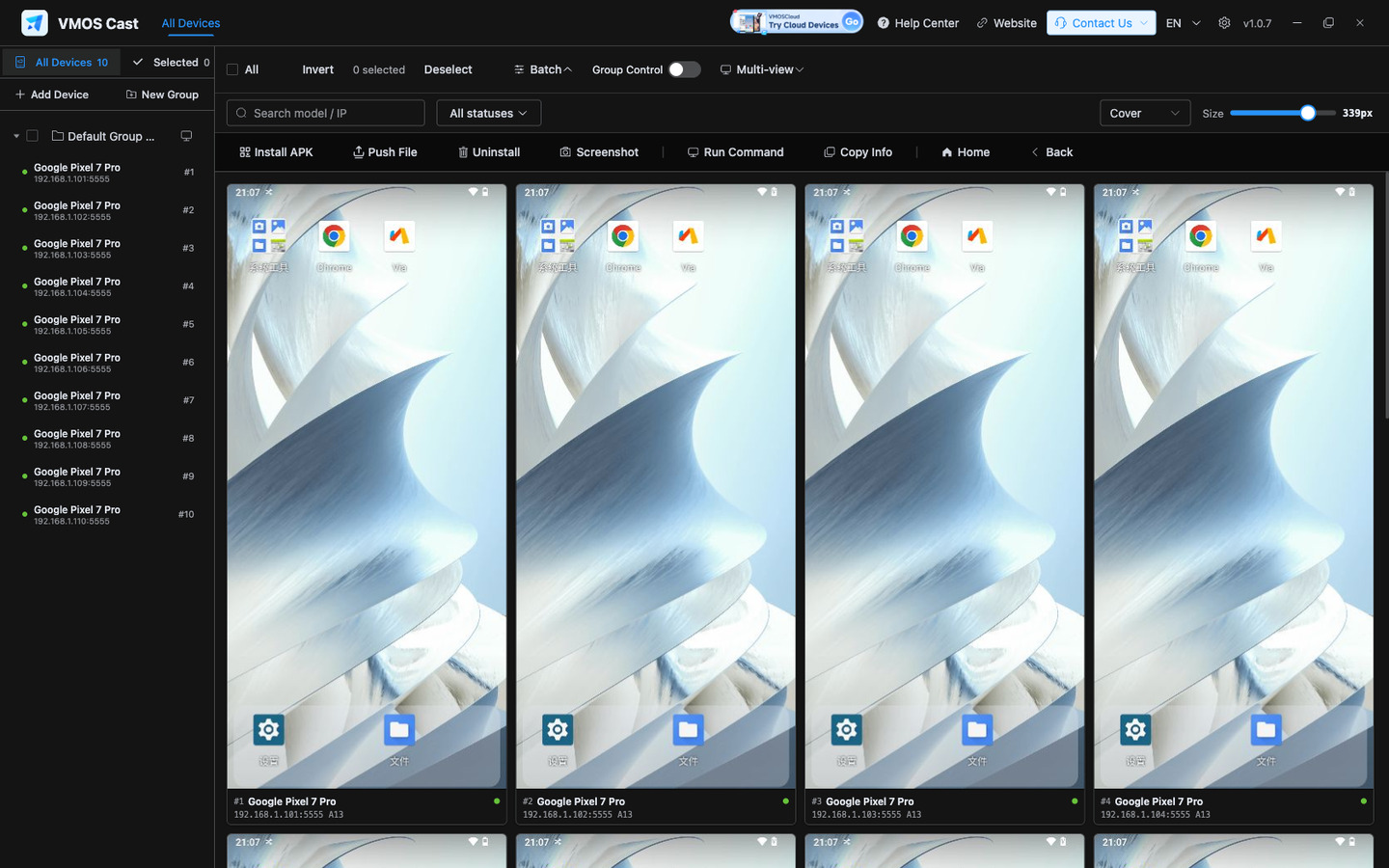
The interface ships in 21 languages, switched from the top bar; the dropdown lays them out in three columns without scrolling. Arabic and Urdu mirror the whole layout right-to-left, while device pictures keep their original orientation. Themes are light, dark or follow-system, with a customisable accent colour. Dark suits long monitoring sessions:
Common questions
Do I need to install an app on the phone?
No. Connecting to an Android device opens a temporary casting and control channel, and nothing is left behind after you disconnect. iPhone and iPad use Apple's built-in Screen Mirroring, so no app is needed there either.
Is my data uploaded to the cloud?
No. Pictures and control commands travel only between your computer and the device over the local network — no cloud server is involved. It works without internet access · both only need to be on the same local network. The device-side control port is not exposed to the network; it is reachable only through the connection the application establishes.
How many computers can use one device at the same time?
Any number. Each computer's connection, windows and input session are isolated and all of them can operate the device — no waiting for a control token. Screen-on, screen-off and protected-page states are reflected on every computer in real time.
Next steps
- Just getting started? See Quick Start: Download & Install
- Want the full interface and feature walkthrough? See Complete Product Manual
- Not sure which kind of device you have? See Physical phones vs. cloud phones
- Running into trouble? See FAQ