
Step 3: Your First Three Moves
The top promotion area cycles between VMOSCloud and VMOS+. Hover or keyboard focus pauses it; clicking the visible card opens that product’s website in the system browser. The promotion area is hidden in narrow windows.
Contact support and diagnostic logs
After a successful upload, the diagnostic ID appears under Settings → About → Export logs. Click it to copy it, then send it to support when reporting the problem in chat. Support can use the ID to locate the matching diagnostic attachment on the same event.
Selecting Online chat, Telegram or Email under Contact support uploads the same diagnostic ZIP as Export logs in the background, as explained under Settings → About → Export logs. Logs are not additionally redacted and may contain device identifiers, paths and diagnostics; select a channel only if you agree to provide this information. No login is required: a persistent installation ID associates the report. Support can locate the associated logs in the backend after upload. Device information is context, not a diagnosis that a particular phone is faulty.
Contact remains available during upload or failure. Concurrent requests merge; successful reports are reused for two minutes. Archives above 20 MB, network failures or missing desktop logs prompt manual export in Settings instead of silent truncation. Nothing is automatically posted to the Telegram group. This only uploads logs when contacting support, without automatic error capture or source upload.
Connection and control essentials
- Android supports USB and LAN connections from multiple clients. Avoid simultaneous dragging. Confirm the wireless picture is live before unplugging USB. Performance depends on the network and devices.
- Multi-view and group control include available Android devices only. iPhone / iPad retain independent mirroring and device management, without multi-view or group control.
- The independent iPhone display prioritizes the incoming source resolution; Android display quality and bitrate settings do not affect iPhone.
- Android focus windows and multi-view panes use the device's original picture by default, subject to local hardware decoding limits; making a window or pane smaller does not lower the source resolution. The focus window's Quality panel can lower it explicitly, and Original restores Full Screen FPS and Bitrate from Settings.
- Windows and macOS support direct iPhone control over compatible Bluetooth hardware. Follow the illustrated guide to enable Accessibility › Zoom, restore normal picture size, then verify a tap. Linux does not support iOS control.
Experimental entries in development builds
Choose Phone camera, Screen, Window, Image or Computer camera from More → All tools → Camera source in the device window, or pin the entry to the sidebar. The choice is shared by the device; independent app windows no longer select their own source. Camera source is fixed to the right of the device window and shares the sidebar with other tools; it cannot be dragged separately. Closing it or switching tools hides the panel. Reopening preserves the selected source and the phone picture keeps its size. If the app view connects without displaying a frame, the client stops sharing when the first-frame deadline expires. Check the phone connection, select the source again and restart.
Device rows in the sidebar also support drag sorting. Drop in the upper half of a row to insert before it, or the lower half to insert after it; the insertion line marks the position, and the device wall follows the same order. Dropping beside a device in another group both moves the device into that group and sets its position. Dropping on a group heading only changes group membership. Drop on Default group to remove a custom-group assignment; the default group accepts devices even when empty. Sorting within a group only changes slots occupied by search-visible devices, preserving hidden devices and other groups. Dragging preserves selection and casting sessions. Group checkboxes reflect the new membership, and order and group changes are saved automatically. Press Esc or release outside the sidebar to cancel. The drag preview stays inside the app and disappears on release, cancellation or switching windows.
Choosing a computer window shares that window without opening the computer camera. Check the source name in Settings; the Android app should see that window when it opens its camera.
After choosing Computer camera, use the source settings to switch available cameras. Camera permission is requested only after this action; microphone access is not requested.
If device debugging disconnects or becomes unauthorized, stopping may be unable to confirm device cleanup. Restore USB debugging authorization on the phone, then choose Stop again. Do not start another sharing session before cleanup completes.
Computer sources are supplied in their original orientation. If a running camera-sharing session still shows the previous orientation, stop it, select the source again, and start a new session.
Google Camera is currently incompatible with the virtual camera and keeps using the phone camera. Other apps still depend on their own compatibility with shared camera input.
Before Camera sharing, check computer-source capture permission and Android camera permission in the preview separately. If macOS denies screen recording, follow the prompt to authorize the client in System Settings and reopen it.
Independent Android app windows and Camera sharing appear only on devices meeting their system requirements. Compatibility acceptance on newer Android hardware is still pending. Ordinary mirroring does not depend on either feature or require enabling their input component or computer-camera access. See experimental features and limits.
WeChat quick replies
Enable WeChat enhancement and manage phrases under Plugins; no separate installation is needed. Quick replies appear on the right of a controllable Android display while WeChat is foreground. The panel expands beside the picture rather than covering it.
The entry does not depend on the region of the phone number used to sign in to WeChat. If it is missing, check the plugin switch and display control, then check for a device-side service update in device details.
- Create, edit, delete, copy, import and export phrases, or search by title. Phrases contain a title and text, without groups or favorites.
- In an independent display window, Fill replaces all input with the selected phrase without sending; Send replaces all input and then sends that phrase. Any existing draft is replaced, not combined with the phrase. Multi-view still inserts at the current cursor and does not support quick sending.
- Select Enter or Ctrl/Cmd+Enter to send the current input without replacing it or inserting a phrase. The default retains normal key behavior. Shift+Enter inserts a newline and IME confirmation does not send.
- Send shortcuts first read the phone's current controls and click only when one available button is found and the page is stable. Local image recognition is used when the page does not expose chat controls. Read failures, ambiguous matches and disabled buttons prevent a click. A completed click does not confirm delivery; check WeChat. Messages are never resent automatically.
- Do not switch chats during an operation. Recognition uses the chat title and controls flanking the input, supporting light and dark portrait layouts with different status-bar heights. Chat wallpapers and keyboard skins are not used to identify the input. Sending does not transcribe the draft or wait for an empty-field caret to blink. Offline OCR regression covers varied backgrounds, keyboard skins, font sizes, multiline drafts and compressed low-resolution images. An obscuring overlay or an unconfirmed chat or Send button prevents the click; messages are never resent automatically. Landscape, split-screen, repackaged or cloned apps and non-Chinese WeChat interfaces are not fully verified; compatibility with every third-party theme is not guaranteed.
- First opening shows preparation progress. Empty Enter, missing Send and page changes end silently. A completed replacement without a Send click does not show an unknown-outcome warning; check the WeChat input. Normal sending has no result toast; check WeChat for the outcome. Unknown text-write or send-control results and connection errors still show a notification; check before clicking again. Phrases stay on this computer; exports contain message text and should be kept private.
Your devices are on the wall. These three moves cover everyday use of the app.
1. Watch the screens
Apple cards show a live preview while casting and return to the "Not casting" placeholder when casting stops. Both the sidebar and card show the reported model on the first line (iOS if unavailable) and the device name on the second. A custom client alias replaces the second line without changing the name on the phone. The Screen Mirroring device identifier remains in device details; it is not a hardware serial number. Previews reuse the video stream already received on the computer, without starting another cast on the phone, and continue while casting even after the focus window closes.
Connected iPhones and iPads also appear in the sidebar groups, consistently with the wall and total device count. Click the name below a card to select it; right-click to rename, view details, move groups or remove the record. After casting stops, the card shows "Not casting" and clicking its screen opens reconnection guidance. Apple device selection is for management, not Android group control or batch operations.
Every device gets a live card. Below the picture are its number, name, address and Android version; the dot on the right is its state.
Drag the handle beside a device card’s name to reorder All Devices, or focus the handle and press Alt + an arrow key. The lifted card follows the pointer, neighboring cards move smoothly aside, and the card settles at the release position without waiting or hovering. Press Esc, or release outside the device wall, to cancel. The order is saved automatically and retained after restarting or reconnecting the same device; new devices are appended. Device lists within sidebar groups follow the same order. With search, status or group filters active, only the slots occupied by visible devices are reordered; hidden devices keep their positions. Sorting preserves selection, group membership and casting sessions. Android devices and iPhone / iPad sources with stable identities retain their order; anonymous Screen Mirroring sources keep their order only for the current connection.
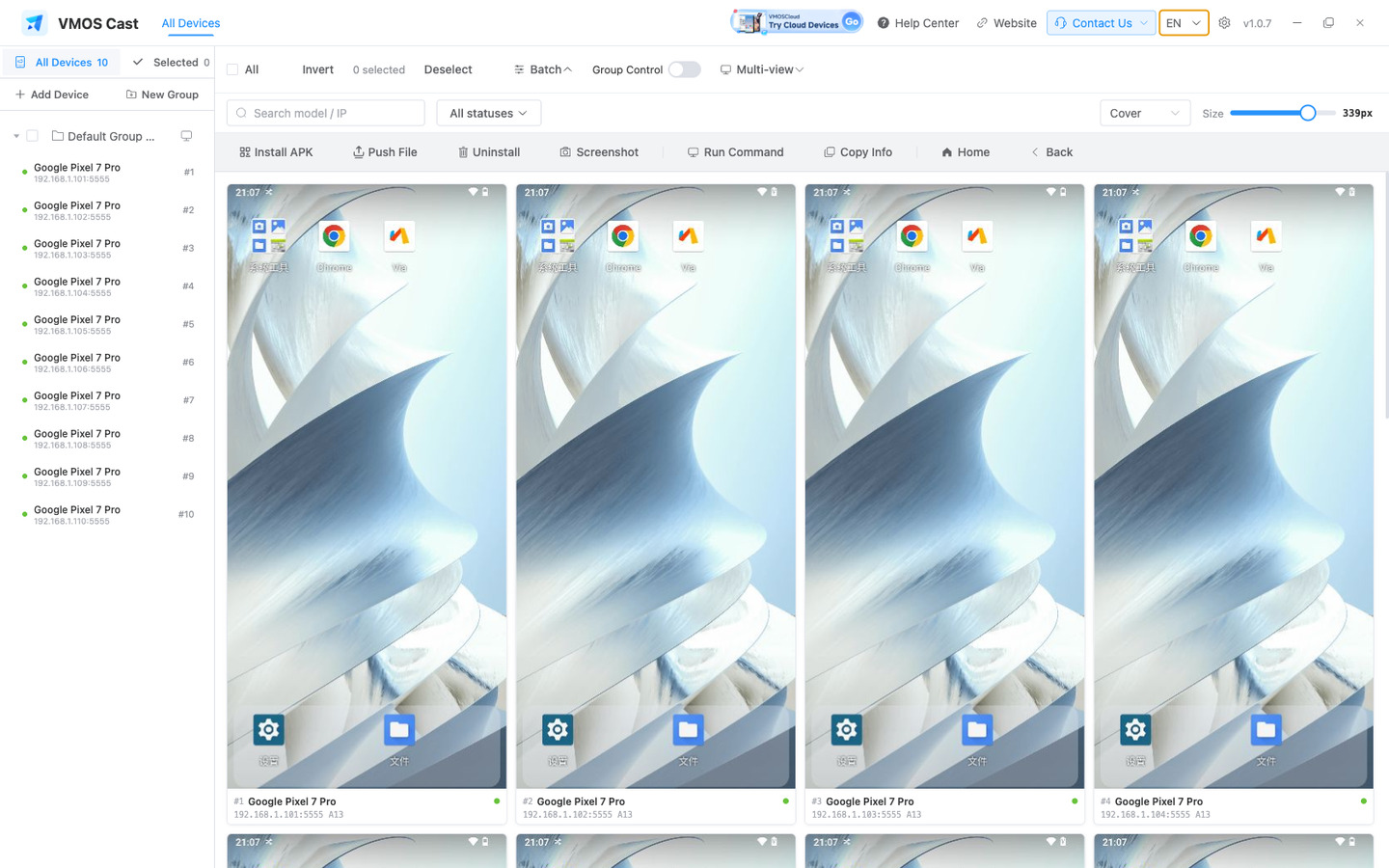
Card states at a glance:
Did mirroring or control stop unexpectedly? Open Connection assistant on the toolbar to see the affected device and next steps in the right panel. Needs attention filters affected devices. Wall preview, large-screen picture and device connection problems have separate labels and are grouped by device. Recovery history shows one row per device; devices with active issues are not listed as recovered. The wall assistant floats above the cards without resizing them; long lists scroll within the panel. Device updates share one brief notice, which continues to show remaining problems after partial recovery. Issues remain after the notice disappears; export logs for individual events. Retry only the connection that needs attention; retrying a shared service requires confirmation of its possible impact. In a focus window, use More → Connection assistant; it does not automatically interrupt the tool you are using. See the connection assistant guide.
Adjusting the view:
| To do this | Go here |
|---|---|
| Card size | "Size" slider in the top-right |
| How the picture fits | The scale dropdown · Cover / Contain / Fit Width |
| Show one kind of state | "All statuses" dropdown · online, screen off, restricted, failed, offline |
| Find one device | Search box, by model or IP |
| Thumbnail frame rate | Settings → "Device List FPS" · a lower rate uses fewer resources and supports more devices · applies on next connect |
Click a card's picture area to open the control window for that device. By default, the focus window and wall thumbnail refresh together. On a constrained network, Settings → Streaming Settings can pause the list picture while full screen is open; the thumbnail resumes when you close it. For longer monitoring, light the bulb button in the focus window title bar to keep the Android device awake. Closing the window stops it immediately; it does not change the device's screen-timeout setting or remember the choice.
2. Control one device
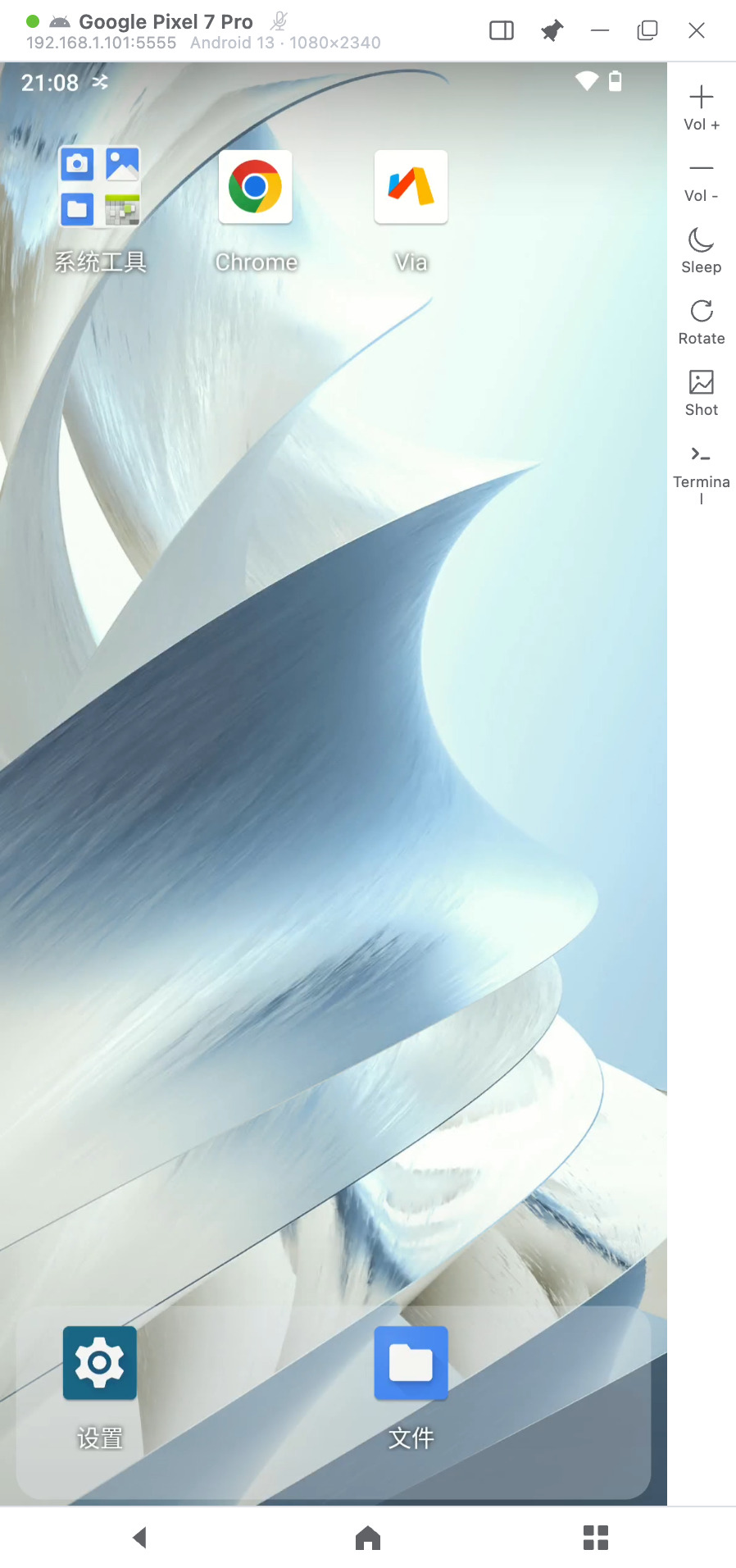
Drive the device directly with your mouse in the big window.
| On the computer | On the phone |
|---|---|
| Click | Tap |
| Click and drag | Swipe · scroll · drag |
| Wheel | Scroll a list |
| Right-click | Back while awake; wake while the screen is off |
| Middle-click | Home while awake; wake while the screen is off |
- Typing: click an input field on the screen first to place the caret, then type · IME input works normally; active Pinyin composition appears at the bottom of the mirrored screen.
- Three keys below the picture: Back · Home · Recents.
- Toolbar on the right: pin frequent tools and open others from More. Panels extend to the right without covering the phone picture.
- Display and control: on Android, turn off the physical phone screen while keeping computer control. Pinch on a supported trackpad or use Ctrl+wheel to zoom a phone app without enabling a mode. Separately rotate, mirror, zoom or pan the local picture. Physical screen-off is not locking the phone; unlock it first. Closing the display normally or quitting the client restores the phone screen. Changing quality also restores the phone display. Ordinary clicks and scrolling still synchronize in group control after rotation, mirroring or zooming.
- Key mappings / Quick actions: separate entries in More. Bind keys to picture positions, or save a sequence of taps and swipes to run. Save multiple Control profiles for app packages and phone orientations, copy them to other Android devices, or import and export JSON. Save first, then review targets and duplicates before confirming. Check touch positions and enable mappings manually after copying; different app layouts require picking positions again. Automatic profile matching is off by default. See the instructions.
- Title bar: device name, address, system version and resolution; you can pin the window from here. In a narrow device window, the title bar hides the address and resolution and moves Keep awake, window style and Pin into its More menu. Long device names are shortened; Minimize, Maximize and Close stay visible. Drag the blank space between the device name and buttons to move the window. Widening it restores the full title bar.
- Where screenshots go: Settings → Casting → screenshot folder. The full path is shown after each capture.
- Closing: press Esc or close the window · the device stays connected on the wall.
Mappings and actions save separately. Switching side panels retains drafts in the current window; save before closing the entire display. Quick actions show their current step; Stop cancels later steps and releases touches. Actions sent does not mean the phone app completed the operation—check its result.
How iPhone differs
An iPhone mirrors but does not accept input by default. On Windows and macOS, choose Bluetooth, USB or Wi-Fi LAN from the control entry in the display. Once connected, that entry shows the active method; after a disconnect, click it to reconnect the last method. Screenshot and Copy current picture remain available; connected USB / Wi-Fi control also adds Home, App Switcher and Touch trail. Linux is view-only.
On macOS, restoring USB control after restarting the client or reopening a display may require waiting for the same phone to be detected again. Do not repeatedly click during a brief “Connecting” state. If control remains unavailable, open the control entry for guidance and export logs if necessary. Stopping control or manually changing methods prevents a late automatic-recovery result from overriding your choice.
3. Act on many at once
Select Android devices and expand Batch operations:
- Applications: search by name or package and check the version. Start and stop run per device; uninstall requires confirmation. Star frequent apps, then launch them from the top of Applications in the independent display. These tools extend to the right without covering the phone display; file uploads and action confirmations also stay in that area.
- Phone files: browse shared storage and preview pictures. Upload or download folders with their structure, and copy or move phone files. Choose Skip, Rename or Replace for conflicts; failed items can be retried.
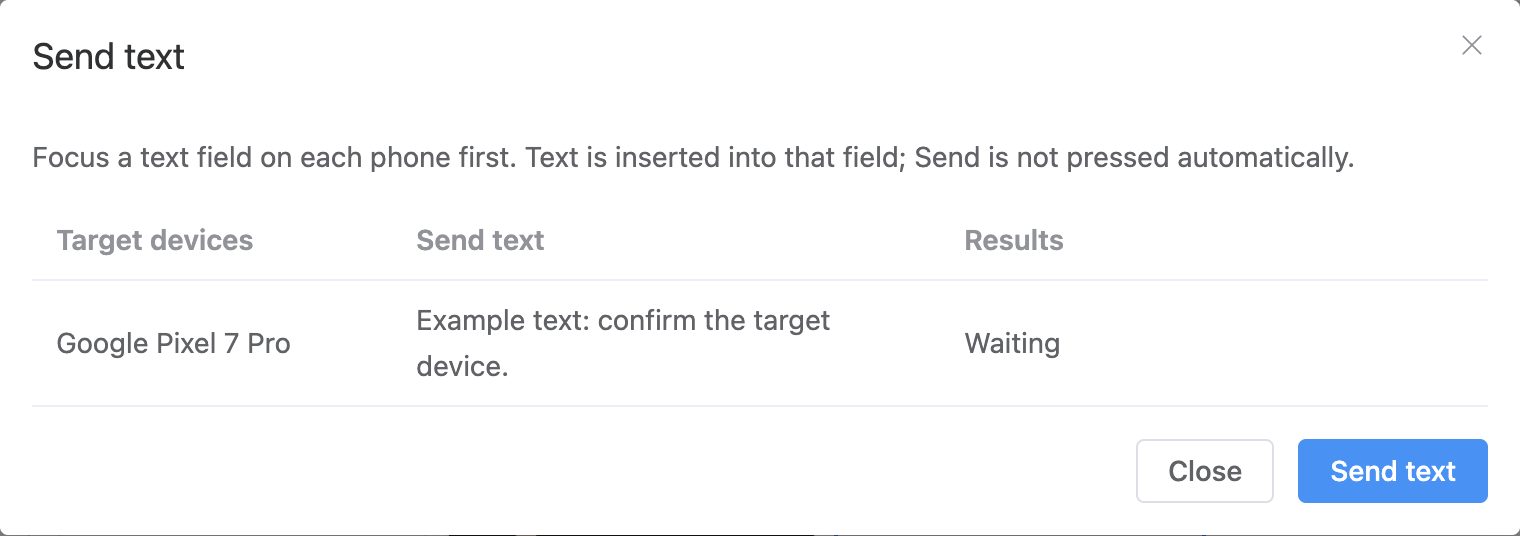
- Send text: focus an input field on each phone, enter shared or per-device text, then preview the targets before sending. Retry only failed entries.
Favorites are now at the top of Applications in the independent display. Notifications, volume, terminal, quality and matching plugins are in More and can be pinned. Android Back, Home and Recents stay at the bottom. The right-hand extension does not cover the phone picture.
The iPhone display does not currently offer volume or mute buttons. Adjust sound on the actual audio output device. Android volume controls are unchanged.
See Applications, Phone files and Batch text in the product manual for detailed steps. These tools target Android; iPhones are not included in Android batch tasks.
- Select: click a card outside the picture (title row, edges). Selected cards get a blue border and the top row shows the count.
- "All", "Invert" and "Deselect" are in the top row too.
- Expand "Batch" — every action applies to all selected devices.
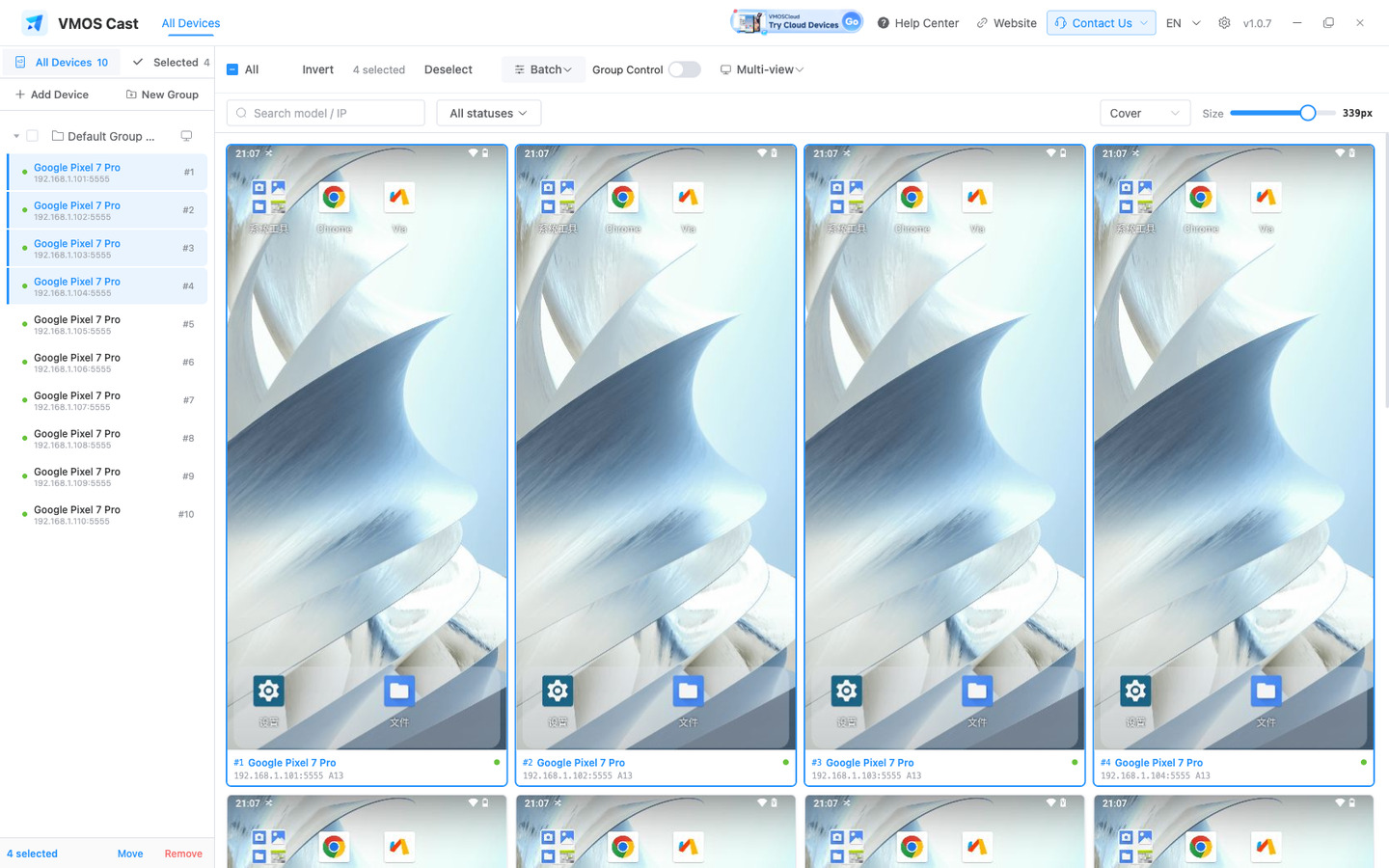
| Batch action | What it does |
|---|---|
| Install APK | Install an APK from your computer on every selected device · replaces an older version |
| Push File | Send a file to every selected device · lands in Download by default |
| Uninstall | Remove an app by package name · not reversible |
| Screenshot | Capture every selected device into the screenshot folder |
| Run Command | Run in parallel on every selected device · key, app and system-info templates included |
| Copy Info | Copy ID, IP, name, resolution and version of the selection to the clipboard |
| Home / Back | Send the system key to every selected online device |
"Move to Group" and "Remove selected" sit at the bottom of the sidebar once devices are selected.
Verify on one or two devices first
Installs and uninstalls change the devices directly. Run the action on one or two, then roll it out. Results are reported per device; a failure on one does not affect the rest.
With many devices, narrow the wall with groups: select some devices → sidebar "New group" → click the group → All → batch action.
Two advanced features
"Group Control" in the top row syncs taps, swipes and drags across Android devices. Select devices and turn it on, then click a device that is showing a picture to make it the master. Its Connected N / M status counts actual follower connections; click it to inspect reasons and retry only the failed devices. To change the master, click another streaming device on the wall. "Multi-view" instead puts a whole group into one window. Multi-view Auto arrange prioritises showing every device in full. Slight contact does not swap panes. A target swaps into the drag-start position only when more than half covered and there is enough room without overlap. While the control connection is available, newly copied phone text also reaches the computer clipboard. The last received text wins when several devices copy; removing a pane or closing Multi-view stops synchronization for that session. Move the mouse into a Multi-view pane to select it and route keyboard input there without a selection click. Dragging or IME composition does not switch the target. Drag the window title or the empty area of the top title bar to move the whole window; click empty workspace to deselect a pane. Quick replies are available only in the Android single-device window toolbar, not in Multi-view.
A phone disconnecting during exit does not prevent the client from closing. Unfinished virtual-display or camera cleanup is recorded and retried before another session on the same phone.
Moving the desktop camera preview
After calibration, move the camera-sharing window to change the selected desktop area. You can move over a static desktop while new screen content continues to update; dragging does not require reducing picture quality or frame rate.
Keep the phone scanner page still during calibration. If the positioning image is delayed, calibration continues waiting for all markers. If they cannot be identified, calibration ends and restores ordinary scanning without enabling transparent preview.
Google Lens can calibrate its portrait center-cropped preview without switching to landscape. Open Lens from Chrome, open its camera, then click Calibrate before enabling Transparent. Calibration aligns the desktop-screen preview; it does not guarantee successful code recognition. The separate Google Camera photography app remains incompatible.
On macOS, desktop capture follows the selected display’s native refresh rate instead of a fixed 30 fps limit. The phone virtual-camera path supports up to 60 fps. Open Camera can request 60 fps; Google Lens may still request only 30 fps. Actual fresh-frame throughput also depends on content changes, encoding, transfer and phone performance. A 120 Hz display does not mean the phone receives 120 fps.
Camera sharing controls
For manual setup, open Settings, choose a display, window, image or camera and a phone app, then click Start sharing at the bottom. Device information and Check device are at the top; expand Permissions and preview guidance for requirements and compatibility. Devices that do not meet the requirements cannot start sharing.
Settings collapse when sharing starts. The top toolbar provides Calibrate and Stop. Display sources also show a Transparent preview switch, which stays disabled until calibration completes. The footer shows camera activity, calibration status, the source and the selected app. Open Settings at the top right to view the setup again; stop sharing to change the source. If Lens shows a black preview, open Settings and choose Restart Google.
The phone preview retains the target app’s own interface and controls. Open Camera’s black bars and shutter controls are provided by the phone app. Keep the phone page still when using transparent preview and calibrate again after its camera closes.
For browser navigation, open Settings and choose Phone Back. This sends the phone Back key and may close its camera page; it does not open sharing settings. Open Camera does not offer this action, to prevent accidentally exiting to a black preview. Use Settings at the top right to open the sharing panel.
Camera sharing interface and controls
Click Camera sharing to open preparation and the phone preview directly. Device checks and default selections run in the background without showing setup first. Setup opens if automatic preparation fails or you choose Settings.
Phone-app and computer-camera lists use a consistent rounded menu with a checkmark for the selected item. Only available apps are listed; incompatible apps are hidden. Use the arrow keys and Enter to select, or Escape or a click outside to dismiss. Menus follow the light or dark theme.
Expand Compatibility for permissions and app limitations. Google Camera currently does not support camera sharing and is hidden from the phone-app list. This restriction applies to that app.
Click Camera sharing in a device window to prepare it automatically. macOS prefers all-display capture; other supported platforms use the display containing the window. Apps are discovered through their declared camera intents and the available system default is preferred, regardless of app names or package names. Known-incompatible Google Camera is skipped. Calibration runs once after the camera opens. The user must still confirm any phone permission prompt; preparation continues afterward. Missing cameras, unavailable sources and calibration failures leave manual settings or calibration available without repeated retries. Discovery does not prove virtual-camera compatibility.
Picture and auto-hiding controls
The Camera sharing rail centers its icons and shows Calibrate, Transparent and Stop labels, with descriptions on hover. Stop ends the current sharing session and returns to setup.
Closing an independent app or Camera sharing window hides it immediately while its session is released in the background. Reopening waits for cleanup instead of showing the closing window again.
In device mirroring, independent app windows and active Camera sharing, the title bar follows the picture area width; opening or closing a right-side tool panel does not widen it. The title bar aligns with both edges of the black picture frame, excluding the side tool rail width. The right tool rail aligns with the frame’s top edge. The top and bottom controls use the same picture gap as the right tool rail. The Camera sharing setup title bar aligns with both edges of its panel, with a compact gap between them.
After resizing an independent app window, clicks follow the new picture dimensions. Click the WeChat chat input to focus its editor.
On supported Android 15 or later devices, opening an independent app window automatically verifies or installs the VMOS input component; no Enable Chinese step is needed. Click a text field in the app picture and use your computer input method. Completed text enters the Android editor directly, without clicking the bottom Send button; the bottom field remains available as a fallback. The app picture supplies its own caret; the client does not add an overlay caret. Enter used to confirm an IME candidate does not send an app message. Changing editors, resizing or losing focus cancels unfinished input instead of replaying it elsewhere. Input mode and focus recovery buttons stay hidden during normal input. If input fails, the relevant recovery action appears; some systems may require restoring input focus after switching app windows, followed by clicking the app text field.
Before sharing, Camera sharing uses one compact setup panel for the source, phone app and Start action, without an empty preview column. During sharing, settings open in a rounded card outside the picture. Stopping returns to setup.
The side tool rail hides scrollbars while keeping vertical scrolling available.
When the device resolution is known, the window uses the device aspect ratio while connecting, avoiding a sudden narrowing when the first frame arrives.
Device windows use Standard by default, with a fixed title bar, edge toolbar and bottom navigation. Select Floating under Settings → Cast window → Focus window to use rounded, separate controls. In Floating mode, device windows and active camera-sharing sessions place the titlebar, side tools and bottom controls outside the phone picture, keeping its content unobstructed. The phone picture has a black rounded frame. The picture edge, titlebar and controls use layered shadows that spread evenly in all directions. The compact side rail has a single solid background, with icon-only actions, names on hover and theme-colored selection states. In device windows, More opens a rounded menu outside the right toolbar, showing common actions first. All tools reveals the remaining actions; the icon at the right of each row pins it to the rail. Click outside or press Esc to dismiss it. The window makes room on the right and returns to its previous width when the menu closes, preserving the phone picture size. Near the screen’s right edge, the window moves inward to keep the menu visible. Child pages such as Apps, Files and Quality use rounded tool cards outside the phone picture, with widths suited to their content. Opening or closing a card preserves the phone picture size. Applications use a grid of real phone icons and names, with package names and versions hidden by default. Hold or right-click an app to inspect its package and version, open it on the phone, manage favorites, stop or uninstall it. System apps have no uninstall action, and uninstall still requires confirmation. Where independent windows are supported, clicking an icon opens that app window; otherwise it starts on the selected phones. The star button filters favorites, and search supports both names and packages. Moving the pointer outside the window gently fades the titlebar and surrounding tools. Re-entering the center keeps the picture clear; approaching any window edge reveals the controls. The surrounding space becomes transparent when controls hide. The picture keeps the same size and position, without reconnecting the stream or requiring recalibration.
Empty space around right-hand tool cards has a transparent background. The title bar, toolbar, cards and menus retain normal mouse clicks, dragging and scrolling. A left-side arrow points to the owning tool button; if the tool is not pinned or not currently shown on the sidebar, it points to More. Cards adjust their position to the button and available space while the phone picture keeps its size. When an app context menu is open, clicking outside it first dismisses the menu.
Controls are visible when a window first opens. Open sharing settings, a tool panel or an active calibration keeps them visible. Tab also reveals the controls for keyboard use. Closing the panel restores automatic hiding. The device title-bar style button temporarily cycles through Standard, Floating, Minimal and Immersive; Settings controls the default for new device and independent app windows. Independent app windows also default to Standard, with a fixed title bar, labeled edge toolbar and bottom text input. Rounded floating controls require selecting Floating. Minimal hides the side tools and bottom text input; Immersive also overlays the title bar. Existing windows keep their layout; close and reopen an app to use the new setting. In camera sharing, open Settings at the top right to inspect the source and app.
Independent app window interface and controls
Independent app windows place the title bar, common tools and text input outside the picture, with a rounded black frame. The repeated WeChat home-page header has been corrected and verified on Pixel 8 / Android 17, preserving the full picture and tap positions. If a previous window has unfinished cleanup, keep the phone connected and retry. An already restored input state is verified automatically before reopening; repeated language switching is unnecessary. Clicking or focusing the picture does not add a colored border; mouse and keyboard control remain available. The right toolbar provides Back, Screenshot, Record and Audio; More shows camera and audio settings, with the relevant input recovery action appearing only when input fails. Details stay in the collapsed Help section; audio can also be enabled directly in settings. Opening or closing settings preserves the picture size; make the window smaller if the screen has insufficient room. Controls fade when the pointer leaves and reappear near an edge or with Tab. Switching among Screen, Window, Image and Computer camera preserves the app page and recording. Switching between Phone camera and a computer source restarts the app and ends recording and audio; camera permission may be requested again. Manually changing input mode still reconnects the app view and ends recording and audio. Type directly in the app text field; the bottom text field remains available as a fallback.
On macOS, screen capture excludes only the current camera window. The VMOS main window, other device windows and other apps behind it remain visible in the camera source.
On macOS, primary-user Android 16 or later devices can choose a shared source under Camera source in the device window. Existing and newly opened compatible independent app windows on this device use that choice. Screen, Window, Image and Computer camera switch directly while preserving the app page, input, recording and audio. Existing alignment is reused when the lens and preview dimensions stay the same. Switching between Phone camera and any computer source ends recording and audio, releases the old connection and restarts the app. The current app page is not retained, and camera permission may be requested again. Cleanup or startup failures show an error with a retry action. Phone camera restores the device default. Opening or retrying an independent window restarts the selected app. Only changes among the four computer sources preserve an already open app task and page. Screen input aligns to each app window position; Window, Image and Computer camera supply the selected content. Closing source settings hides the panel while capture continues; closing the device window restores Phone camera and releases the source. Screen and window capture require computer screen recording permission, and Computer camera requires camera permission. Each Android app still needs its own camera permission. This does not replace cameras for apps on the phone main display or in other clients. Incompatible apps such as Google Camera are not forced to use the source. Independent app windows and the virtual camera have a 60 FPS ceiling; actual cadence and latency depend on the source, transport and app, with no guaranteed frame rate or sub-50 ms return.
When an independent app opens a recognized external camera handler, its camera page stays in the same independent window. This includes the Google Lens entry in Chrome. If Lens first shows its photo picker, click Open camera to continue. The external camera uses the device’s selected source, and Back returns to the original app. Only the resolved camera pages are admitted, not the entire external app; its camera permission is still required.
Apps known to be incompatible with computer sources use the phone camera directly. A confirmed injection or preview-restoration failure also finishes recording and restarts only the affected app with the phone camera. The window shows the actual source; other apps retain the selected computer source. Apps are not restarted merely because they have not opened their camera. The app may still request its normal system permissions when its camera first opens in a new window.
Some apps block screen sharing on login, payment or other protected pages. On systems that report page protection, independent app windows show “Screen sharing blocked”. The picture resumes automatically when protection ends, without reconnecting. Reopen app starts the app again; complete any required login on the phone first. Screenshots, new recordings and text input are disabled while protected; an existing recording can still be stopped. This is a page restriction, not evidence that the entire app is incompatible. Older systems without this event may still show a black picture.
Reopen and Retry first verify that the previous window has released its resources. Other projection windows can remain open when this app’s input component is already disabled and its previous state has been restored. An active input session or an unrestored state still keeps cleanup pending.
On some devices, the regular phone window can show protected pages at a lower frame rate using system screenshots. Independent app windows use a separate virtual display, where Android may blank protected content before capture. A page working in the regular phone window therefore does not establish support in an independent app window.
Source cards highlight immediately when clicked. Screen and Window still require a content selection; Back or canceling the image dialog restores the highlight to the active source.
The computer screen camera is not limited to WeChat scanning. Photo, scanning and other camera pages in the current independent window can use its front and back virtual cameras, subject to Android virtual-camera compatibility. It does not replace cameras globally or take over other app processes. Google Camera is currently incompatible: its independent window hides the switch and explains the limitation instead of waiting on a black picture. Other apps are not rejected for being absent from a preset list.
Virtual cameras offer common 16:9, 4:3 and square modes for legacy Camera1 and Camera2 preview and JPEG capture. Alignment is stored separately for each lens and input size. New configurations are measured; returning to a known configuration verifies and reuses its alignment in the background. Reopening the same configuration does not repeat full calibration. Pixel 8 / Android 17 validation covers real preview and JPEG capture at Camera2 rear 640×480, front 1280×960 and rear 720×720, plus Camera1 front and rear 640×480. This does not establish compatibility with every phone or app. Vendor physical-camera pipelines, proprietary processing and mixed-aspect multi-stream sessions may remain unavailable.
If an app rebuilds its camera during initialization and interrupts calibration before geometry is measured, the next camera-open event allows one additional measurement. Each configuration gets at most one such retry; existing alignment continues to be verified and reused. Calibration pauses while a system permission dialog covers the camera and continues after the app returns with a new picture, so the dialog is not measured as viewfinder content. After calibration, the live preview is confirmed before the picture is shown, keeping test patterns out of view. If the live preview cannot be confirmed, the app stays connected and offers Retry preview. Retry preview does not restart the app. You can also choose another computer source; switching back to Phone camera restarts the app. Computer sources preserve the app’s own gradient overlays and translucent controls.
Computer-camera, window and image sources also correct rotation and reflection from the app’s actual preview, with separate alignment for each lens. Computer cameras use a centered crop that preserves proportions; windows and images fit fully without stretching. Switching computer sources reuses alignment for the same lens and preview dimensions. Changes to the lens or preview dimensions trigger automatic realignment, without manual rotation for individual apps.
Taobao and Bilibili scanning automatically use a single 16:9 camera format to prevent mismatched preview and photo streams from causing a black screen or closing the scanner. No manual setting is required. Adaptations apply independently to each app. Other apps retain the existing 16:9, 4:3 and square formats. Bilibili’s animated scanning band uses separate position calibration. It preserves the scanner animation, displays an ordinary preview and follows the window position, without making the moving overlay transparent. This adaptation has been verified on Pixel 8 / Android 17; other phones still require compatibility testing.
Once aligned, screen sources follow the app window’s position. All displays allows the viewport to move across the selected screens without squeezing a whole landscape desktop into a portrait picture. Ordinary camera preview remains available when alignment cannot be confirmed.
If a window close or camera switch lacks complete cleanup confirmation, reopening verifies that the old resources are gone and input settings are restored. A verified result allows the app to continue without restarting the client. Verification does not change the phone’s selected input method. If verification fails, keep the same phone connected and retry. Application management displays a short cleanup message; detailed diagnostics remain in the logs.
Recording duration and saving
Both ordinary device windows and independent app windows can record a still picture without scrolling the phone first. Click Record to start immediately. A red indicator and elapsed time appear in the title bar. Click Record again or the timer to stop, then choose where to save the WebM video. Canceling the save discards this recording. The saved-file card shows its name and duration, with a Show in folder button. Static pages retain their actual duration and support seeking. To include app audio in an independent window, enable its audio before recording.
Moving the camera viewport
While moving the window or while the captured content keeps changing, transparent preview temporarily shows the complete phone return in the same preview layer to avoid overlapping old text with the current desktop. Waiting for a matching frame does not repeatedly hide and show the entire preview layer. Transparency resumes automatically once the position and content settle and the returned picture matches. Recalibration is not needed; camera capture and phone controls continue working.