
Group control & batch operations
Once you select multiple devices, the toolbar's batch operations act on all selected devices at once.
How to enter batch mode
- Click the area outside a card's screen to select the device (blue highlighted border); you can select multiple in a row;
- Or use the toolbar's "Select all" to select every visible device in one click (works great with group filtering);
- The top status row shows "N selected."
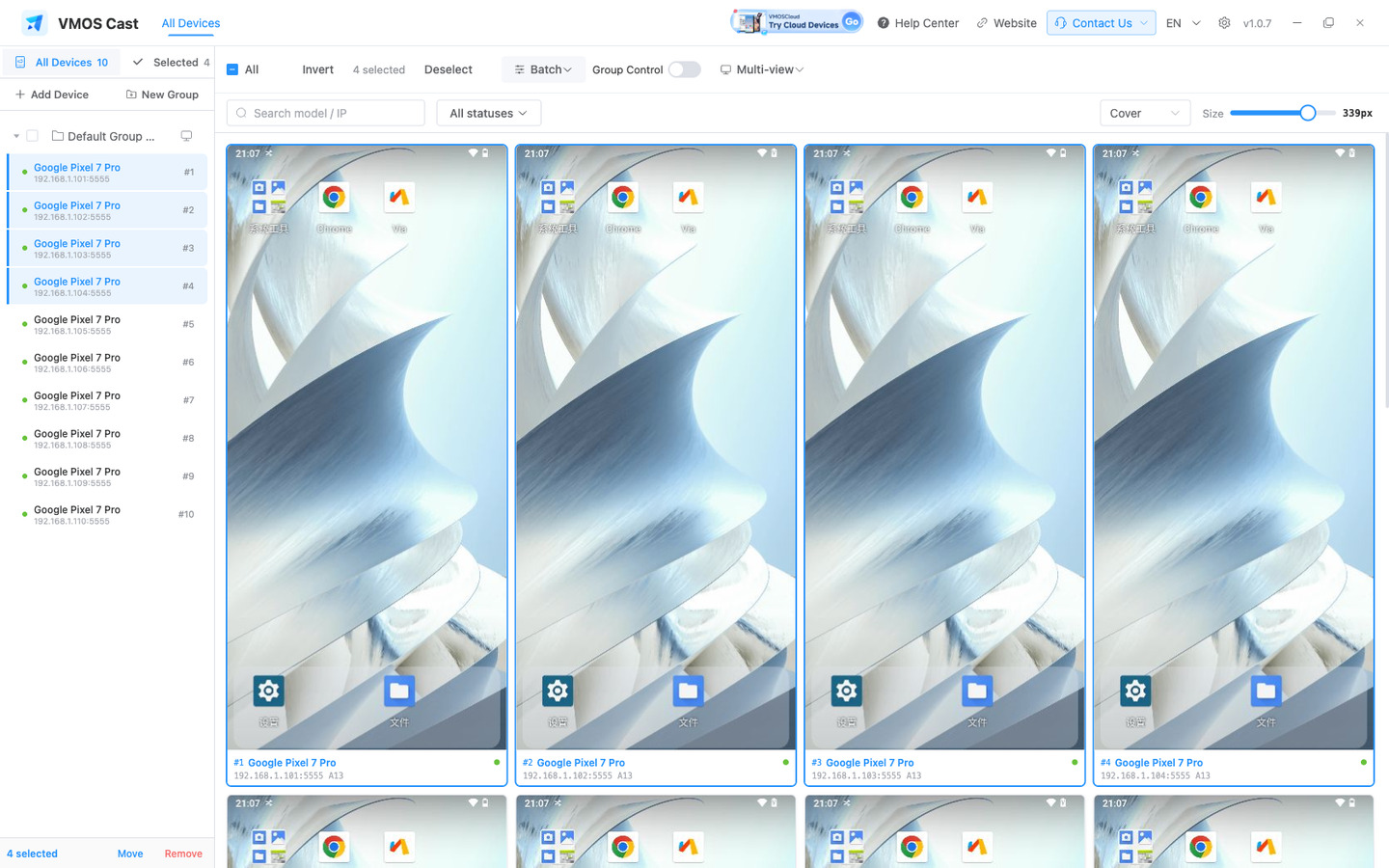
Batch operations at a glance
| Operation | Description |
|---|---|
| Batch install | Choose an APK file on the computer and install it to all selected devices. An older installed version is force-overwritten with the version you chose, keeping every device on the same version |
| Batch push files | Send a computer file to all selected devices, stored in /sdcard/Download; each device reports where its file landed |
| Batch uninstall | Enter an app package name to uninstall it from all selected devices |
| Batch screenshot | All selected devices take a screenshot at the same time, saved to the folder set in Settings |
| Run command | Run a command on all selected devices in parallel, with built-in templates grouped into Input keys / App management / System info, plus a timeout. Offline devices are excluded automatically |
| Copy info | Copy the selected devices' ID, IP, name, resolution and Android version to the clipboard, using the fields and separator you pick |
| Home / Back | Send system keys to all selected online devices |
| Move to Group | Move selected devices to an existing or new group |
| Remove selected | Remove selected devices from the wall and delete saved addresses |
Each device's result is reported one by one; a failure is flagged individually and doesn't affect the other devices.
Batch operations apply to Android devices only · iPhones do not support app install, file push, or system keys, and say so when you try.
Common batch buttons are grouped in the top toolbar:
Group master: syncing gestures too
The batch operations above sync actions (installing a package, sending a system key). To sync gestures — taps, swipes and drags — to several devices at once, use Group master:
- Select two or more devices that are already showing a picture on the device wall;
- Click Group master in the toolbar;
- The first device opens as the master in a control window, with "Group master · syncing gestures to N devices" at the top;
- Taps, swipes and drags in the master window are mirrored to the other selected devices in real time.
Text typed into the box at the bottom of the master window is sent to all selected devices; the placeholder changes to indicate group sending.
TIP
If fewer than two devices are selected, or the selected devices have not started showing a picture yet, you will be told that group master needs at least two devices with a live picture. Wait until the pictures come up, then click again.
Tips
- Group first, then group-control: put the devices for one task into a group, then run group → Select all → batch operation;
- Large batch installs take time: installing on dozens of phones at once depends on phone performance and network, so it queues up — progress is shown on screen;
- Devices with different resolutions can run batch operations together; system keys and batch commands are sent device by device.
Pre-run checks
| Batch action | Confirm first |
|---|---|
| Batch install | APK source is trusted, version is consistent, and phones allow USB install |
| Push files | File names do not contain special characters unsupported by the target app |
| Batch screenshot | Disk space is enough; avoid filling the screenshot folder with repeated captures |
| Batch uninstall | Package name is exact; test on a small set first |
| Remove selected | Confirm these devices should not auto-reconnect next time |
Notes
- Batch uninstall can't be undone — double-check the package name before you run it;
- Some phones (such as Xiaomi) may show a confirmation dialog on the phone when installing an app; you'll need to enable "Install via USB" or disable "install monitoring"-type settings on the phone.